Adding chapters to your YouTube video is one of the smartest, simplest things you can do to boost its performance. It’s not just about making your video easier to navigate; it’s a powerful strategy for increasing viewer engagement and, crucially, your total watch time. All it takes is a straightforward list of timestamps and titles in your video’s description to create a skippable table of contents that completely transforms the viewing experience.
Why YouTube Chapters Are a Game-Changer
Think of chapters as a roadmap for your audience. In an age of endless content and shrinking attention spans, giving viewers this kind of control isn't just a bonus—it's essential for keeping them from clicking away. When someone can instantly find the exact nugget of information they came for, they're far more likely to stick around.
Picture a long tutorial on building a PC. A viewer who just needs to see the part about installing the RAM can jump right there instead of scrubbing aimlessly. Or imagine a two-hour podcast episode; a listener can easily skip to a specific guest's segment. You've just turned a potential bounce into a successful, engaged viewing session.
The Real Impact on Your Channel's Growth
This improved user experience sends all the right signals to the YouTube algorithm. The platform loves content that keeps people happy and watching longer. By adding chapters, you're telling YouTube your video is well-structured, user-friendly, and valuable, which can earn you better placement in search results and recommendations.
The numbers don't lie. Properly implemented chapters can have a massive impact, sometimes boosting click-through rates by as much as 45% and increasing watch time by 25%. We've even seen channels get 12% more external traffic from Google search results after adding them. In a world where YouTube has over 2.5 billion monthly users, ignoring a feature this powerful is like leaving views on the table.
Think of Chapters as a Strategic Tool
At the end of the day, adding chapters is a key tactic in your overall marketing and branding for video success. It’s a low-effort move with a surprisingly high return.
Here's what you gain:
- Better Viewer Retention: You hold people's attention longer by empowering them to find the content most relevant to them.
- A Nice SEO Bump: Google often indexes chapter titles, which can show up as rich snippets in search results and create multiple entry points to your video.
- More Watch Time: This one seems backward, but it's true. Letting people skip ahead often increases total watch time because they engage deeply with the parts they care about instead of leaving altogether. If you want to dive deeper, check out our guide on what public watch hours on YouTube are and why they matter.
When you break your content into logical segments, you're showing respect for your viewer's time. That simple act builds trust and makes them far more likely to subscribe and come back for more.
How to Add Chapters to a YouTube Video Manually
When you want total control over how your video is broken down, adding chapters yourself is the way to go. It might take a few extra minutes, but this hands-on approach is the most reliable way to make sure your chapters are perfectly accurate and the titles are optimized for both viewers and search engines.
The whole process is surprisingly simple and happens right in your video's description box. You just create a list of timestamps with descriptive titles, and YouTube's system reads it and builds that interactive, segmented progress bar viewers love. It's a small bit of effort for a huge payoff in making your content more user-friendly.
Think of it this way: chapters can be the difference between a viewer sticking around or bouncing.
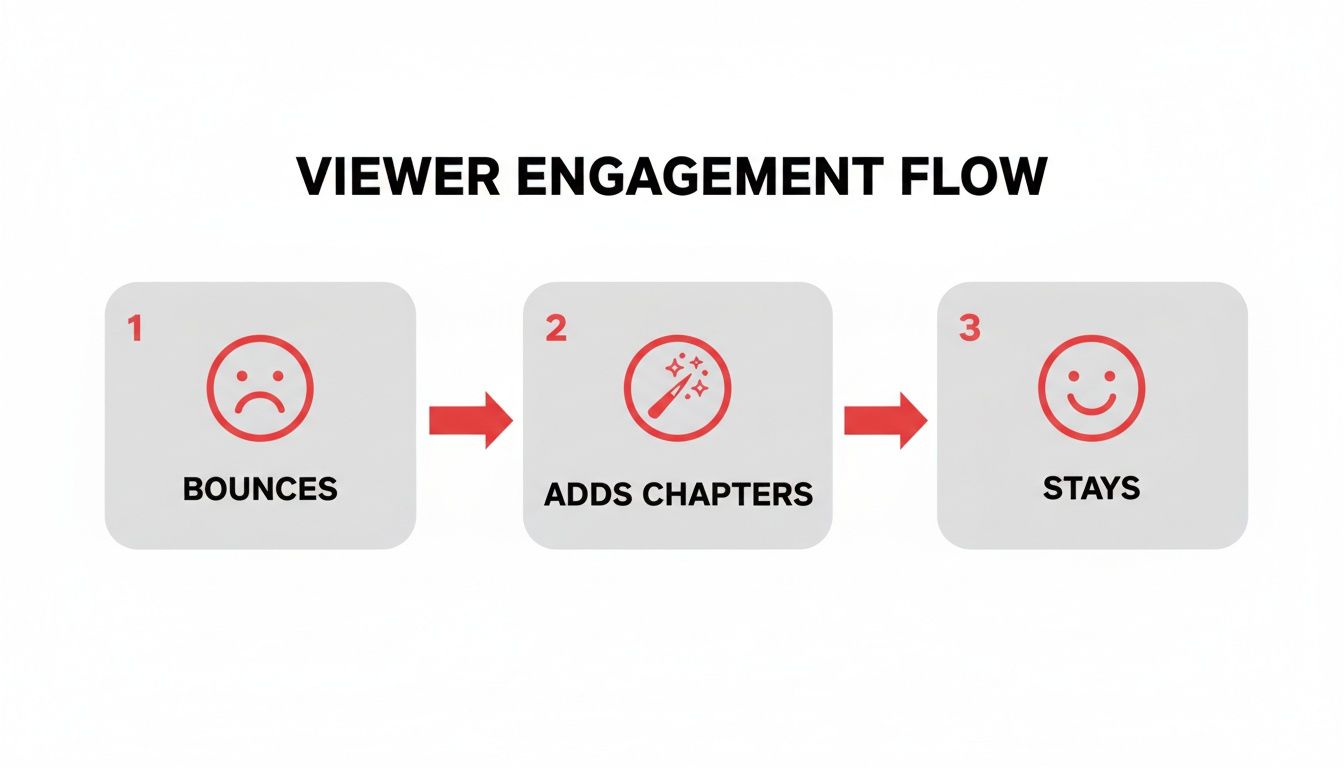
As you can see, giving people a clear roadmap of your content is a powerful tool for keeping them engaged, especially if they’re looking for a specific piece of information.
Getting Your Timestamps Formatted Correctly
For YouTube to actually recognize and create the chapters, you have to play by a few simple, non-negotiable rules. Nailing the format from the get-go will save you the headache of wondering why your chapters aren't showing up.
Here are the absolute must-haves:
- Always Start at Zero: The very first timestamp in your list must be
00:00. This is the single most common mistake people make. - Keep Them in Order: Your timestamps have to be listed chronologically, moving from the start of the video toward the end.
- Minimum Chapter Length: Each chapter needs to be at least 10 seconds long. You can't have super-short, rapid-fire chapters.
- The Rule of Three: You need to have at least three timestamps in your list (including the
00:00start) for YouTube to activate the feature at all.
As for the timestamp format itself, YouTube is pretty flexible. You can use Minutes:Seconds (MM:SS) for most videos or switch to Hours:Minutes:Seconds (HH:MM:SS) for your longer, deep-dive content. The platform understands both perfectly.
To make this crystal clear, here’s a quick-reference table summarizing the rules.
YouTube Chapter Formatting Rules at a Glance
| Rule | Requirement | Example |
|---|---|---|
| Starting Point | The first timestamp must be 00:00. |
00:00 - Intro |
| Minimum Count | At least 3 chapters are required. | 00:00 - Intro, 01:30 - Tip 1, 05:00 - Outro |
| Chapter Duration | Each chapter must be at least 10 seconds long. | 02:15 to 02:25 is valid; 02:15 to 02:20 is not. |
| Sequence | Timestamps must be in chronological order. | 01:00 must come before 03:00. |
Bookmark this table or keep these points in mind, and you'll avoid the most common pitfalls.
A Practical, Step-by-Step Example
Let's walk through a real-world scenario. Say you just uploaded a 15-minute video called "Beginner's Guide to Photography" and you know the key sections you want to highlight for your audience.
First, you'd head over to YouTube Studio, find your video, and click into the Details page. In the Description box, you’ll just type out your chapter list. It would look something like this:
00:00 - Intro01:15 - Understanding the Exposure Triangle04:30 - How to Choose the Right Lens08:20 - Composition Rules for Beginners12:45 - Basic Photo Editing Tips14:50 - Final Thoughts & Outro
See how clean that is? Each line has the timestamp, a space, a hyphen, another space, and then the title. The "timestamp – title" format is a classic for a reason. And if you need more guidance on what else to include, our guide on crafting the perfect YouTube video description template can really help flesh out the rest of this section.
Pro Tip: Avoid generic labels like "Part 1" or "Next Topic." Instead, use descriptive, keyword-rich titles for your chapters. This is a game-changer because it helps viewers and gives Google more specific context about your video, which can lead to your individual chapters showing up as unique results in Google Search.
Once you’ve typed your list into the description, just hit Save. YouTube will do its thing, and within a few moments, you’ll see those slick, interactive segments pop up on your video’s progress bar. It's a simple update that makes a world of difference for your audience.
Using Automatic Chapters for a Faster Workflow
Manually adding chapters gives you absolute control, but let's be realistic—sometimes you just don't have the time. If you're juggling a packed upload schedule, YouTube's automatic chapters feature can be a huge help. It uses AI to scan your video and create chapter segments for you, often in just a few minutes.
The system is pretty smart. It analyzes your video’s audio and visual cues to find natural breaks. Think about a podcast where the conversation shifts to a new topic, or a tutorial where you clearly introduce the next step. These are the moments where the AI really gets it right, giving you a solid first draft of your chapters almost instantly.
Of course, automation isn't perfect. It's a fantastic starting point, but you should always treat AI-generated chapters as just that—a draft. The system might misinterpret a pause or stick a chapter break in an awkward spot, so a quick human review is crucial to make sure everything looks good.
How to Enable and Refine Automatic Chapters
Getting this feature running is incredibly simple. You can turn it on for individual videos or even set it as a default for all your new uploads, which saves you a click every time you publish.
Here’s the quick rundown for enabling it on a specific video:
- Head into your YouTube Studio and find the video you want to edit.
- Click on the Details tab.
- Scroll down to the bottom and click SHOW MORE.
- Look for the Automatic chapters section and tick the box for "Allow automatic chapters and key moments."
- Don't forget to hit SAVE!
Once you've done that, YouTube's system will start processing. Give it a little time, then come back to the editor. You'll see the AI's suggestions and have the chance to review, tweak, or delete any of them. It's a great mix of AI speed and your own editorial control.
This blend of automation and manual oversight is becoming a standard part of the creator workflow. To really speed things up, you might want to look into AI-powered video editing tools that can handle other tedious tasks, too.
When Automatic Chapters Work Best
While super convenient, this feature definitely performs better with certain kinds of videos. The AI needs clear signals to do its job well.
Automatic chapters are a great fit for:
- Structured Presentations: Videos with clear slides or talking points.
- Interviews and Podcasts: Content with obvious topic shifts or speaker changes.
- Listicle Videos: Think "Top 10" style videos where each point is a distinct segment.
On the other hand, it can struggle with videos that flow more seamlessly, like vlogs or cinematic pieces without obvious breaks. For those, you're probably better off sticking with the manual method. It's all about knowing which tool to use for the job—balancing efficiency with creating the best possible experience for your audience.
Turn Your Chapters into Traffic Magnets
You've added chapters, which is a great start. But just having them isn't enough—optimizing them is where you'll see a real difference in your channel's growth. Think of it as the step that turns a basic feature into a powerful tool for boosting engagement and search traffic.

Your chapter list is essentially a table of contents that sells your video’s value right away. When someone lands on your video and sees a clear, compelling list of topics, they're far more likely to stick around because they know exactly what to expect. This instantly builds trust and can have a massive impact on your watch time.
Write Titles for People, Optimize for Search
Every chapter title has two jobs. First, it needs to grab the attention of a real person looking for specific information. Second, it has to tell YouTube's and Google's algorithms what that section is about. The trick is to do both at the same time by being descriptive and smart with your keywords.
Steer clear of lazy, generic titles like "Part 1" or "Next Step." They offer zero context and do nothing for you. Instead, frame your titles as answers to questions or clear, concise descriptions of what happens in that segment.
Generic vs. Optimized Chapter Titles
| Generic Title (Avoid) | SEO-Optimized Title (Use) |
|---|---|
| Part 1 | How to Unbox Your New Camera |
| Next Step | Calibrating Monitor Color Accurately |
| Conclusion | Final Review & Top 3 Takeaways |
This simple tweak makes a world of difference. A title like "Calibrating Monitor Color Accurately" isn't just helpful for viewers; it's a phrase Google can index and show directly in search results. Suddenly, that little segment becomes a brand-new entry point to your video. If you want to dive deeper into this, check out our guide on how to find the best YouTube video keywords for your channel.
The Psychology Behind a Great Chapter List
A well-structured chapter list does more than just organize—it persuades. When viewers see that you’ve broken down a complex subject into digestible chunks, the content immediately feels less overwhelming and more approachable.
This is a game-changer for long-form content. Someone might hesitate to watch a two-hour podcast, but they’ll gladly click on a 15-minute segment titled "Interview with a Marketing Expert." You're essentially giving them an easy "yes" by lowering the commitment.
Key Takeaway: Your chapter list is a critical first impression. It needs to clearly communicate the video's value, showing that you’ve thoughtfully organized the content to respect your viewer's time and solve their problem.
The rapid adoption of this feature proves its worth. When YouTube first rolled out chapters in early 2021, only about 15% of creators gave them a try in the first month. Just six months later, that figure skyrocketed to 45%, with many creators making it a standard part of their publishing routine. You can discover more YouTube statistics and insights at DataGlobeHub that highlight this trend.
Ultimately, by treating each chapter title like a mini-headline, you can significantly improve your video’s performance. It’s a strategic move that makes your content more discoverable, more engaging, and incredibly valuable to your audience.
Troubleshooting Common YouTube Chapter Issues
It’s a familiar frustration: you’ve meticulously planned and typed out your video chapters, hit save, and… nothing. When chapters don't show up on your YouTube video, it’s almost always down to a small, easily missed detail. Let's walk through the usual suspects so you can get them working.

The number one culprit? Forgetting the 00:00 timestamp. For YouTube to even see your list as chapters, it must start right at the beginning of the video. Without that 00:00 entry, the whole system just ignores your list, no matter how perfectly formatted the rest is.
Another common slip-up is getting the order wrong. Your timestamps have to be chronological. If you accidentally list 05:10 before 03:45, it breaks the logic, and YouTube won't display any chapters at all. It’s an all-or-nothing feature.
Checking the Essential Chapter Rules
If you’ve got the 00:00 start time locked in, there are a few other non-negotiable rules from YouTube. Running through this quick checklist usually uncovers the problem.
Your chapter list needs:
- At least three timestamps: This includes that all-important
00:00start. A video with just an intro and one other section won't be enough to trigger the feature. - A minimum chapter length: Every single chapter segment has to be at least 10 seconds long. You can't have rapid-fire chapters just a few seconds apart.
- Correct formatting: Keep it clean. Stick to the standard
MM:SSorHH:MM:SSformats. A simple typo, an extra period, or a misplaced colon can throw the whole thing off.
Think of it as giving YouTube a clear set of directions. If one of the steps is confusing or out of place, the system just gives up trying to follow them.
Key Insight: A single out-of-order timestamp or a missing
00:00start is enough to disable the entire feature. The system doesn't just ignore the broken part; it deactivates chapters altogether for that video until the error is fixed.
Digging into Less Obvious Problems
Okay, so your formatting is flawless, but the chapters are still MIA. Now we have to look at some less obvious issues that can override your hard work.
Sometimes, the problem isn't with the video but with your channel itself. If your account has active Community Guideline strikes, YouTube might temporarily disable certain features, and chapters can be one of them. The same goes for any content flagged as potentially inappropriate for some viewers.
Finally, take a look at your video description's layout. If you have other links or a block of text jammed right up against your timestamp list, it can sometimes confuse YouTube's system. The best practice is to give your chapter list some breathing room by adding a blank line both before and after it. Fixing these sneakier issues should get your video navigation back on track for your viewers.
Frequently Asked Questions About YouTube Chapters
Even after you get the hang of adding chapters, a few questions always seem to pop up. I see them in comments and forums all the time. Getting these sorted will help you dial in your strategy and use chapters like a pro.
Let's dig into some of the most common ones I hear from other creators.
How Many Chapters Should I Add to My Video?
This is probably the number one question people ask. Is there a magic number? Not really.
While you technically need at least three chapters for the feature to even work, the real answer depends entirely on your video. The goal is to break the video into logical, helpful parts, not to hit some arbitrary number.
As a general rule of thumb, a typical 10 to 15-minute video usually feels right with somewhere between 5 and 10 chapters. If you're creating a long-form tutorial or a two-hour podcast, you could easily have 20 or more. Just make sure each chapter marks a genuine shift in topic or a new step in your process. Don't add chapters just for the sake of it.
Can I Add Chapters to Old YouTube Videos?
Yes, and you absolutely should! This is one of my favorite tips for breathing new life into older content. Going back and adding chapters to your evergreen videos is a killer strategy for re-optimizing your back catalog.
Just pop into YouTube Studio, find an older video, and edit the description to add your timestamp list. It’s that easy. This simple tweak can give that content a fresh SEO boost, help it rank for new search terms, and make it way more useful for viewers who discover it months or years later.
Key Insight: A lot of creators worry that chapters will kill their watch time because people will just skip ahead. It's a valid fear, but my experience—and the data—shows the opposite is true. I'd much rather have someone watch a 3-minute segment they care about than click away after 30 seconds because they couldn't find what they were looking for.
Do YouTube Chapters Affect Monetization?
They sure can, and almost always in a good way. By making your videos easier to navigate, you improve the viewer experience. A happier viewer watches longer, which sends all the right signals to the YouTube algorithm.
This can lead to your video being recommended more often, getting more impressions, and ultimately, earning you more ad revenue. It's worth noting that chapter markers don't directly control where mid-roll ads appear—YouTube's system still handles that. But a better, more professional viewing experience is always good for your channel's health and your wallet.
Ready to take the guesswork out of your YouTube strategy? The ViewsMax AI toolkit helps you brainstorm, optimize, and analyze your content for faster growth. Get started with ViewsMax and create smarter content today.