ViewsMax
Sign In Sign Up Free

Tag: youtube chapters

  • Adding Chapters to YouTube Video: The Full 2026 Guide

    Adding Chapters to YouTube Video: The Full 2026 Guide

    You've uploaded a 20-minute tutorial, the subject is useful, and the retention graph shows viewers leaving before they reach the answer they came for. Often, the problem isn't the video itself. Viewers can't tell where the relevant section begins, so they scrub, miss the target, and leave.

    YouTube chapters turn that flat timeline into a navigable structure. They give viewers clear jump points, expose the video's main topics, and create a more useful viewing experience for tutorials, interviews, podcasts, lessons, and detailed vlogs. The setup is simple, but chapter quality depends on more than placing a few timestamps in the description.

    This guide covers the full workflow for adding chapters to a YouTube video, including manual timestamps, auto-generated chapter cleanup, post-publish edits, mobile limitations, formatting failures, and the decisions that make chapters useful for both viewers and search.

    Why Chapters Matter Before You Touch a Timestamp

    A chaptered video has a clickable structure across the progress bar and a timestamped list below the player. Instead of forcing someone to watch every minute in sequence, YouTube lets them jump to the section that matches their intent. The feature launched globally on May 28, 2020, after earlier testing, and became a permanent native part of YouTube publishing. YouTube's chapter documentation defines the core formatting rules and confirms that chapters use timestamps in the video description.

    That changes how you should plan them. A timestamp isn't decoration, and it isn't just a courtesy table of contents. It tells a viewer what your video contains, where a topic starts, and whether the next few minutes are worth watching.
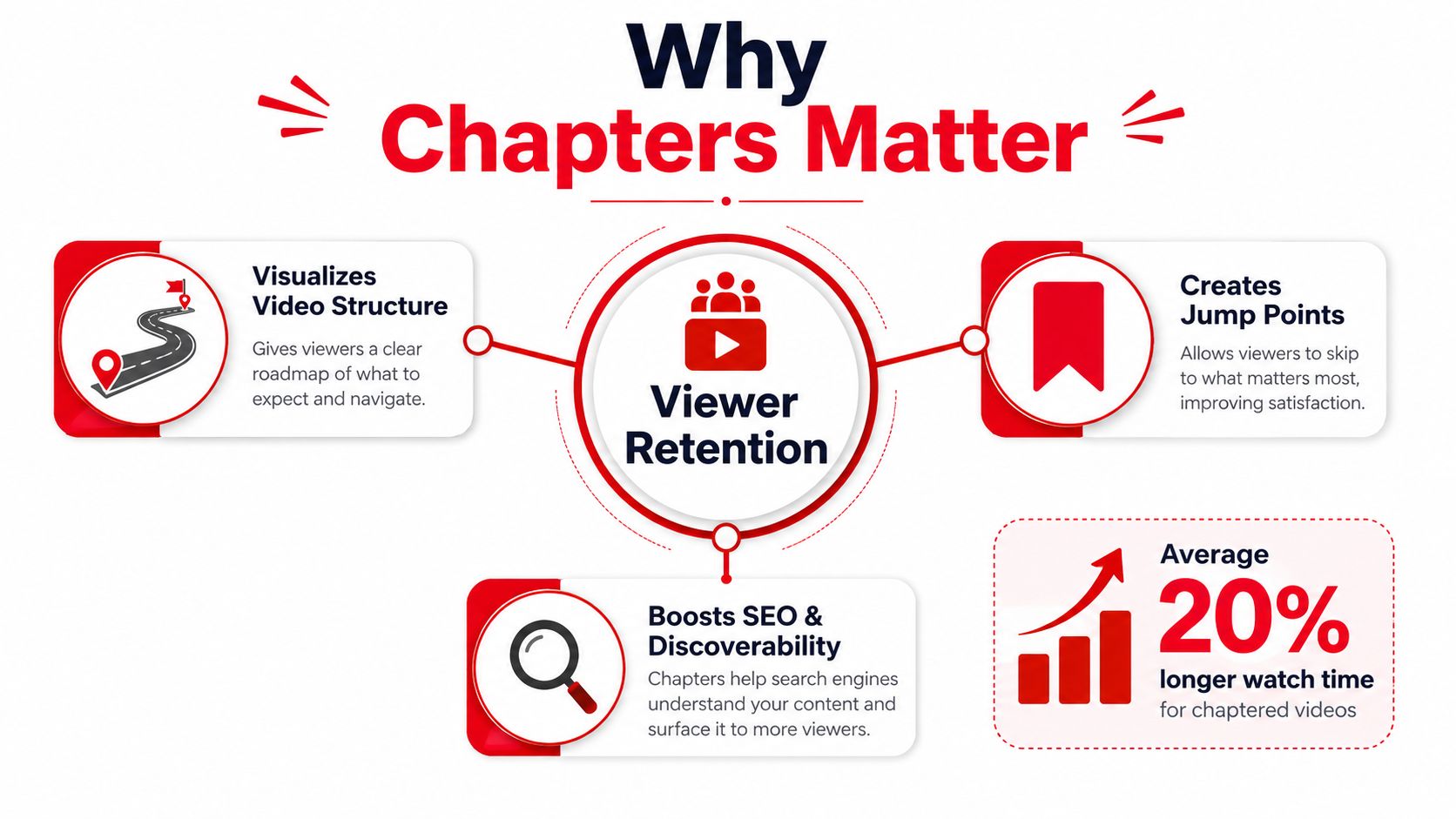
    An infographic titled Why Chapters Matter explaining how video chapters improve viewer retention and SEO.

    Chapters help viewers make a faster decision

    Suppose your tutorial covers setup, troubleshooting, advanced settings, and exporting. A viewer who only needs troubleshooting can go straight there. That self-selection is valuable because the viewer gets to the useful section without abandoning the video in frustration.

    Chapters can also support discovery. Clear timestamp labels give YouTube and search systems more context about the subjects covered in the video. Search engines may use video sections as key moments when they're relevant to a query, but chapter formatting doesn't guarantee a search appearance or a special badge.

    A large-scale 2022 dataset study analyzed 4,683,257 YouTube videos and found that only 63,283 had chapters at the time. In that dataset, chaptered videos recorded a 2.95% like-per-view ratio and a 0.28% comment-per-view ratio, compared with 1.35% and 0.1% for videos without chapters. The study found an association, not proof that chapters alone caused the higher engagement. The dataset analysis and methodology are available from CollabPals.

    Practical rule: Every timestamp should answer a viewer question, mark a real topic change, or make the video easier to scan.

    Adding Chapters by Hand Using the Description

    Manual chapters give you control over the exact start point and wording. You can add them during upload or edit them later in YouTube Studio.

    Start by outlining the video's genuine topic changes. Don't create a new chapter every time the speaker pauses or changes slides. A chapter should represent a section a viewer might intentionally choose.

    Use the required timestamp format

    YouTube requires the first timestamp to be 0:00, the entries must appear in ascending order, and the list must contain at least three timestamps. Each chapter must last at least 10 seconds, so the gap between one timestamp and the next can't be shorter than that. These rules are documented in YouTube's official chapter requirements.

    For a 15-minute Photoshop tutorial, a practical description block might look like this:

    • 0:00 Intro
    • 0:48 Importing assets
    • 3:15 Layer masking basics
    • 7:42 Blend modes walkthrough
    • 12:10 Export settings

    The titles are short, specific, and tied to what happens at each point. “Layer masking basics” tells the viewer more than “Part 3,” while “Export settings” makes the destination clear without turning the chapter list into a paragraph.

    You don't need to add leading zeros to timestamps such as 0:48. Keep each entry on its own line, with the timestamp followed by a space and then the title. Avoid placing unrelated text on the same line because clean formatting makes both YouTube's parser and the viewer's scan easier.

    Add the list in YouTube Studio

    On desktop, open YouTube Studio, choose Content, select the video, and open the Details page. Paste the timestamp block into the description field, alongside your normal description, links, and supporting information. A structured YouTube video description template can help you reserve a consistent location for chapters across uploads.

    Save the video, then open the public watch page rather than relying only on the Studio editor. YouTube generates the visible chapter divisions after the description is saved and the page refreshes.
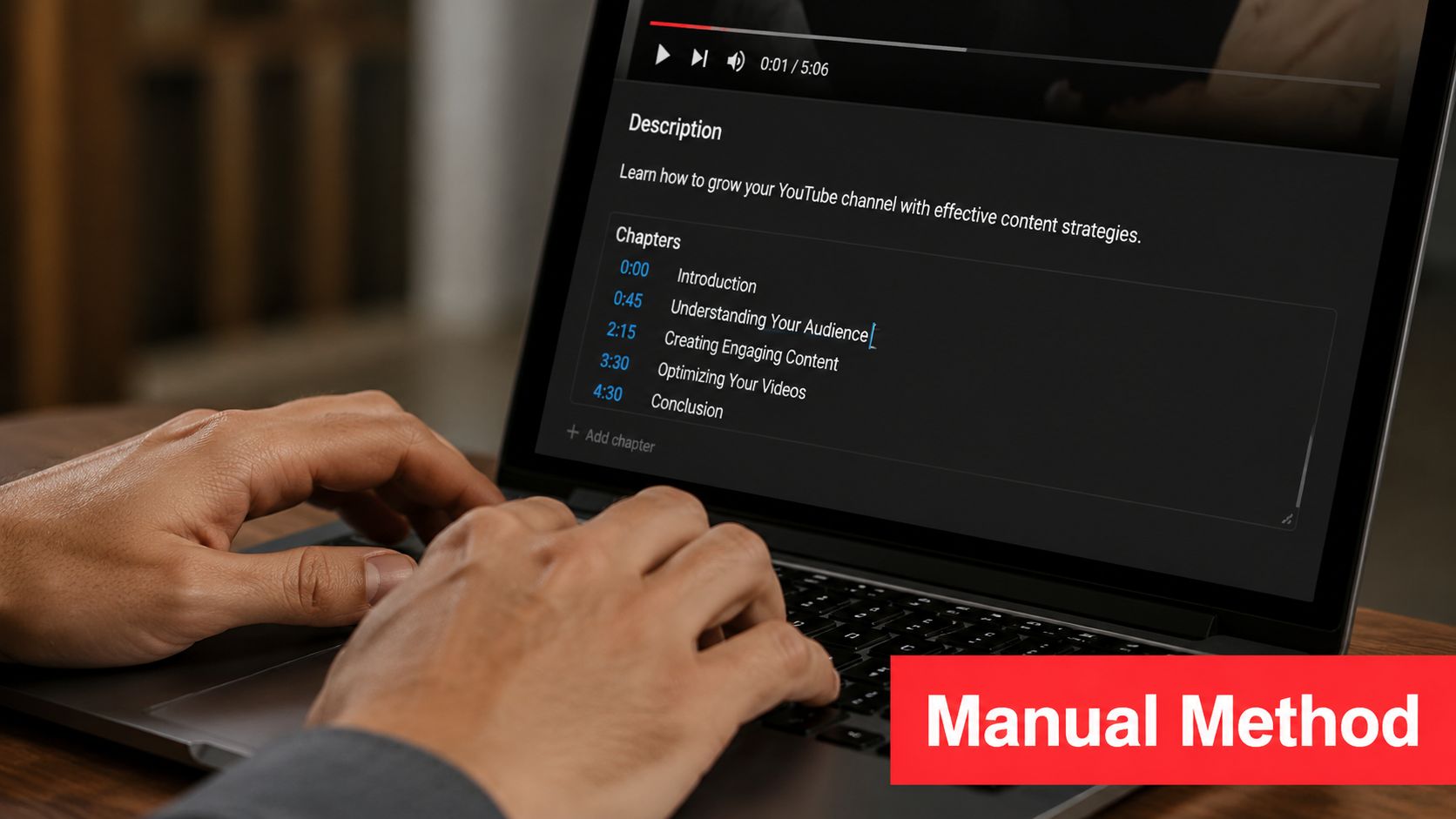
    Screenshot from https://example.com/screenshots/youtube-studio-description-chapters.png

    Check the progress bar for segmented dividers and click several entries in the timestamp list. If nothing appears, check the first timestamp, the total number of entries, the order, and the duration between adjacent timestamps before changing the titles.

    How Auto-Generated Chapters Work and When to Trust Them

    Auto-generated chapters save time, but they're a starting point rather than a finished publishing asset. YouTube analyzes the video and proposes sections based on the content and detected transitions. The result can be useful for a quick draft, especially when you've uploaded an older video and no longer have the edit timeline in front of you.

    The weakness is usually naming. Generic labels can describe the structure without communicating the viewer's actual question. A title like “Introduction” or “Topic 1” doesn't tell someone whether the section covers account setup, a technical fix, or a buying decision.

    Treat automatic chapters as an editable draft

    After upload, open the video in YouTube Studio and go to Details. Review the chapters area, inspect every proposed start point, and rename entries so they match the actual content. If YouTube's divisions don't reflect the edit, replace the generated list with a manually written version.

    Chapter titles should be concise and descriptive. Creator education guidance recommends using chapters when a video contains distinct topic shifts, rather than forcing them into a sequential story where skipping ahead damages the narrative. The Taja AI YouTube storytelling guide is useful for thinking through chapter structure and viewer-led navigation.

    When leaving them alone makes sense

    Auto-generated chapters can be acceptable for a short, conversational upload where viewers don't need exact topic labels and search discovery isn't the main purpose. They're less suitable for a tutorial, course lesson, product walkthrough, or video targeting specific search questions. In those formats, a manually reviewed chapter list gives viewers a clearer promise about what they'll find at each point.

    Before trusting automatic chapters, ask three questions:

    • Does each division begin at a genuine topic change?
    • Would a viewer understand the section from its title alone?
    • Does the list reflect the search language and structure of the video?

    If the answer to any of these is no, edit the list before treating the video as finished.

    Editing, Fixing, or Removing Chapters After Publish

    Most chapter errors appear after publication. A creator watches the live video on another device, notices that a timestamp lands in the middle of a sentence, or discovers that the chapters never rendered because the opening marker was missing.

    On desktop, open YouTube Studio, select Content, choose the published video, and open Details. Find the description field, edit the timestamp block, and save the change. To correct a chapter that starts a few seconds too early, change only its timestamp and leave the remaining entries in order. If you want to remove chapters entirely, delete the timestamp block from the description and save.

    Fix the silent failures first

    YouTube may not display a warning when chapter recognition fails. Check the list in this order:

    1. Opening marker: The first entry must be 0:00.
    2. Minimum entries: The list needs at least three timestamps.
    3. Ascending order: Each timestamp must occur later than the previous one.
    4. Chapter length: Each section must last at least 10 seconds.
    5. Description placement: The timestamps must be in the description, not only in a comment.

    A missing 0:00 is particularly easy to overlook because the rest of the list can look perfectly readable. YouTube can refuse to render the chapter bar when that required opening marker is absent.

    A clickable timestamp in a comment isn't the same thing as a chapter list. YouTube builds chapters from the video description.

    Mobile editing is possible, but less comfortable

    The YouTube Studio mobile app lets you make description changes, although reviewing a long list is more cumbersome than on desktop. Open the video, tap the three-dot menu, choose Edit Video, then select Edit Description. Update the timestamps, save, and check the public watch page.

    Changes may take a few minutes to appear. If manual chapters keep disappearing or YouTube continues showing its own structure, open the desktop Video Details page, choose Show More, and review the automatic chapters setting. Disable automatic chapters and key moments when you need the manual list to control the video.

    Optimization Tips That Make Chapters Count for SEO

    A chapter title can determine whether a viewer understands the video's value before watching the relevant segment. “How to fix YouTube chapters” signals a specific answer and may fit a searcher's intent better than “Troubleshooting.” Clear wording also gives YouTube a stronger description of each topic when it evaluates chapter information for search displays and key moments. Treat chapter titles as searchable labels, not decoration. YouTube's official chapter guidance explains the formatting requirements, while the wording still depends on the creator's editorial choices.

    Chapter quality affects more than navigation. A viewer who scans “Export Photoshop files” can decide quickly that the video answers a current task. A label such as “Final steps” hides that value, even if the segment itself is useful. Match each title to the question, action, or concept introduced at that point, and make sure the spoken content delivers what the label promises.

    Write titles for humans who search

    Use concise, topic-led labels that remain readable on the progress bar and below the video. “Fix YouTube chapters” is stronger than “Troubleshooting,” and “Export Photoshop files” gives a clearer destination than “Final steps.” Avoid generic numbering when a descriptive phrase can tell viewers what they will get. This chapter best-practices guide also recommends reviewing auto-generated titles promptly, since vague labels reduce scanning value and may misrepresent the segment.

    Keep the wording natural. Repeating the same keyword in every chapter makes the list awkward and can suggest that the titles were written for algorithms instead of viewers.

    Put the strongest promise early

    Use the opening chapters to reflect the reason someone clicked. If the video solves a specific problem, name that problem before extended setup, then move into the demonstration. “Repair a broken chapter list” gives viewers a clear destination; “Welcome” gives them no useful context.

    Chapter titles should match the actual sequence. Compare them with the spoken content after editing, including edits made after publish. A viewer should reach the promised moment, hear the named topic, and know what the next segment covers. For broader channel guidance on aligning search intent with video metadata, review these YouTube SEO optimization tips.

    Putting It All Together and Tracking What Works

    Use a short pre-publish check before every upload. The rules are simple, but most failures happen when one line gets added or moved during a last-minute description edit.

    • Video structure: Add chapters only when the video has meaningful topic changes.
    • Opening timestamp: Start the list with 0:00.
    • Minimum list: Include at least three timestamps.
    • Minimum duration: Make every chapter at least 10 seconds long.
    • Order: Keep all timestamps in ascending order.
    • Naming: Use concise, descriptive titles that reflect viewer intent.
    • Verification: Save the description and inspect the public watch page.
    • Auto-generated review: Rename or replace automatic chapters soon after upload when the video needs precise navigation.

    YouTube's help documentation confirms the technical requirements, including the first timestamp, ascending order, minimum number of timestamps, and minimum chapter duration. Review the official formatting guidance whenever YouTube changes the Studio interface or your chapters stop rendering unexpectedly.
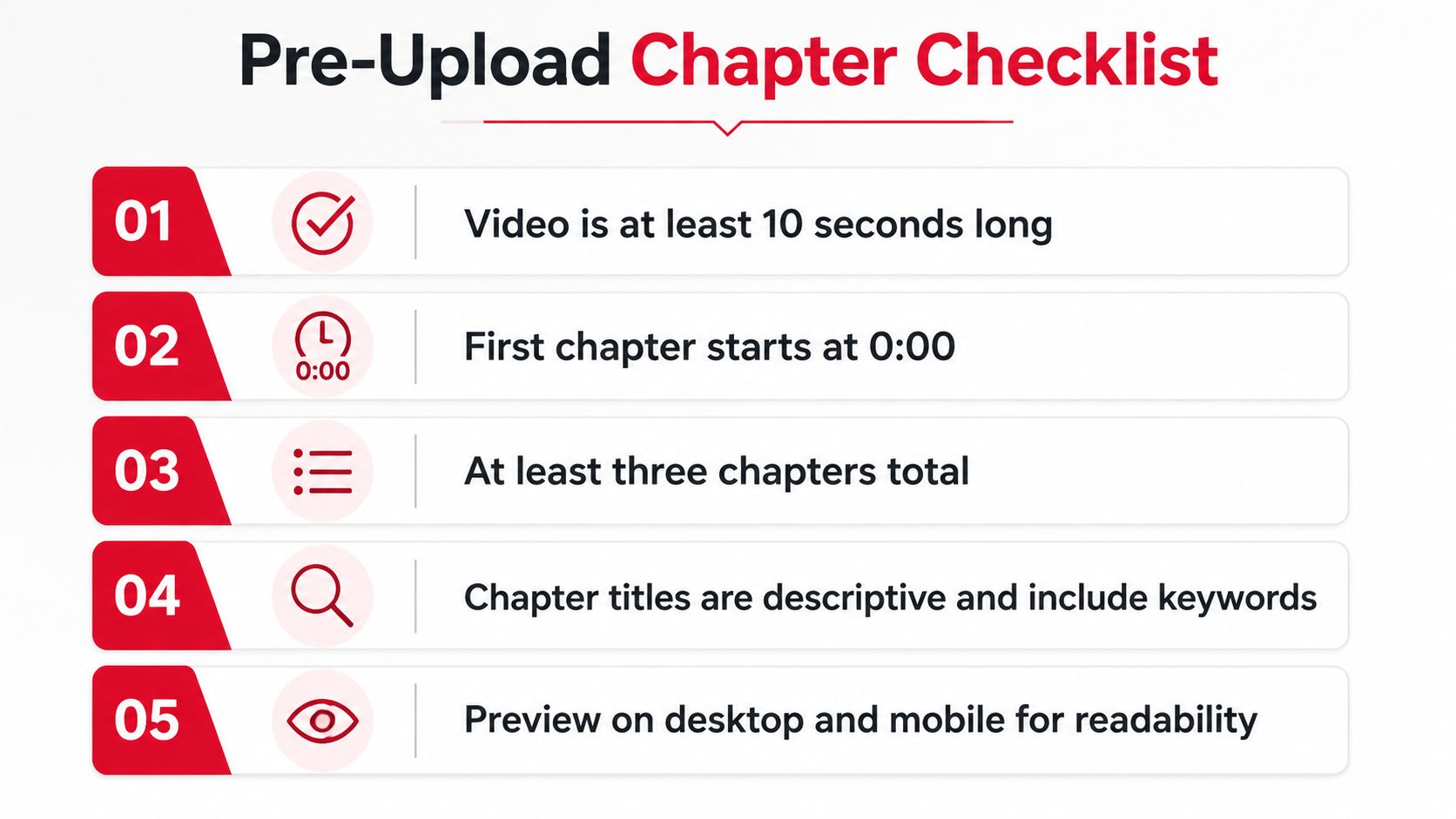
    A five-point checklist for creators detailing requirements for adding chapters to YouTube videos to improve user experience.

    Measure navigation instead of guessing

    Open the Audience Retention report in YouTube Studio and inspect what happens around chapter boundaries. Spikes can indicate that viewers are using the chapter bar or description to reach a useful section, while abrupt exits may reveal an inaccurate title, weak transition, or delayed answer.

    Compare chaptered and non-chaptered uploads with similar subjects and audiences rather than judging one video in isolation. Track average view duration, impressions, and the locations where viewers enter or leave. The YouTube view statistics guide can help you interpret those metrics without reducing the analysis to a single headline number.

    Chapters become a meaningful content lever when you connect them to outcomes beyond views. ViewsMax can create trackable links and attribute clicks, leads, and sales back to the specific content that generated them, so you can compare retention signals with revenue performance instead of relying on impressions alone.


    If you're publishing videos that support products, services, courses, or other offers, use ViewsMax to track which chaptered videos generate clicks, leads, and sales. Set up a repeatable chapter workflow, attach trackable links to your descriptions, and use the resulting data to decide which topics deserve your next upload.
  • How to Add Chapters to YouTube Video and Boost Watch Time

    How to Add Chapters to YouTube Video and Boost Watch Time

    Adding chapters to your YouTube video is one of the smartest, simplest things you can do to boost its performance. It’s not just about making your video easier to navigate; it’s a powerful strategy for increasing viewer engagement and, crucially, your total watch time. All it takes is a straightforward list of timestamps and titles in your video’s description to create a skippable table of contents that completely transforms the viewing experience.

    Why YouTube Chapters Are a Game-Changer

    Think of chapters as a roadmap for your audience. In an age of endless content and shrinking attention spans, giving viewers this kind of control isn't just a bonus—it's essential for keeping them from clicking away. When someone can instantly find the exact nugget of information they came for, they're far more likely to stick around.

    Picture a long tutorial on building a PC. A viewer who just needs to see the part about installing the RAM can jump right there instead of scrubbing aimlessly. Or imagine a two-hour podcast episode; a listener can easily skip to a specific guest's segment. You've just turned a potential bounce into a successful, engaged viewing session.

    The Real Impact on Your Channel's Growth

    This improved user experience sends all the right signals to the YouTube algorithm. The platform loves content that keeps people happy and watching longer. By adding chapters, you're telling YouTube your video is well-structured, user-friendly, and valuable, which can earn you better placement in search results and recommendations.

    The numbers don't lie. Properly implemented chapters can have a massive impact, sometimes boosting click-through rates by as much as 45% and increasing watch time by 25%. We've even seen channels get 12% more external traffic from Google search results after adding them. In a world where YouTube has over 2.5 billion monthly users, ignoring a feature this powerful is like leaving views on the table.

    Think of Chapters as a Strategic Tool

    At the end of the day, adding chapters is a key tactic in your overall marketing and branding for video success. It’s a low-effort move with a surprisingly high return.

    Here's what you gain:

    • Better Viewer Retention: You hold people's attention longer by empowering them to find the content most relevant to them.
    • A Nice SEO Bump: Google often indexes chapter titles, which can show up as rich snippets in search results and create multiple entry points to your video.
    • More Watch Time: This one seems backward, but it's true. Letting people skip ahead often increases total watch time because they engage deeply with the parts they care about instead of leaving altogether. If you want to dive deeper, check out our guide on what public watch hours on YouTube are and why they matter.

    When you break your content into logical segments, you're showing respect for your viewer's time. That simple act builds trust and makes them far more likely to subscribe and come back for more.

    How to Add Chapters to a YouTube Video Manually

    When you want total control over how your video is broken down, adding chapters yourself is the way to go. It might take a few extra minutes, but this hands-on approach is the most reliable way to make sure your chapters are perfectly accurate and the titles are optimized for both viewers and search engines.

    The whole process is surprisingly simple and happens right in your video's description box. You just create a list of timestamps with descriptive titles, and YouTube's system reads it and builds that interactive, segmented progress bar viewers love. It's a small bit of effort for a huge payoff in making your content more user-friendly.

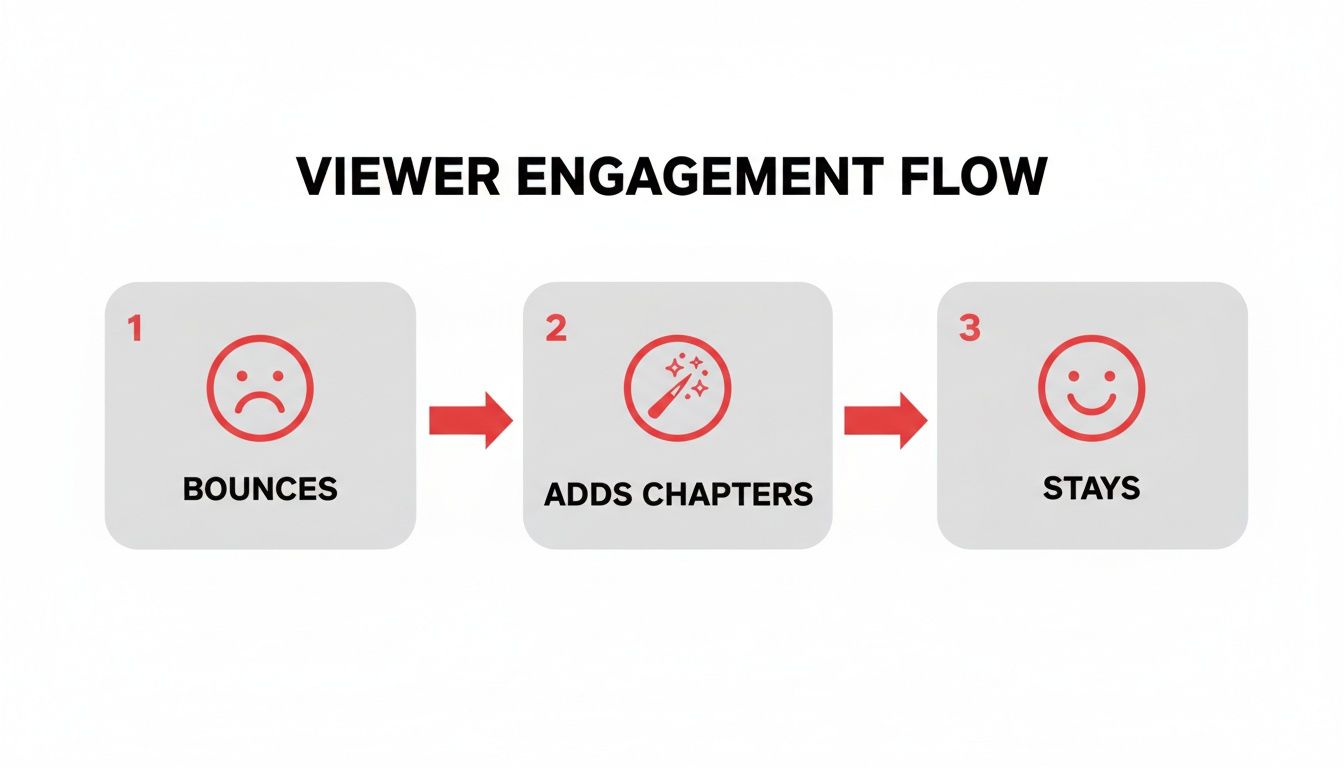
    Think of it this way: chapters can be the difference between a viewer sticking around or bouncing.

    Flowchart showing viewer engagement: bounces (sad face) -> adds chapters (magic wand) -> stays (happy face).

    As you can see, giving people a clear roadmap of your content is a powerful tool for keeping them engaged, especially if they’re looking for a specific piece of information.

    Getting Your Timestamps Formatted Correctly

    For YouTube to actually recognize and create the chapters, you have to play by a few simple, non-negotiable rules. Nailing the format from the get-go will save you the headache of wondering why your chapters aren't showing up.

    Here are the absolute must-haves:

    • Always Start at Zero: The very first timestamp in your list must be 00:00. This is the single most common mistake people make.
    • Keep Them in Order: Your timestamps have to be listed chronologically, moving from the start of the video toward the end.
    • Minimum Chapter Length: Each chapter needs to be at least 10 seconds long. You can't have super-short, rapid-fire chapters.
    • The Rule of Three: You need to have at least three timestamps in your list (including the 00:00 start) for YouTube to activate the feature at all.

    As for the timestamp format itself, YouTube is pretty flexible. You can use Minutes:Seconds (MM:SS) for most videos or switch to Hours:Minutes:Seconds (HH:MM:SS) for your longer, deep-dive content. The platform understands both perfectly.

    To make this crystal clear, here’s a quick-reference table summarizing the rules.

    YouTube Chapter Formatting Rules at a Glance

    Rule Requirement Example
    Starting Point The first timestamp must be 00:00. 00:00 - Intro
    Minimum Count At least 3 chapters are required. 00:00 - Intro, 01:30 - Tip 1, 05:00 - Outro
    Chapter Duration Each chapter must be at least 10 seconds long. 02:15 to 02:25 is valid; 02:15 to 02:20 is not.
    Sequence Timestamps must be in chronological order. 01:00 must come before 03:00.

    Bookmark this table or keep these points in mind, and you'll avoid the most common pitfalls.

    A Practical, Step-by-Step Example

    Let's walk through a real-world scenario. Say you just uploaded a 15-minute video called "Beginner's Guide to Photography" and you know the key sections you want to highlight for your audience.

    First, you'd head over to YouTube Studio, find your video, and click into the Details page. In the Description box, you’ll just type out your chapter list. It would look something like this:

    00:00 - Intro
    01:15 - Understanding the Exposure Triangle
    04:30 - How to Choose the Right Lens
    08:20 - Composition Rules for Beginners
    12:45 - Basic Photo Editing Tips
    14:50 - Final Thoughts & Outro

    See how clean that is? Each line has the timestamp, a space, a hyphen, another space, and then the title. The "timestamp – title" format is a classic for a reason. And if you need more guidance on what else to include, our guide on crafting the perfect YouTube video description template can really help flesh out the rest of this section.

    Pro Tip: Avoid generic labels like "Part 1" or "Next Topic." Instead, use descriptive, keyword-rich titles for your chapters. This is a game-changer because it helps viewers and gives Google more specific context about your video, which can lead to your individual chapters showing up as unique results in Google Search.

    Once you’ve typed your list into the description, just hit Save. YouTube will do its thing, and within a few moments, you’ll see those slick, interactive segments pop up on your video’s progress bar. It's a simple update that makes a world of difference for your audience.

    Using Automatic Chapters for a Faster Workflow

    Manually adding chapters gives you absolute control, but let's be realistic—sometimes you just don't have the time. If you're juggling a packed upload schedule, YouTube's automatic chapters feature can be a huge help. It uses AI to scan your video and create chapter segments for you, often in just a few minutes.

    The system is pretty smart. It analyzes your video’s audio and visual cues to find natural breaks. Think about a podcast where the conversation shifts to a new topic, or a tutorial where you clearly introduce the next step. These are the moments where the AI really gets it right, giving you a solid first draft of your chapters almost instantly.

    Of course, automation isn't perfect. It's a fantastic starting point, but you should always treat AI-generated chapters as just that—a draft. The system might misinterpret a pause or stick a chapter break in an awkward spot, so a quick human review is crucial to make sure everything looks good.

    How to Enable and Refine Automatic Chapters

    Getting this feature running is incredibly simple. You can turn it on for individual videos or even set it as a default for all your new uploads, which saves you a click every time you publish.

    Here’s the quick rundown for enabling it on a specific video:

    1. Head into your YouTube Studio and find the video you want to edit.
    2. Click on the Details tab.
    3. Scroll down to the bottom and click SHOW MORE.
    4. Look for the Automatic chapters section and tick the box for "Allow automatic chapters and key moments."
    5. Don't forget to hit SAVE!

    Once you've done that, YouTube's system will start processing. Give it a little time, then come back to the editor. You'll see the AI's suggestions and have the chance to review, tweak, or delete any of them. It's a great mix of AI speed and your own editorial control.

    This blend of automation and manual oversight is becoming a standard part of the creator workflow. To really speed things up, you might want to look into AI-powered video editing tools that can handle other tedious tasks, too.

    When Automatic Chapters Work Best

    While super convenient, this feature definitely performs better with certain kinds of videos. The AI needs clear signals to do its job well.

    Automatic chapters are a great fit for:

    • Structured Presentations: Videos with clear slides or talking points.
    • Interviews and Podcasts: Content with obvious topic shifts or speaker changes.
    • Listicle Videos: Think "Top 10" style videos where each point is a distinct segment.

    On the other hand, it can struggle with videos that flow more seamlessly, like vlogs or cinematic pieces without obvious breaks. For those, you're probably better off sticking with the manual method. It's all about knowing which tool to use for the job—balancing efficiency with creating the best possible experience for your audience.

    Turn Your Chapters into Traffic Magnets

    You've added chapters, which is a great start. But just having them isn't enough—optimizing them is where you'll see a real difference in your channel's growth. Think of it as the step that turns a basic feature into a powerful tool for boosting engagement and search traffic.

    Laptop on a wooden desk showing "Optimize Titles" on screen, with a notebook and sticky note.

    Your chapter list is essentially a table of contents that sells your video’s value right away. When someone lands on your video and sees a clear, compelling list of topics, they're far more likely to stick around because they know exactly what to expect. This instantly builds trust and can have a massive impact on your watch time.

    Write Titles for People, Optimize for Search

    Every chapter title has two jobs. First, it needs to grab the attention of a real person looking for specific information. Second, it has to tell YouTube's and Google's algorithms what that section is about. The trick is to do both at the same time by being descriptive and smart with your keywords.

    Steer clear of lazy, generic titles like "Part 1" or "Next Step." They offer zero context and do nothing for you. Instead, frame your titles as answers to questions or clear, concise descriptions of what happens in that segment.

    Generic vs. Optimized Chapter Titles

    Generic Title (Avoid) SEO-Optimized Title (Use)
    Part 1 How to Unbox Your New Camera
    Next Step Calibrating Monitor Color Accurately
    Conclusion Final Review & Top 3 Takeaways

    This simple tweak makes a world of difference. A title like "Calibrating Monitor Color Accurately" isn't just helpful for viewers; it's a phrase Google can index and show directly in search results. Suddenly, that little segment becomes a brand-new entry point to your video. If you want to dive deeper into this, check out our guide on how to find the best YouTube video keywords for your channel.

    The Psychology Behind a Great Chapter List

    A well-structured chapter list does more than just organize—it persuades. When viewers see that you’ve broken down a complex subject into digestible chunks, the content immediately feels less overwhelming and more approachable.

    This is a game-changer for long-form content. Someone might hesitate to watch a two-hour podcast, but they’ll gladly click on a 15-minute segment titled "Interview with a Marketing Expert." You're essentially giving them an easy "yes" by lowering the commitment.

    Key Takeaway: Your chapter list is a critical first impression. It needs to clearly communicate the video's value, showing that you’ve thoughtfully organized the content to respect your viewer's time and solve their problem.

    The rapid adoption of this feature proves its worth. When YouTube first rolled out chapters in early 2021, only about 15% of creators gave them a try in the first month. Just six months later, that figure skyrocketed to 45%, with many creators making it a standard part of their publishing routine. You can discover more YouTube statistics and insights at DataGlobeHub that highlight this trend.

    Ultimately, by treating each chapter title like a mini-headline, you can significantly improve your video’s performance. It’s a strategic move that makes your content more discoverable, more engaging, and incredibly valuable to your audience.

    Troubleshooting Common YouTube Chapter Issues

    It’s a familiar frustration: you’ve meticulously planned and typed out your video chapters, hit save, and… nothing. When chapters don't show up on your YouTube video, it’s almost always down to a small, easily missed detail. Let's walk through the usual suspects so you can get them working.

    A computer screen showing 'FIX CHAPTERS' on a desk with a keyboard, mouse, and office supplies.

    The number one culprit? Forgetting the 00:00 timestamp. For YouTube to even see your list as chapters, it must start right at the beginning of the video. Without that 00:00 entry, the whole system just ignores your list, no matter how perfectly formatted the rest is.

    Another common slip-up is getting the order wrong. Your timestamps have to be chronological. If you accidentally list 05:10 before 03:45, it breaks the logic, and YouTube won't display any chapters at all. It’s an all-or-nothing feature.

    Checking the Essential Chapter Rules

    If you’ve got the 00:00 start time locked in, there are a few other non-negotiable rules from YouTube. Running through this quick checklist usually uncovers the problem.

    Your chapter list needs:

    • At least three timestamps: This includes that all-important 00:00 start. A video with just an intro and one other section won't be enough to trigger the feature.
    • A minimum chapter length: Every single chapter segment has to be at least 10 seconds long. You can't have rapid-fire chapters just a few seconds apart.
    • Correct formatting: Keep it clean. Stick to the standard MM:SS or HH:MM:SS formats. A simple typo, an extra period, or a misplaced colon can throw the whole thing off.

    Think of it as giving YouTube a clear set of directions. If one of the steps is confusing or out of place, the system just gives up trying to follow them.

    Key Insight: A single out-of-order timestamp or a missing 00:00 start is enough to disable the entire feature. The system doesn't just ignore the broken part; it deactivates chapters altogether for that video until the error is fixed.

    Digging into Less Obvious Problems

    Okay, so your formatting is flawless, but the chapters are still MIA. Now we have to look at some less obvious issues that can override your hard work.

    Sometimes, the problem isn't with the video but with your channel itself. If your account has active Community Guideline strikes, YouTube might temporarily disable certain features, and chapters can be one of them. The same goes for any content flagged as potentially inappropriate for some viewers.

    Finally, take a look at your video description's layout. If you have other links or a block of text jammed right up against your timestamp list, it can sometimes confuse YouTube's system. The best practice is to give your chapter list some breathing room by adding a blank line both before and after it. Fixing these sneakier issues should get your video navigation back on track for your viewers.

    Frequently Asked Questions About YouTube Chapters

    Even after you get the hang of adding chapters, a few questions always seem to pop up. I see them in comments and forums all the time. Getting these sorted will help you dial in your strategy and use chapters like a pro.

    Let's dig into some of the most common ones I hear from other creators.

    How Many Chapters Should I Add to My Video?

    This is probably the number one question people ask. Is there a magic number? Not really.

    While you technically need at least three chapters for the feature to even work, the real answer depends entirely on your video. The goal is to break the video into logical, helpful parts, not to hit some arbitrary number.

    As a general rule of thumb, a typical 10 to 15-minute video usually feels right with somewhere between 5 and 10 chapters. If you're creating a long-form tutorial or a two-hour podcast, you could easily have 20 or more. Just make sure each chapter marks a genuine shift in topic or a new step in your process. Don't add chapters just for the sake of it.

    Can I Add Chapters to Old YouTube Videos?

    Yes, and you absolutely should! This is one of my favorite tips for breathing new life into older content. Going back and adding chapters to your evergreen videos is a killer strategy for re-optimizing your back catalog.

    Just pop into YouTube Studio, find an older video, and edit the description to add your timestamp list. It’s that easy. This simple tweak can give that content a fresh SEO boost, help it rank for new search terms, and make it way more useful for viewers who discover it months or years later.

    Key Insight: A lot of creators worry that chapters will kill their watch time because people will just skip ahead. It's a valid fear, but my experience—and the data—shows the opposite is true. I'd much rather have someone watch a 3-minute segment they care about than click away after 30 seconds because they couldn't find what they were looking for.

    Do YouTube Chapters Affect Monetization?

    They sure can, and almost always in a good way. By making your videos easier to navigate, you improve the viewer experience. A happier viewer watches longer, which sends all the right signals to the YouTube algorithm.

    This can lead to your video being recommended more often, getting more impressions, and ultimately, earning you more ad revenue. It's worth noting that chapter markers don't directly control where mid-roll ads appear—YouTube's system still handles that. But a better, more professional viewing experience is always good for your channel's health and your wallet.


    Ready to take the guesswork out of your YouTube strategy? The ViewsMax AI toolkit helps you brainstorm, optimize, and analyze your content for faster growth. Get started with ViewsMax and create smarter content today.