ViewsMax
Sign In Sign Up Free

Tag: youtube tools

  • Best AI Tools for Content Creators: 10 Picks for 2026

    Best AI Tools for Content Creators: 10 Picks for 2026

    The popular advice is to find one all-purpose AI platform and let it handle your content operation. That sounds efficient, but it usually creates a different problem: one tool tries to plan, edit, design, publish, and measure, while doing none of those jobs as well as a focused product. The strongest setup is usually a small workflow, not a single subscription. One tool helps with ideas and YouTube packaging, another handles recording or editing, another repurposes long-form material, another produces visuals or voice, and a measurement layer shows whether the published work created business results.

    That approach reflects how creators are already working. Adobe's survey of more than 16,000 creators across eight countries found that 86% actively used generative AI, while 60% had used more than one creative AI tool in the previous three months (Adobe survey coverage). The practical question is no longer whether AI belongs in the workflow. It's which tool belongs at each stage, what it costs in credits and review time, and whether the output fits the creator's voice and publishing channels.

    This list evaluates the best AI tools for content creators by workflow role. Planning and packaging includes Canva, vidIQ, and TubeBuddy. Production and editing includes Descript, CapCut, Runway, ElevenLabs, Adobe Express, and VEED. Repurposing is where OpusClip is strongest. Distribution and revenue attribution require a separate measurement layer, which is where ViewsMax becomes relevant for creators who need to connect YouTube content and links to clicks, leads, calls booked, and attributed sales instead of relying only on views or engagement. For specialized media workflows, creators can also explore a cloud FFmpeg platform.

    1. Canva Magic Studio

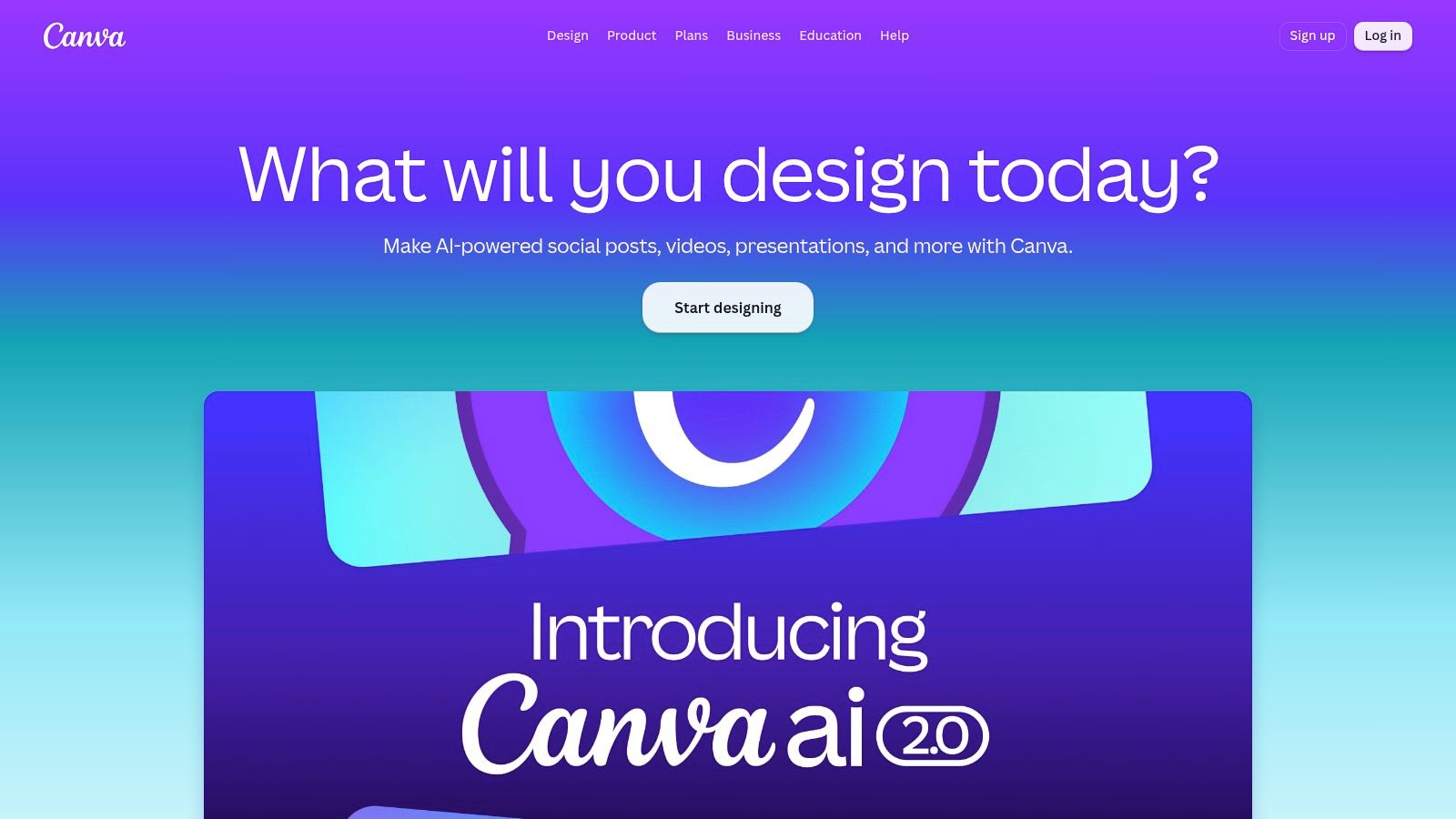
    Canva is the practical starting point for creators who need a steady stream of thumbnails, channel art, carousels, social posts, and branded promotional assets without moving between several design applications. Its browser-based workspace keeps the distance between an idea and a usable graphic short, which matters when the same video needs a thumbnail, a community post, a vertical quote card, and a social cover.

    The AI layer, Magic Studio, supports that workflow through Magic Write, Magic Media, background editing, Magic Expand, Magic Erase, and Magic Grab. Instant resize and Magic Switch help adapt one composition to multiple formats, while brand kits and Magic Layers make repeated production easier for teams. The template ecosystem is also a major advantage when the creator knows the message but doesn't want to design every asset from a blank page.
    Canva Magic Studio

    Where Canva earns its place

    Canva works best when speed and brand consistency matter more than highly distinctive generative visuals. A creator can draft a thumbnail concept, test several layouts, reuse recognizable colors and type, then export assets for YouTube and social channels from one workspace. It's especially useful for solo operators who need professional-looking packaging but don't want a separate design handoff for every post.

    The trade-off is output quality and usage limits. Text-to-image and text-to-video results can trail specialist tools for demanding visual work, and AI credit allowances vary by plan. Some advanced editing and brand features also require Pro access. Before adopting it as a daily production tool, check which Magic Studio actions consume credits and whether the plan supports the volume of assets you create.

    Practical rule: Use Canva to establish the visual system, then use specialist generation tools only when the concept needs something the template workflow can't provide.

    Canva's human review requirement is moderate. AI can produce a useful first version, but the creator still needs to check thumbnail readability at small sizes, text accuracy, brand alignment, and whether the visual makes a credible promise about the video.

    2. Descript Underlord AI

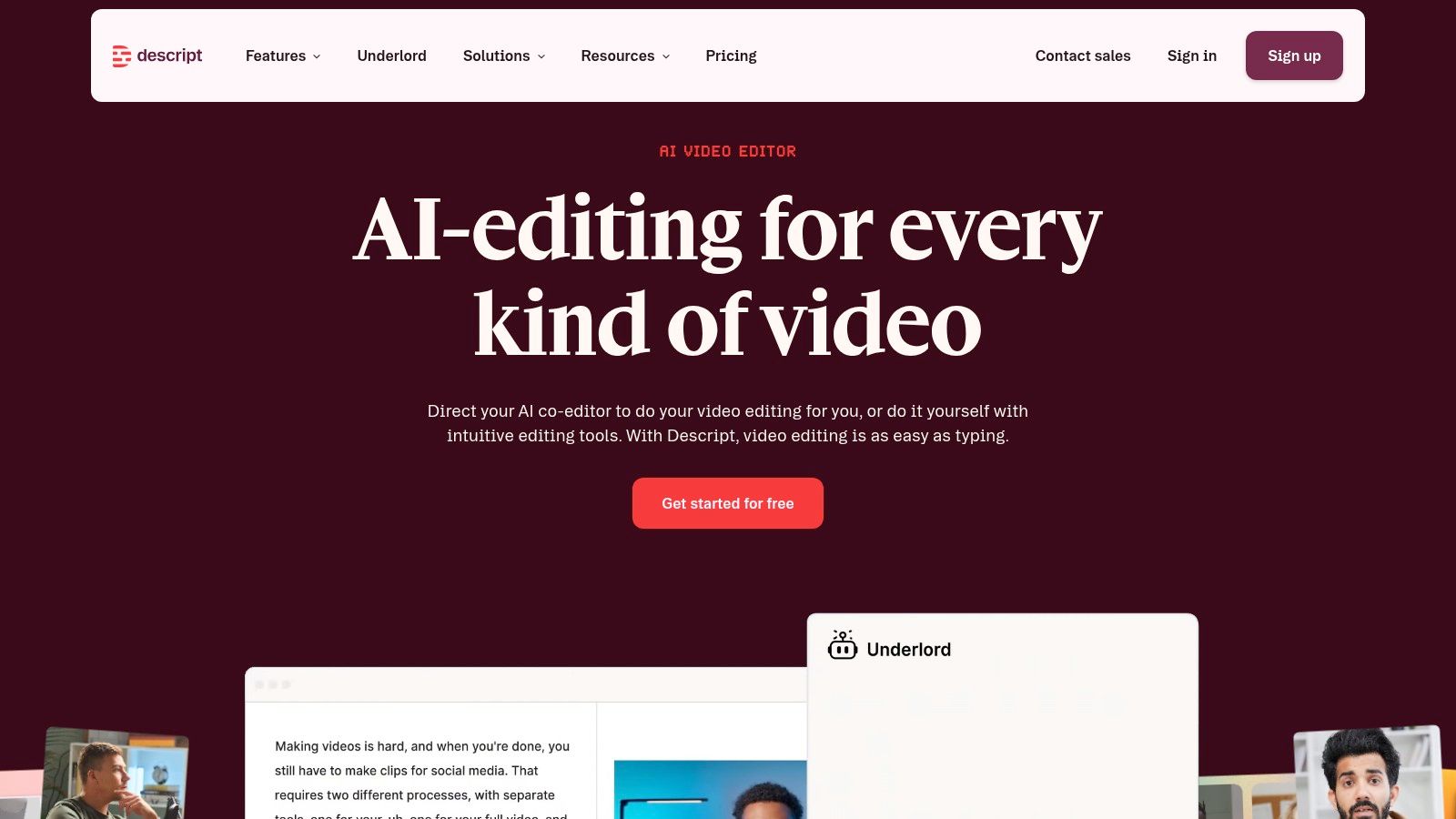
    Descript is built around a simple but powerful editing idea: edit the transcript, and the recording changes with it. That makes it a strong choice for podcasts, interviews, webinars, tutorials, and talking-head videos where the spoken words carry most of the structure. Instead of scrubbing through a timeline to remove a repeated phrase or awkward pause, creators can work through the text and make the corresponding edit.

    Its Underlord AI co-editor adds assisted editing, while Studio Sound supports audio cleanup and filler-word removal. Descript also handles captions, green screen work, clip creation, and quick social cutdowns. That combination makes it more than a transcription utility. It can take a long recording toward a publishable video and several short-form extracts without requiring a traditional non-linear editing workflow.
    Descript Underlord AI

    What works and what doesn't

    Descript is most effective when the source material is clear, speech-led, and structurally coherent. It can shorten the first editing pass dramatically because the transcript exposes rambling sections, repeated points, and weak transitions. It's also a practical bridge between a long YouTube recording and a set of social clips.

    The limitation is that automation can make editorial decisions that are technically reasonable but strategically wrong. A pause may carry emotion. A repeated phrase may be part of the creator's personality. An automatically selected clip may contain a useful statement but lack enough context to work as a standalone post.

    • Best fit: Talking-head videos, podcasts, interviews, and educational recordings.
    • Watch closely: AI-generated cuts, caption timing, speaker labels, and missing context.
    • Budget issue: Some advanced Underlord actions consume AI credits, and media-minute usage can affect plan economics.
    • Workflow issue: The Underlord feature is evolving, so occasional beta quirks still require manual correction.

    Descript isn't a replacement for a thoughtful editor. It's a fast first-pass editor that gives the creator a cleaner starting point. Every final cut still needs a human check for pacing, claims, captions, music levels, and the exact moment where the clip begins and ends.

    3. CapCut Standard and Pro

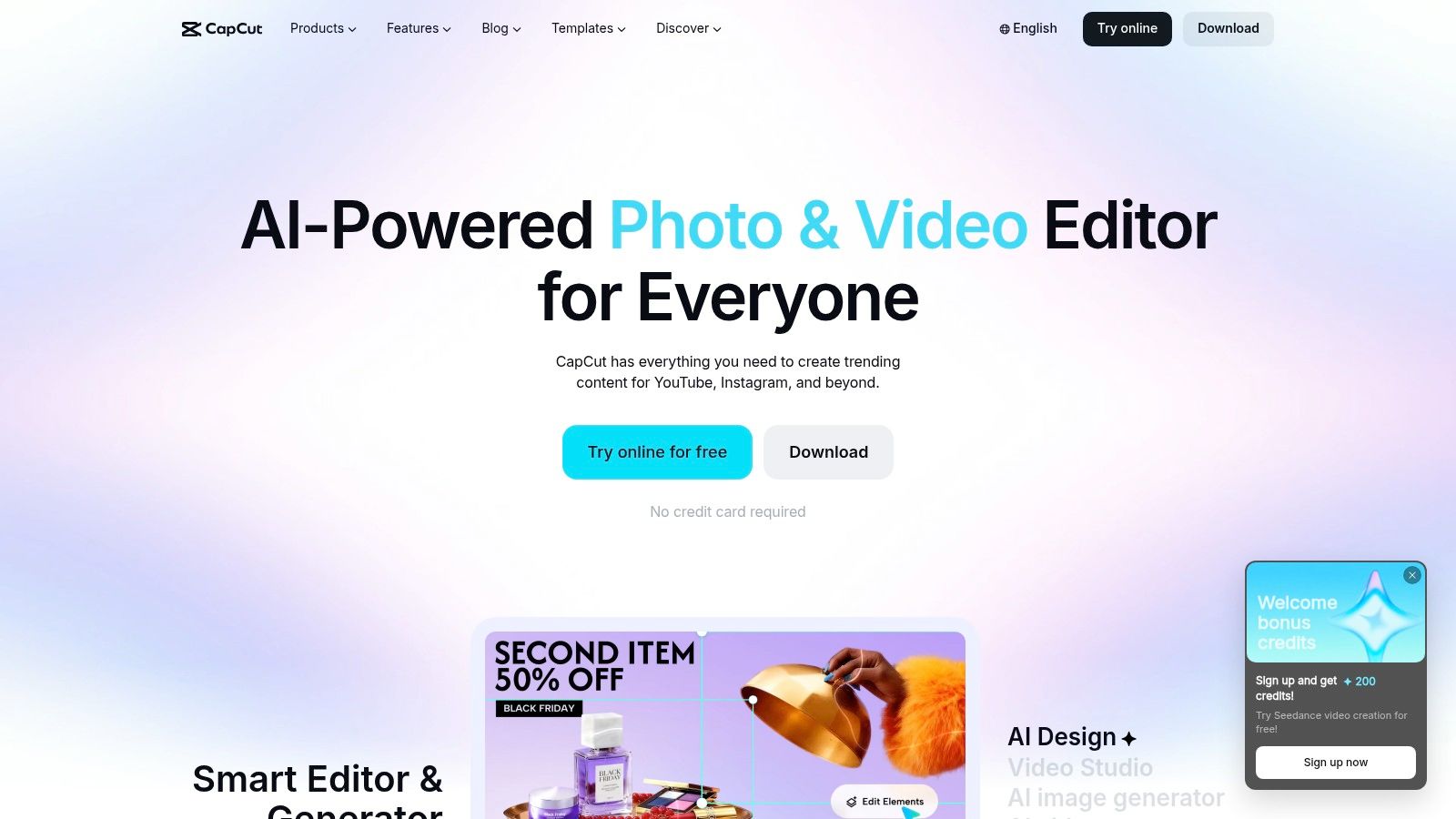
    CapCut fits creators whose publishing rhythm is centered on Shorts, Reels, and TikTok-style video. It's available across desktop, web, and mobile, so footage can move from a phone edit to a more deliberate desktop pass without forcing the creator into a single location. Templates, auto captions, voice tools, background removal, and green screen functions all support a fast social-native workflow.

    The broader AI suite adds prompt-led editing and automated assistance, but CapCut's strongest practical advantage is still the speed of assembling short-form content. A creator can import a clip, generate captions, apply a platform-friendly format, add a voice or visual treatment, and prepare the post without learning a complex professional editor.
    CapCut Standard and Pro

    Choose it for momentum, not maximum control

    CapCut is a good fit when turnaround and mobile continuity matter more than granular timeline control. Its templates can help a creator maintain momentum during a busy publishing cycle, especially when the concept is already clear and the main job is adapting footage for a short-form channel.

    That same template orientation can make content feel familiar or over-processed. Automated captions may need corrections, and visual effects can distract from the point of the video. The creator should also inspect the export rather than assuming that the mobile and desktop versions behave identically.

    • Fastest use case: Captioned vertical clips made close to the moment of recording.
    • Useful production tools: Voice features, background removal, green screen, and template-based edits.
    • Platform caution: Standard and Pro capabilities differ, and pricing can vary by region and platform.
    • Cost control: Some Pro functions require in-app purchases or subscriptions, so check the checkout experience before building a high-volume workflow.

    CapCut makes sense as the primary editor for short-form creators or as a finishing tool after a long-form video has been clipped elsewhere. It's less suitable when a production requires detailed sound design, complex story structure, or precise control over every visual layer.

    4. Runway

    Runway is the specialist choice in this list for creators who need generated footage rather than only automated editing. Its text-to-video and image-to-video models support visual concepts that would be expensive, difficult, or impossible to capture directly. That can include atmospheric B-roll, surreal transitions, visual metaphors, intros, and short sequences designed to give a video a distinctive look.

    The platform includes tools for extending clips, masking elements, upscaling, and working with different generation models. Its documentation explains model options and credit consumption, which gives creators a clearer basis for planning than an interface that hides generation costs until the output is complete.
    Runway

    Use generated footage selectively

    Runway is not the tool to use indiscriminately for every shot. Generation can produce striking results, but continuity, hands, text, object identity, and movement may require repeated attempts. A creator who treats every prompt as a finished asset can spend credits quickly and still end up with footage that needs replacement.

    • Strong application: Short visual inserts, concept footage, title sequences, and B-roll that supports a clear editorial purpose.
    • Weak application: Unreviewed factual demonstrations, precise product instructions, or scenes where continuity is central.
    • Main trade-off: Heavy use requires credit budgeting because generation is charged through a credit system.
    • Review requirement: Inspect every frame for visual errors, accidental text, misleading details, and consistency with the channel's style.

    Runway works best as a selective layer inside a broader production process. Record the core story normally, use generated footage where it adds meaning, then edit the result in a tool such as Descript, CapCut, or VEED. That keeps the creative value of generation while limiting its cost and unpredictability.

    5. OpusClip

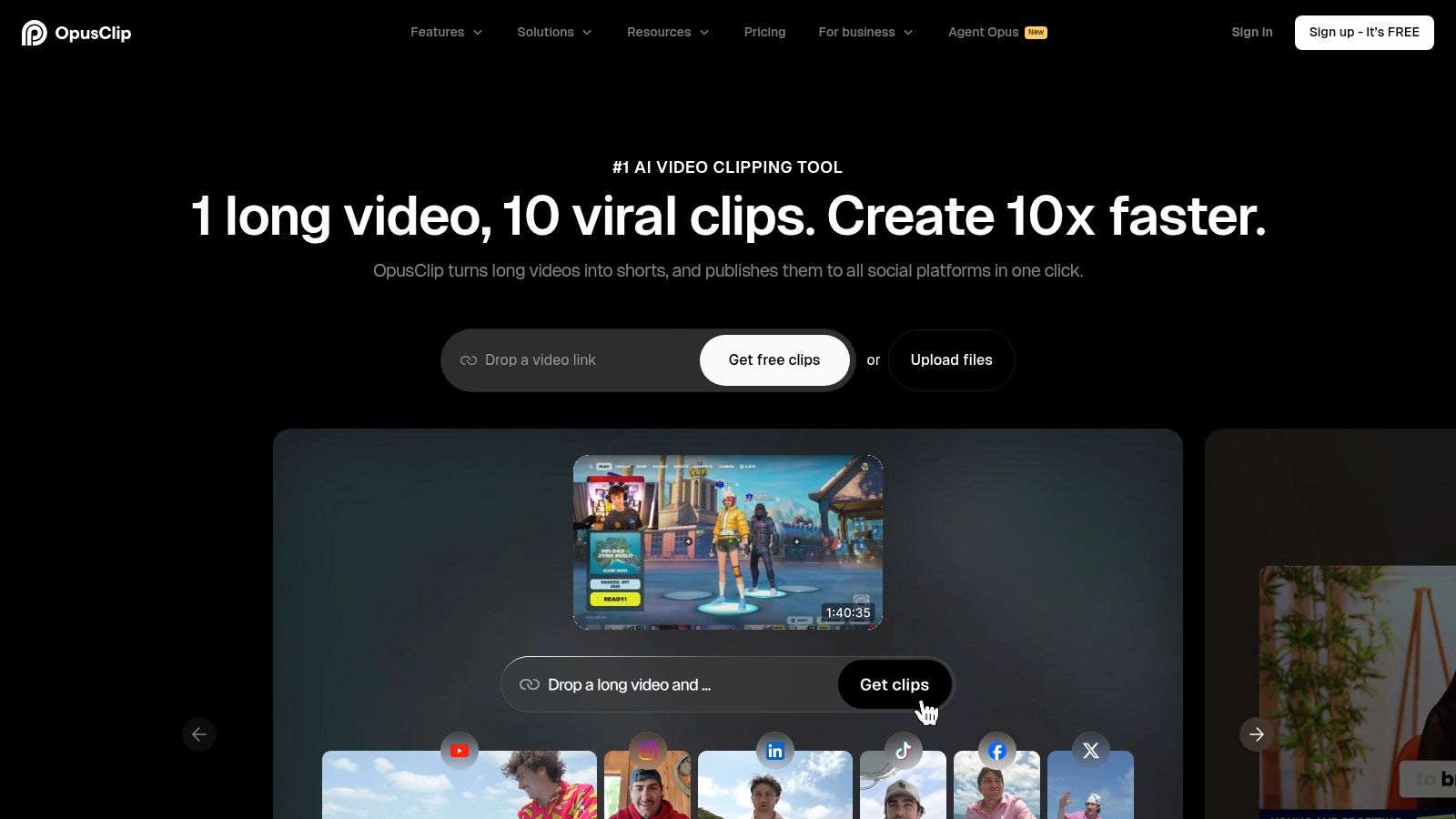
    OpusClip addresses one specific operational problem: turning a long video into short-form assets without watching the entire recording repeatedly. It analyzes long-form footage for highlights, creates Shorts or Reels formats, adds captions, and prepares platform-oriented exports. That makes it useful for podcasts, webinars, interviews, tutorials, and any recording with several independently valuable moments.

    The advantage isn't that every automatic clip will be ready to publish. The advantage is that the tool creates a useful set of candidates quickly. A creator can then choose the strongest moments, correct the framing, adjust the opening, and add a call to action that fits the destination platform.
    OpusClip

    The manual pass still matters

    Automatic highlight selection often favors a complete sentence or a moment with clear energy. It doesn't always understand the creator's broader strategy. A clip can be interesting but fail to introduce the topic, make a useful promise, or lead viewers toward the next action. Branding nuances, captions, transitions, and platform-specific calls to action also deserve review.

    Creators building a repeatable content repurposing workflow should define what happens after OpusClip exports the assets. For example, one person can select clips, another can check captions and framing, and the publisher can attach the correct destination link before scheduling.

    • Best source material: Long-form recordings with clear sections and strong spoken moments.
    • Main benefit: Fast conversion into platform-ready vertical formats.
    • Expected limitation: Advanced customization may require post-editing.
    • Distribution feature: One-click multi-platform posting and iOS support can reduce handoff friction, but the final post still needs a channel-specific review.

    OpusClip is a repurposing engine, not a content strategist. It finds usable material, but the creator decides whether each clip supports the audience, offer, and publishing objective.

    6. vidIQ

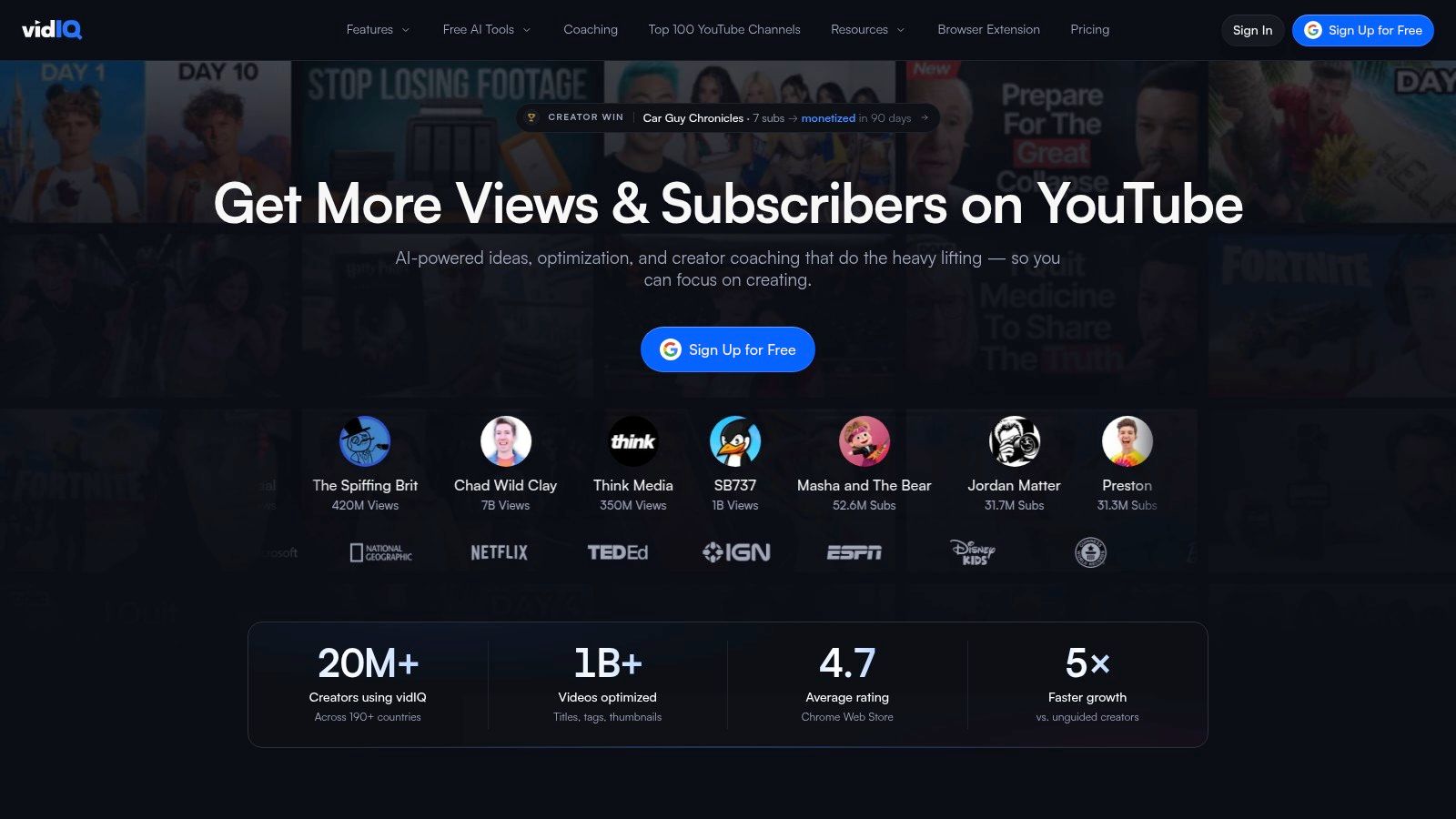
    vidIQ belongs near the start of a YouTube workflow, before recording begins and again when the video is packaged for publication. Its AI-assisted ideation, keyword discovery, metadata suggestions, title support, thumbnail guidance, and AI Coach tools help creators turn a broad topic into a more specific publishing concept.

    That role matters because production effort can be wasted on a video that has no clear audience promise. vidIQ helps creators examine topic directions, refine wording, and develop packaging options before they spend time recording or editing. It can also support the final metadata pass, although its suggestions should be treated as hypotheses rather than instructions.
    vidIQ

    Where its recommendations need judgment

    The strongest use of vidIQ is idea to keyword to packaging, especially for creators who publish frequently or manage more than one channel. It can reduce the blank-page problem and give a creator several ways to frame a topic. It won't know the full context of the audience's trust in the creator, the accuracy of a claim, or whether a title overpromises.

    Plan economics also matter. Some advanced AI capabilities use credits, and higher plans provide more functionality. A casual creator may not need the full system, while a channel with a consistent publishing pipeline may gain more from centralizing research and packaging in one place.

    • Use before recording: Compare topic angles and write a clear viewer promise.
    • Use during packaging: Develop title and thumbnail options that express the same idea.
    • Review manually: Check search intent, factual accuracy, brand voice, and whether the promise matches the finished video.
    • Measure beyond discovery: A stronger title may influence views or engagement, but that doesn't prove the video generated a lead or sale.

    For a deeper look at the surrounding workflow, compare vidIQ with other YouTube SEO tools. The right choice depends on whether the channel's bottleneck is topic selection, metadata, packaging, catalog management, or revenue measurement.

    7. TubeBuddy

    TubeBuddy is a YouTube-focused browser extension and platform that works close to the place where creators manage their channels. That proximity is its practical advantage. Keyword research, SEO suggestions, title and thumbnail testing, recommended tags, metadata support, and bulk updates sit within a familiar YouTube management workflow instead of requiring constant movement between unrelated tools.

    It's particularly useful for creators with a substantial back catalog. Updating titles, descriptions, or other metadata one video at a time can become tedious, while bulk management creates a more realistic way to improve older content and maintain consistency across a channel.

    A better fit for channel operations

    TubeBuddy makes the most sense when YouTube is the central publishing platform and the creator cares about ongoing channel maintenance, not just generating ideas for the next upload. A/B testing for thumbnails and titles can help creators compare packaging choices, while keyword and metadata tools support the discovery side of publishing.

    It's less compelling for a creator who uploads occasionally and has a small catalog. Many of its operational benefits become clearer when there are repeated optimization tasks, several videos to manage, or a team responsible for channel upkeep. Advanced functionality also requires paid access, so the subscription should be judged against the number of channel-management tasks it removes.

    • Best for: YouTube-first creators, managers of larger catalogs, and teams handling bulk changes.
    • Useful distinction: Discovery and packaging tools help viewers find and choose content, but they don't attribute downstream revenue.
    • Human responsibility: Review suggested tags, titles, and descriptions for accuracy and audience fit.
    • Extension context: Check the broader set of Chrome extensions for YouTubers before adding overlapping tools.

    TubeBuddy and vidIQ can serve similar planning and packaging needs, so most creators should test which interface and recommendation style fit their process. Buying both without a defined role can create duplicate suggestions rather than a better publishing system.

    8. ElevenLabs

    ElevenLabs is the voice and dubbing specialist. It supports text-to-speech, voice cloning, multilingual narration, dubbing, and audio creation for videos, audiograms, explainers, and alternate language versions. The output can sound natural enough for professional use, but natural delivery doesn't remove the need for editorial direction.

    A creator can use it to produce a voiceover from an approved script, patch a short line without arranging a new recording, create narration for B-roll, or prepare localized versions of a video. Those applications are different from using an AI voice to replace the creator's main presence. The right choice depends on whether the voice is a production utility or a central part of the brand relationship.

    Protect the voice workflow

    Voice cloning needs careful permission and brand governance. A creator should approve the source voice, review pronunciation of names and specialist terms, and listen for unnatural emphasis before publication. Dubbing also requires a cultural and editorial check, because a technically accurate translation may still sound wrong for the target audience.

    • Best fit: Voiceovers, corrections, narration, dubbing, and alternate language tracks.
    • Cost exposure: Usage-based pricing, credit add-ons, and tiered plans require monitoring when audio volume grows.
    • Quality check: Review pronunciation, pacing, emotional tone, pauses, and whether the voice matches the visual speaker.
    • Brand choice: Use synthetic voice where it adds production flexibility, not merely because recording a human voice is inconvenient.

    The platform can scale from solo creator work to larger operations, but large-scale dubbing can make usage costs harder to forecast. For a wider comparison of voice workflows, review these ElevenLabs alternatives before committing to one provider.

    9. Adobe Express With Firefly AI

    Adobe Express is a good middle ground for creators who want quick social production but already live in the Adobe ecosystem or need a polished handoff to tools such as Photoshop and Premiere. It combines templates, stock assets, brand kits, scheduling, mobile editing, and generative Firefly features for images and text effects in a more approachable interface than a full professional suite.

    The workflow is useful for turning a finished video into supporting assets. A creator can prepare a social cover, promotional graphic, quote card, or short visual treatment, then schedule or export it without rebuilding the brand system from scratch. Existing Adobe users also benefit from asset continuity and a familiar design language.

    Choose ecosystem fit over feature count

    Adobe Express is strongest when handoff and brand control matter. It isn't necessarily the best reason to switch from Canva if the creator already has an efficient Canva system, and it won't replace advanced Photoshop or Premiere work. Its value comes from connecting lightweight creation with the rest of an Adobe-centered workflow.

    Premium capabilities and generative credits can require a paid plan or additional credit purchases. That makes usage monitoring important for creators who rely heavily on AI generation rather than using it for occasional variations. Firefly output should still be reviewed for composition, text accuracy, and whether the result supports the intended message.

    • Use it for: Branded social assets, quick video edits, stock-supported designs, and scheduled posts.
    • Use Firefly selectively: Generate concepts or visual variations, then refine the strongest option manually.
    • Check before publishing: Product details, claims, logos, small text, and accessibility.
    • Voice support: Pairing a finished visual with narration may call for dedicated text-to-speech services rather than relying on one design application to handle every media task.

    Adobe Express is a sensible choice for creators already paying for Adobe tools or working with clients who expect Adobe-compatible assets.

    10. VEED

    VEED is a browser-based video suite designed for creators and teams that want editing without the complexity of a traditional desktop editor. Its AI features cover auto subtitles, translation, dubbing, text-to-speech, avatars, noise removal, eye-contact correction, and reel generation. Screen recording, webcam capture, a teleprompter, and brand kits make it useful from recording through social export.

    The subtitle and translation workflow is a particular strength. A creator can record in the browser, clean the audio, generate captions, translate the content, and prepare a short-form version without handing files across several applications. For a small team, that web-first approach also simplifies collaboration and keeps the working project accessible.

    A practical team editor

    VEED's learning curve is lower than that of a professional non-linear editor, which makes it a strong operational choice for creators who need reliable social output more than deep post-production control. Brand kits help teams keep fonts, colors, and recurring elements consistent, while the recorder and teleprompter reduce the number of separate tools needed before editing begins.

    The trade-offs are visible in the plan structure. Free exports include a watermark, and lower tiers can impose AI limits or credits. Heavy use may require a paid plan or additional AI capacity, so a team should test a real batch of content rather than evaluating only the demo workflow.

    • Best fit: Short-form teams, translated content, browser-based collaboration, and quick recording-to-export processes.
    • Review carefully: Captions, translated meaning, avatar delivery, eye-contact correction, and noise removal artifacts.
    • Plan constraint: Confirm export rules and AI allowances before building a client delivery process.
    • Human role: Decide which clips deserve publication, which language adaptations sound natural, and which claims require source checking.

    VEED is a useful all-rounder when accessibility, collaboration, and fast output matter. It's less attractive when the production requires advanced sound mixing, elaborate motion graphics, or highly controlled cinematic editing.

    Top 10 AI Tools for Content Creators, Quick Comparison

    Tool Core features ✨ Best for 👥 Quality ★ Pricing 💰 USP 🏆
    Canva (Magic Studio) ✨ Magic Write/Media, templates, brand kits 👥 Thumbnail & social asset creators ★★★★☆ 💰 Free tier; Pro for teams; AI credits on some tools 🏆 Fast idea→asset workflow & brand consistency
    Descript (Underlord AI) ✨ Transcript-based editing, Underlord, Studio Sound 👥 Podcasters & long-form editors ★★★★☆ 💰 Free tier; paid plans with AI credits & media minutes 🏆 Transcript-first edits that dramatically cut edit time
    CapCut (Standard/Pro) ✨ Prompt-led AI, templates, auto-captions, mobile↔desktop 👥 Short-form creators (TikTok/Reels/Shorts) ★★★★☆ 💰 Mostly free; Pro/in-app purchases vary by region 🏆 Social-native templates + cross-device continuity
    Runway ✨ Gen-3/Gen-4 text-to-video, extend/upscale, masks 👥 Creators needing AI-generated footage & VFX ★★★★☆ 💰 Credit-based generation; pay-per-use 🏆 Leading, creator-accessible text-to-video tools
    OpusClip ✨ AI highlight detection, auto-resize, captions 👥 Repurposers turning long-form into many shorts ★★★★☆ 💰 Subscription tiers; efficient ROI for repurposing 🏆 Fast auto-clipping for high-volume short outputs
    vidIQ ✨ AI ideation, keyword discovery, metadata & thumbnails 👥 YouTube creators optimizing SEO & CTR ★★★★☆ 💰 Free tier; higher plans/credits for AI features 🏆 Actionable metadata & packaging to boost CTR/rank
    TubeBuddy ✨ In-YouTube SEO, A/B tests, bulk updates 👥 Channel managers & frequent posters ★★★★☆ 💰 Free/basic; paid tiers unlock advanced tools 🏆 Battle-tested toolkit for channel-scale management
    ElevenLabs ✨ Natural TTS, voice cloning, dubbing, multilingual 👥 Voiceover artists, dubbing & narration at scale ★★★★★ 💰 Usage/credit-based; tiered plans for scale 🏆 Among the most natural-sounding AI voices
    Adobe Express (Firefly) ✨ Generative Firefly, stock assets, brand kits, scheduler 👥 Creators in Adobe ecosystem needing polished posts ★★★★☆ 💰 Free tier; Premium features & credits on paid plans 🏆 Polished outputs + smooth handoff to Adobe apps
    VEED ✨ Auto-subtitles/translate, TTS, avatars, eye-contact fix 👥 Teams & creators needing quick web editing & captions ★★★★☆ 💰 Free exports w/ watermark; paid plans + AI credits 🏆 Web-first collaboration with strong subtitle workflows

    Build the Smallest Stack You Can Measure

    There isn't one universal winner among the best AI tools for content creators. The right choice depends on the bottleneck. If topic selection and YouTube packaging slow the operation, start with vidIQ or TubeBuddy. If long-form editing consumes the available time, test Descript. If short-form output is the constraint, compare CapCut, VEED, and OpusClip. If visual packaging is inconsistent, use Canva or Adobe Express. Add Runway only when generated footage solves a real creative problem, and use ElevenLabs when voiceover, dubbing, or approved voice cloning has a clear role.

    Start with one primary tool rather than building a large stack immediately. Define a batch of content, use the tool through the same workflow each time, and record two things: production time and output quality. Quality should include more than whether the file exported. Check the strength of the hook, the accuracy of captions, the consistency of the brand, the amount of correction required, and whether the finished asset is suitable for its destination platform.

    Credit systems deserve their own review. Descript actions can consume AI credits, Runway charges generation through credits, ElevenLabs uses usage-based capacity and add-ons, and Adobe Express can limit generative features through plans or credit allowances. CapCut and VEED also separate capabilities across plans, platforms, or export tiers. A tool that looks inexpensive at light usage can become harder to forecast when every additional clip, voice generation, translation, or visual variation draws from a limited allowance.

    A repeatable combination might look like this:

    • Planning and packaging: Use vidIQ or TubeBuddy to shape the YouTube topic, title direction, thumbnail concept, and metadata.
    • Core production: Use Descript for transcript-led talking-head edits, or CapCut and VEED for fast social-native production.
    • Repurposing: Send long-form recordings to OpusClip, then manually select and refine the clips that deserve distribution.
    • Visual assets: Use Canva or Adobe Express for thumbnails, banners, carousels, promotional graphics, and brand templates.
    • Selective generation: Bring in Runway for specific B-roll or visual sequences, not as a substitute for every original shot.
    • Voice and localization: Use ElevenLabs for approved voiceover, corrections, dubbing, or alternate narration.

    The missing layer in most tool roundups is revenue attribution. Views, impressions, likes, comments, and watch time help describe discovery and audience behavior, but they don't answer the business question: which content caused someone to click, submit a lead, book a call, or buy an offer? Content stacks now cover ideation, production, repurposing, scheduling, and analytics, yet many workflows stop measuring at output or engagement.

    ViewsMax fits after publishing. Create trackable links for offers, place them in YouTube descriptions, bios, and social posts, then compare clicks, leads, calls booked, and attributed sales by content piece. That distinction matters for creators, coaches, educators, agencies, and brands that monetize through several channels. A video can attract attention without producing revenue, while a less visible piece may send qualified prospects to an offer. Without link-level attribution, those outcomes look similar inside a view-focused dashboard.

    Keep human review in every important stage. Check AI-generated scripts for unsupported claims and generic phrasing. Inspect visuals for errors and misleading details. Correct captions and translations, listen to synthetic voices, and confirm that titles and thumbnails represent the finished content. AI can compress production, but judgment still determines whether the content deserves trust.

    Choose one tool for the current constraint, test it against real work, and keep it only if it improves a measurable part of the operation. Then add the next tool only when the workflow exposes a new bottleneck, not because another platform has an impressive feature list.


    ViewsMax helps creators turn published content into trackable business activity by connecting YouTube videos and social posts to clicks, leads, calls booked, and attributed sales. Visit ViewsMax to build a measurable content workflow instead of judging every tool only by how much content it can produce.
  • The 12 Best Chrome Extensions for YouTubers in 2026

    The 12 Best Chrome Extensions for YouTubers in 2026

    YouTube is more than a platform; it's a competitive ecosystem where efficiency and optimization separate thriving channels from stagnant ones. Juggling research, search engine optimization (SEO), analytics, and content creation can quickly become overwhelming for creators at any level. The right tools, however, can transform this workflow from a chaotic scramble into a streamlined, data-driven process, allowing you to focus on what truly matters: creating compelling content.

    This comprehensive guide moves beyond generic feature lists to provide a deep dive into the best Chrome extensions for YouTubers. We will explore a curated selection of tools designed to enhance every stage of your creative process, from initial idea generation to post-publication analysis. We'll examine powerful extensions like TubeBuddy and vidIQ for channel management, Keywords Everywhere for SEO research, and innovative tools like Glasp for content summarization. Each entry includes an honest assessment of its strengths and weaknesses, practical use-case scenarios, and clear screenshots to illustrate its functionality.

    Forget sifting through countless options in the Chrome Web Store. This article is your definitive resource for finding the perfect extensions to match your specific needs as a creator. Whether you're a new vlogger trying to find your footing or a seasoned pro looking to refine your strategy, these browser-based tools are your secret weapon for creating smarter, growing faster, and reclaiming hours of valuable time. Let’s explore how to integrate these powerful assistants directly into your browser to unlock your channel's full potential.

    1. ViewsMax YouTube Video Title Generator

    For creators who understand that a video’s success often hinges on its title, the ViewsMax YouTube Video Title Generator is an indispensable tool. It distinguishes itself by seamlessly integrating an AI-powered brainstorming engine directly into the YouTube Studio upload interface. This eliminates the disruptive workflow of switching between your channel dashboard and external idea generators, making it one of the best chrome extensions for YouTubers focused on efficiency and optimization.

    Instead of facing a blank title field, you can instantly generate a list of compelling, data-informed title options tailored to your video's content. The extension analyzes best practices and successful title formats, providing suggestions designed to maximize click-through rates (CTR) and improve discoverability in YouTube’s search and recommendation algorithms.

    ViewsMax YouTube Video Title Generator

    Why It Stands Out as a Top Choice

    What makes ViewsMax a standout is its deep integration and practical application. The one-click insertion feature is a significant time-saver, allowing you to apply a chosen title directly to your upload without any manual copy-pasting. This seemingly small function streamlines the publishing process, reducing friction and helping you maintain creative momentum.

    Furthermore, it's not just a standalone title tool. It functions as a key component of the broader ViewsMax creator suite, which includes tools for tag generation and description optimization. This cohesive ecosystem ensures your on-page SEO is aligned from title to tags, creating a powerful, unified strategy for every video.

    Real-World Application: Imagine you've just finished editing a complex tutorial on "Advanced Photoshop Techniques." Instead of brainstorming from scratch, you can generate 10-15 title variations directly in YouTube Studio. You might get options ranging from "Unlock Photoshop's Hidden Tools" to "5 Pro-Level Photoshop Tricks You Never Knew," giving you immediate, optimized choices to test.

    Key Features & Considerations

    Feature Description Best For
    In-Studio AI Generation Generates title ideas directly within the YouTube upload page. Creators seeking maximum workflow efficiency.
    One-Click Title Insertion Applies a selected title to the video's metadata field instantly. YouTubers publishing content frequently.
    Data-Informed Suggestions Provides titles based on proven formats and SEO best practices. Channels focused on search-based growth.
    Integrated SEO Toolkit Works alongside ViewsMax's other tools for tags and descriptions. Users wanting an all-in-one optimization solution.

    Pros:

    • Saves significant time by eliminating context-switching during uploads.
    • Suggestions are grounded in data, improving your video's discovery potential.
    • Seamless integration into the native YouTube Studio workflow feels intuitive.
    • Part of a larger toolkit for comprehensive on-page SEO.

    Cons:

    • Requires the Google Chrome browser and granting extension permissions.
    • AI suggestions are a powerful starting point but may need minor human edits to perfectly match your channel's unique voice.

    You can learn more and install the extension at ViewsMax.

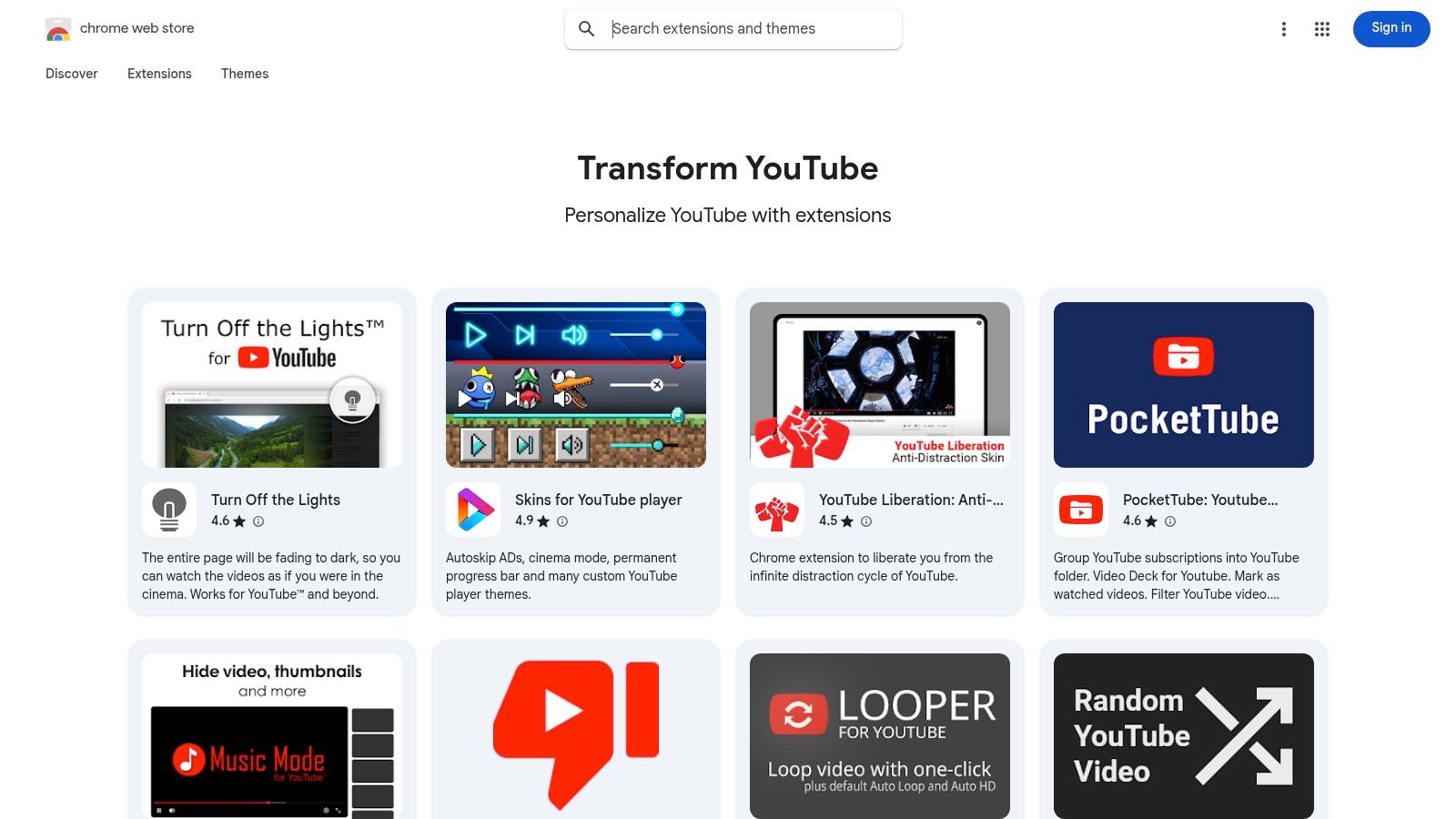
    2. Chrome Web Store – “Transform YouTube” collection

    Before diving into individual tools, the best place to start your search is Google’s own Chrome Web Store, specifically its curated “Transform YouTube” collection. This handpicked list serves as a vetted, centralized hub where creators can discover and compare many of the most popular and effective best chrome extensions for YouTubers, all in one place. It’s the safest and most direct starting point for enhancing your YouTube workflow.

    Chrome Web Store – “Transform YouTube” collection

    What makes this collection so valuable is the built-in trust and transparency. Every extension listed is verified by Google, and you can instantly see crucial details like user ratings, review summaries, the total number of users, and the last update date. This information allows you to quickly gauge an extension's reliability and popularity without leaving the page. The one-click install process and automatic updates simplify management, especially for creators using multiple Chrome profiles for different channels.

    Key Features & Use Cases

    • Curated Discovery: The collection aggregates a diverse range of tools, from SEO and analytics overlays to productivity enhancers and video captioning utilities. This saves you from sifting through thousands of unrelated extensions.
    • Security First: As the official marketplace, it provides unparalleled security. Permissions required by each extension are clearly listed, so you know exactly what data it can access before you install.
    • Side-by-Side Comparison: The standardized layout makes it easy to open multiple extension pages in different tabs and directly compare their features, user counts, and reviews.

    Practical Considerations

    While the collection is an excellent resource, remember that it isn't exhaustive and the listings can change over time. Additionally, detailed pricing information is often not available directly on the store page; you may need to visit the extension's official website to understand subscription costs.

    Website: https://chromewebstore.google.com/collection/youtube

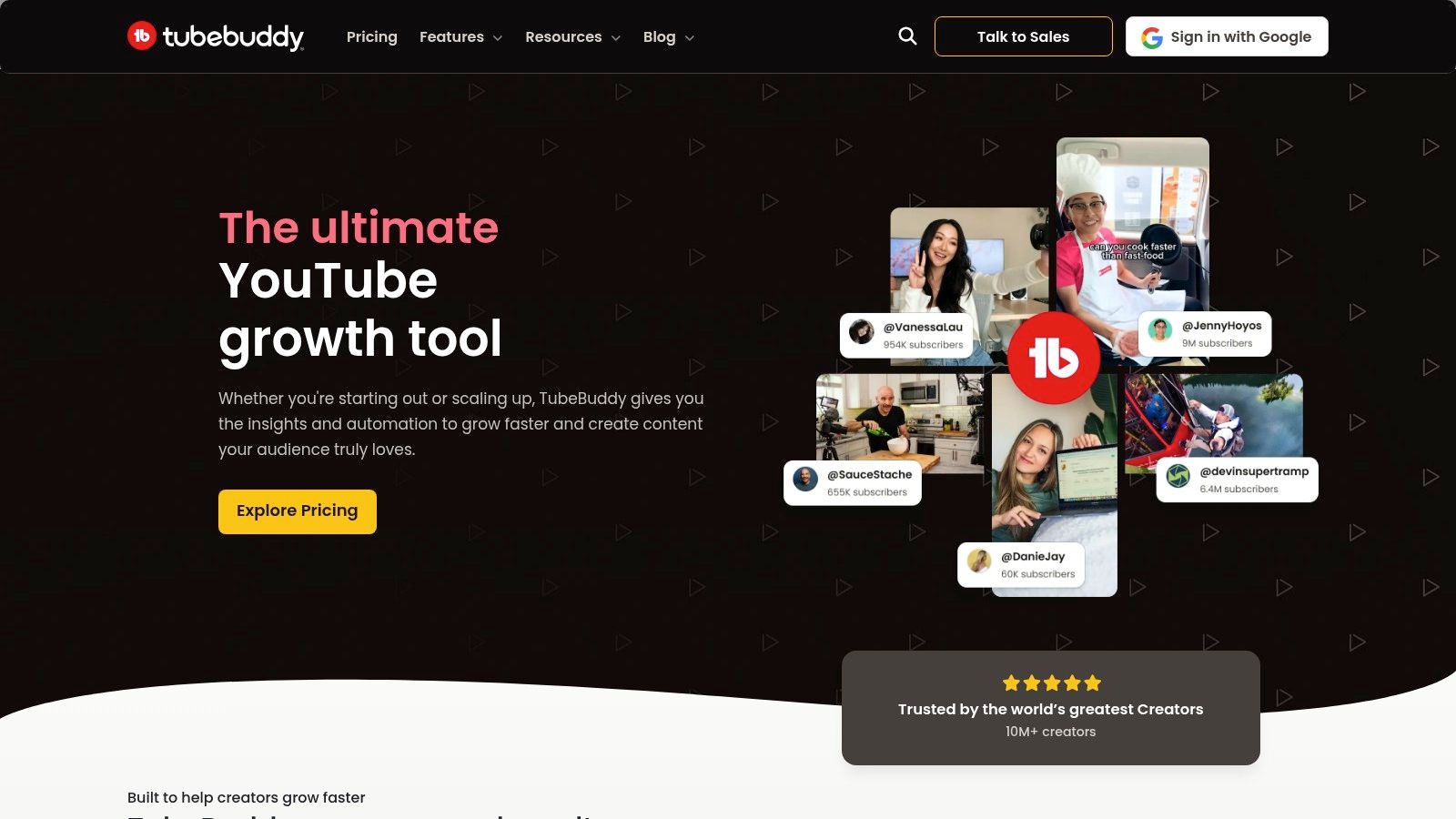
    3. TubeBuddy

    TubeBuddy is an all-in-one optimization and management toolkit that integrates directly into your YouTube Studio interface. As a browser extension, it acts as a co-pilot for your channel, embedding a powerful suite of tools next to your videos, analytics, and comments. It is one of the most widely adopted and best chrome extensions for YouTubers because it streamlines complex tasks like keyword research, competitor analysis, and bulk metadata updates without ever needing to leave YouTube.

    TubeBuddy

    What sets TubeBuddy apart is its focus on workflow efficiency and actionable data. The extension provides real-time SEO scores as you write titles and descriptions, suggests relevant tags based on search volume, and offers an interactive upload checklist to ensure you follow best practices every time. For creators of all sizes, this direct integration transforms the native YouTube dashboard into a more powerful, data-driven command center for channel growth. Its popularity stems from its clear upgrade path, starting with a robust free version and scaling to professional-grade tools.

    Key Features & Use Cases

    • Keyword Explorer: Research and discover high-value video topics by analyzing search volume, competition, and related queries directly within YouTube.
    • A/B Video Testing: Available on paid plans, this feature lets you test different thumbnails, titles, and descriptions to see which version performs best and drives more clicks.
    • Bulk Processing Tools: Save hours of manual work by applying changes to cards, end screens, and video descriptions across multiple videos simultaneously.
    • SEO Studio: Get guided optimization recommendations as you prepare your video for upload, ensuring you target your chosen keyword effectively for maximum visibility.

    Practical Considerations

    While the free version offers significant value, many of TubeBuddy's most powerful features, like A/B testing and advanced analytics, are locked behind paid subscriptions. The tool officially ended its support for Firefox, making it a Chrome-first platform, though it also works on Microsoft Edge and other Chromium-based browsers.

    Website: https://www.tubebuddy.com

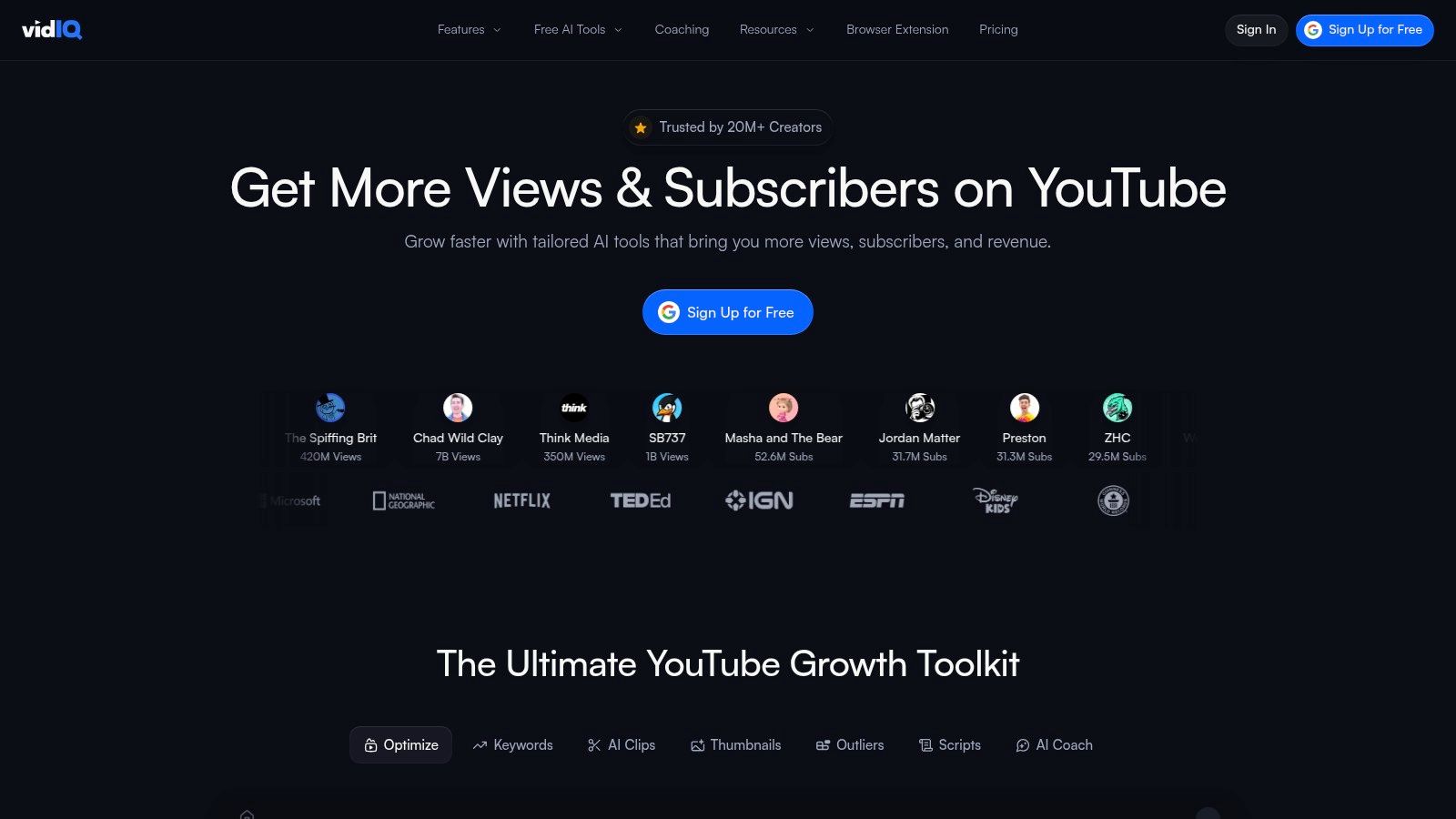
    4. vidIQ

    vidIQ is an AI-powered growth toolkit designed to provide YouTubers with actionable, data-driven insights directly within the YouTube interface. As one of the most popular best chrome extensions for YouTubers, it adds a comprehensive analytics sidebar to video pages, search results, and your own creator studio. This sidebar gives you an instant, at-a-glance performance overview, including an overall SEO score, keyword rankings, and competitor benchmarks.

    vidIQ

    What sets vidIQ apart is its blend of real-time data and AI-driven recommendations. The extension not only shows you how a video is performing but also suggests actionable steps to improve it. Features like the AI Coach and Daily Ideas provide personalized topic suggestions and title recommendations based on your channel's niche and audience behavior, making it a proactive partner in your content strategy. This integration of analytics with creative assistance helps bridge the gap between understanding data and implementing it effectively.

    Key Features & Use Cases

    • Real-Time SEO Scorecard: Instantly see a video’s optimization score (out of 100) and get a checklist of improvements, perfect for analyzing both your own content and that of competitors.
    • Competitor Analysis: Quickly view key metrics like views per hour, engagement rates, and top keywords for any video, allowing you to benchmark your performance and identify successful strategies in your niche.
    • AI-Powered Idea Generation: The AI Coach and Daily Ideas features suggest video topics and titles with high growth potential, helping you overcome creative blocks and align your content with trending interests. For a deeper understanding of this process, see this guide on how to choose the right YouTube video keywords.

    Practical Considerations

    While vidIQ offers a robust free tier that is excellent for beginners, many of its most powerful AI features, such as the AI Content Generator and advanced trend alerts, are locked behind paid subscriptions (Pro, Boost, and Max plans). The extension is actively maintained for Chrome and Edge, but users on other browsers might experience limited functionality.

    Website: https://vidiq.com

    5. Keywords Everywhere

    Keywords Everywhere is a freemium keyword research tool that integrates directly into your browser, overlaying valuable search data on YouTube and other major platforms. It excels at providing on-the-spot validation for video topics by showing search volume, cost-per-click (CPC), and competition metrics right within the YouTube search results. This allows creators to gauge audience interest and competition levels without leaving their research workflow.

    Keywords Everywhere

    Unlike comprehensive channel management suites, Keywords Everywhere focuses on one thing and does it well: delivering keyword data where you need it. Its unique credit-based system means you only pay for the data you use, making it a highly scalable option for solo creators or those on a tight budget. Beyond YouTube, it provides insights on Google, Amazon, and other sites, offering a holistic view of a topic's search landscape. Beyond Keywords Everywhere, explore a comprehensive list of the best SEO tools to further enhance your video discoverability on YouTube and beyond.

    Key Features & Use Cases

    • On-Page Metrics: Instantly view monthly search volume, CPC, and competition data directly under the YouTube search bar and on video pages.
    • Keyword Discovery Widgets: Use the "Related Keywords" and "People Also Search For" widgets to find long-tail keyword opportunities and related topic ideas for your content calendar.
    • Tag Extraction: Analyze the tags of top-ranking videos to inform your own tagging strategy and improve discoverability.
    • Credit-Based Pricing: Purchase credits for on-demand access to detailed metrics, ensuring you only pay for what you need, with credits that last for a year.

    Practical Considerations

    The free version of the extension is limited, primarily offering related keyword suggestions without the crucial volume and competition data. The pay-as-you-go credit system is cost-effective but requires mindful usage, as credits can be depleted quickly during extensive research sessions if you're not careful.

    Website: https://keywordseverywhere.com

    6. Social Blade (extension hub)

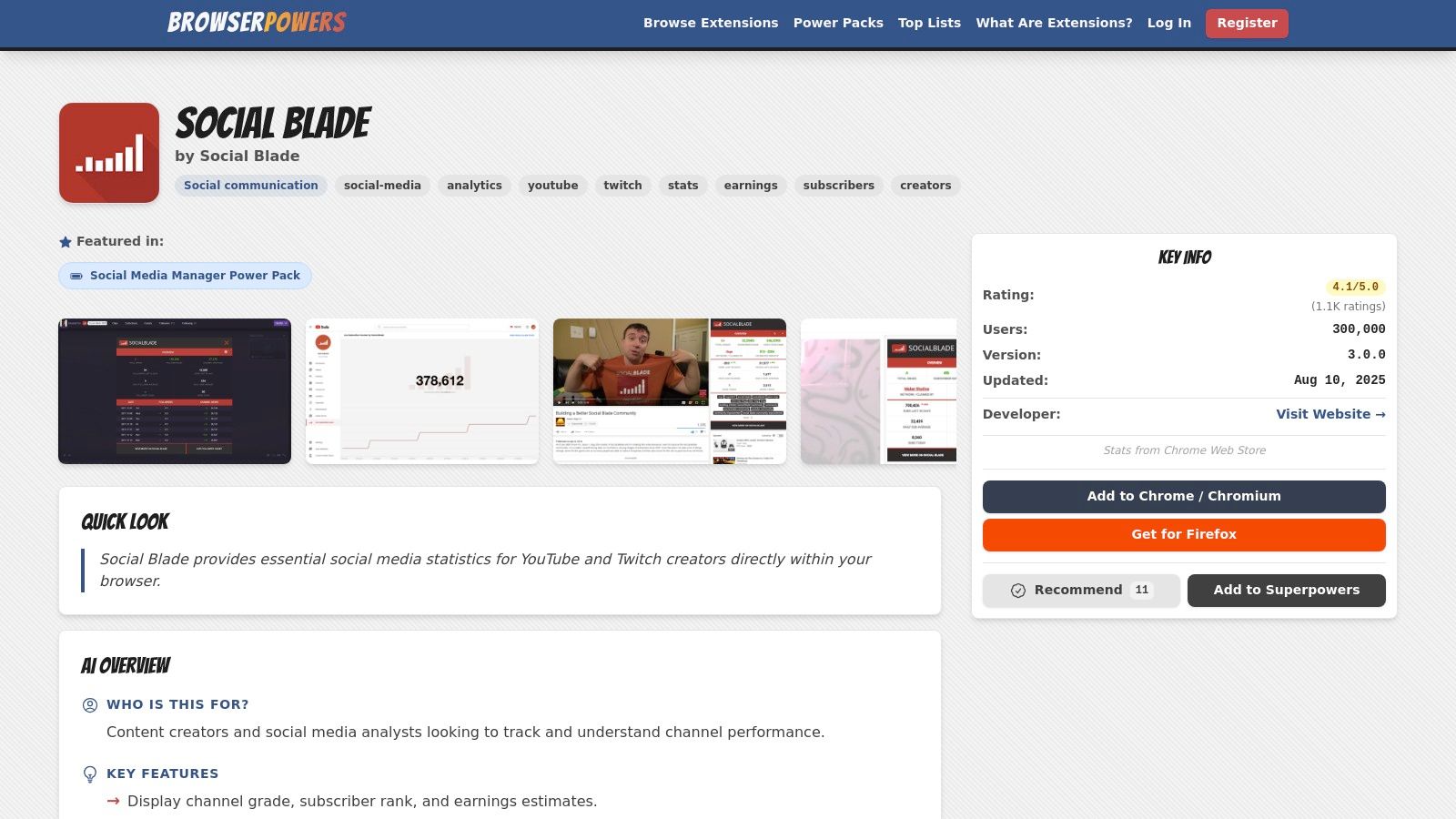
    Social Blade is a household name for YouTubers focused on analytics, and its browser extension brings that powerful data directly into the YouTube interface. It embeds a concise statistics box on video and channel pages, offering a quick-glance view of key performance indicators. This makes it an indispensable tool for competitor analysis, collaboration vetting, and tracking your own channel’s public-facing momentum without leaving YouTube.

    Social Blade (extension hub)

    The extension’s main strength lies in its simplicity and the familiarity of its metrics. You can instantly see a channel's "SB Rank," grade, estimated monthly earnings, and recent subscriber and view counts. This immediate context is perfect for creators who need to quickly assess a channel's size and trajectory, turning raw data into one of the best chrome extensions for YouTubers focused on competitive research. Integrating this data directly into your workflow provides essential insights for your own YouTube channel growth tips.

    Key Features & Use Cases

    • On-Page Channel Snapshot: View a channel’s Social Blade grade, subscriber rank, video view rank, and estimated earnings directly on their YouTube page.
    • 30-Day Performance Summary: Quickly check the subscriber and view gains over the last 30 days, providing a clear indicator of a channel's current momentum.
    • One-Click Deeper Analysis: The embedded panel includes a direct link to the full Social Blade profile, allowing you to seamlessly transition from a quick overview to an in-depth statistical breakdown.

    Practical Considerations

    The Social Blade extension has experienced some functionality disruptions as it transitions to Chrome's new Manifest V3 platform. Users might encounter limited features or temporary inconsistencies until the updated version is fully rolled out. While its core "at-a-glance" value remains strong, it's best used as a quick benchmarking tool rather than a comprehensive analytics suite.

    Website: https://browserpowers.com/extensions/social-blade

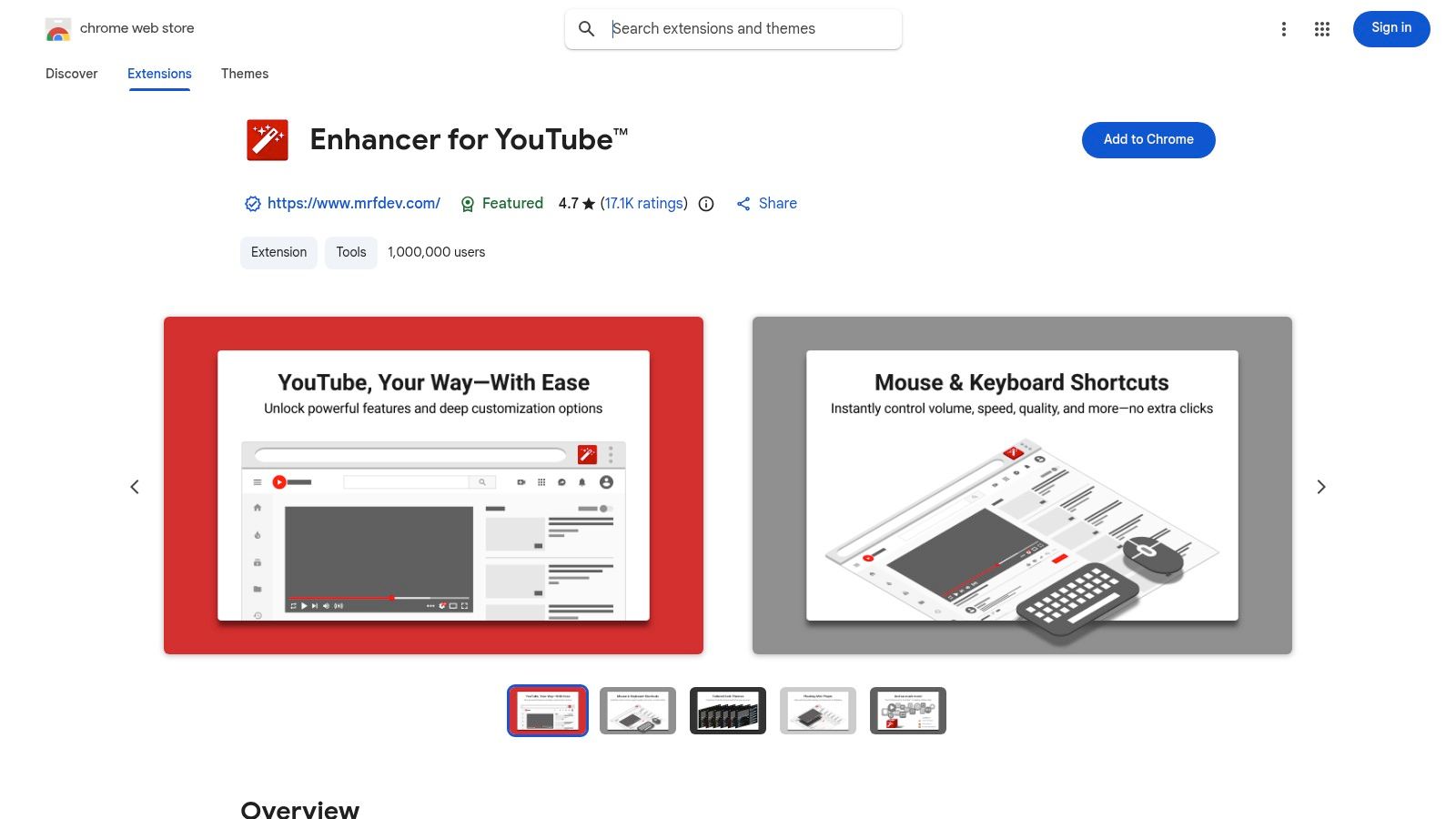
    7. Enhancer for YouTube (by Maxime RF)

    Enhancer for YouTube is a powerful productivity tool that gives creators and power-viewers granular control over the YouTube interface and playback experience. While not strictly an SEO or analytics tool, it’s invaluable for content research, competitor analysis, and streamlining the process of reviewing footage. Its ability to set defaults and create custom shortcuts makes it one of the best chrome extensions for YouTubers focused on workflow efficiency.

    Enhancer for YouTube (by Maxime RF)

    What sets this extension apart is its focus on micro-optimizations that add up to significant time savings. Imagine needing to review hours of competitor content; you can set a default playback speed of 1.5x for all videos, control volume with your mouse wheel, and instantly reverse playlists to watch older content first. These small tweaks remove repetitive clicks and keep you focused on the content itself, not the interface.

    Key Features & Use Cases

    • Playback Control: Set default playback quality, speed, and volume for every video you open. This is perfect for creators who consistently review B-roll or tutorials and need a standardized setup.
    • Custom Shortcuts: Create custom keyboard shortcuts for actions like taking a screenshot, looping a video segment, or navigating frames, which speeds up the video editing and review process.
    • UI Customization: Remove UI elements like annotations or end cards to create a cleaner viewing environment, minimizing distractions during content analysis or research.
    • Playlist Management: Instantly reverse playlist order or use other playback controls to more efficiently analyze a competitor’s content library from a different perspective.

    Practical Considerations

    The extension is highly configurable, which can be overwhelming for new users. It's best to start by changing one or two settings at a time. Because it heavily modifies the YouTube UI, its features can sometimes break or behave unexpectedly after a major YouTube platform update, though the developer is generally quick to release fixes.

    Website: https://chromewebstore.google.com/detail/enhancer-for-youtube/ponfpcnoihfmfllpaingbgckeeldkhle

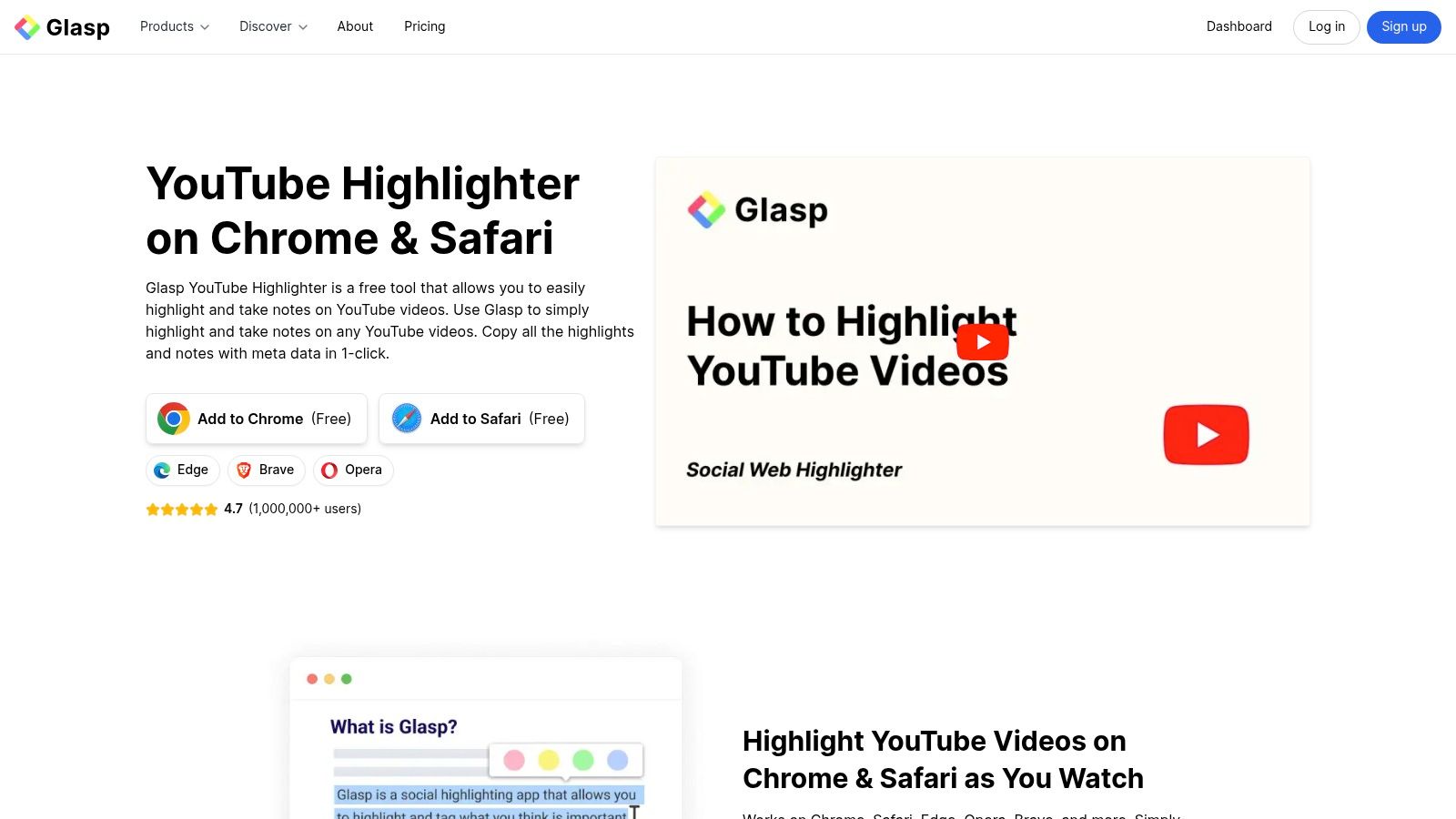
    8. Glasp – YouTube Summary & Highlighter

    Glasp is an indispensable research tool that transforms how creators consume and repurpose video content. It allows you to highlight text directly from YouTube transcripts and take timestamped notes, effectively turning passive video watching into an active research session. This is incredibly useful for drafting video outlines, collecting sources for commentary, or creating detailed show notes without leaving the YouTube player.

    Glasp – YouTube Summary & Highlighter

    What makes Glasp one of the best chrome extensions for YouTubers is its seamless integration of transcription, note-taking, and AI-powered summarization. A dedicated sidebar appears next to the video, showing the full transcript and an AI summary panel. Creators can quickly generate a concise overview of any video, saving hours of manual research and helping to rapidly build a knowledge base for their next project. All highlights and notes are synced to a personal online hub for easy access.

    Key Features & Use Cases

    • Timestamped Notes & Highlights: Select key phrases from a video’s transcript and add your own notes, which are automatically linked to the exact timestamp for quick reference.
    • One-Click AI Summaries: Generate summaries using AI models like ChatGPT, Claude, or Gemini directly on the YouTube page to quickly grasp the core message of a video.
    • Centralized Knowledge Hub: All your highlights and notes from across the web are saved to your Glasp profile, creating a personal, searchable library of insights.

    Practical Considerations

    The extension is free to start, which is a major benefit for creators on a budget. However, its more advanced AI summarization features may rely on your own API keys for external models. Additionally, like many extensions that modify the YouTube UI, occasional site updates can temporarily affect widget placement or functionality until the extension is updated. For those who want more control over their content's accessibility and repurposing, learning how to build a YouTube transcript AI offers advanced customization.

    Website: https://glasp.co/youtube-highlighter

    9. Language Reactor

    For YouTubers creating multilingual content, or those who need to verify the accuracy of their translated captions, Language Reactor is an indispensable tool. This powerful extension transforms the standard YouTube player into a robust language-learning and translation-verification environment. It overlays dual-language subtitles directly onto the video, allowing you to see your native language and a target language side-by-side in real time.

    What sets Language Reactor apart is its focus on granular control and comprehension. Creators can instantly click on any word in the subtitles to get a detailed dictionary definition and usage examples, making it perfect for checking nuanced translations. This functionality is a game-changer for ensuring your captions are not just literally translated but also culturally and contextually accurate, enhancing the experience for your international audience.

    Key Features & Use Cases

    • Dual-Language Subtitles: Display two sets of subtitles simultaneously to compare and contrast translations. This is essential for creators who outsource captioning and need an efficient way to proofread the final product.
    • Pop-up Dictionary: Hover over or click any word in the subtitles to get an instant translation and definition, helping you confirm that specific terminology is correct.
    • Precise Playback Controls: The extension adds shortcuts to repeat specific lines of dialogue, slow down playback, and navigate captions with precision, streamlining the quality assurance process.

    Practical Considerations

    Language Reactor is an incredibly powerful tool, but its reliance on YouTube's interface means it can sometimes experience temporary glitches after a major YouTube UI update. While the developers are generally quick to push fixes, be prepared for occasional inconsistencies. The free version is highly functional, but a Pro version is available to unlock additional features like saving words and phrases.

    Website: https://www.languagereactor.com

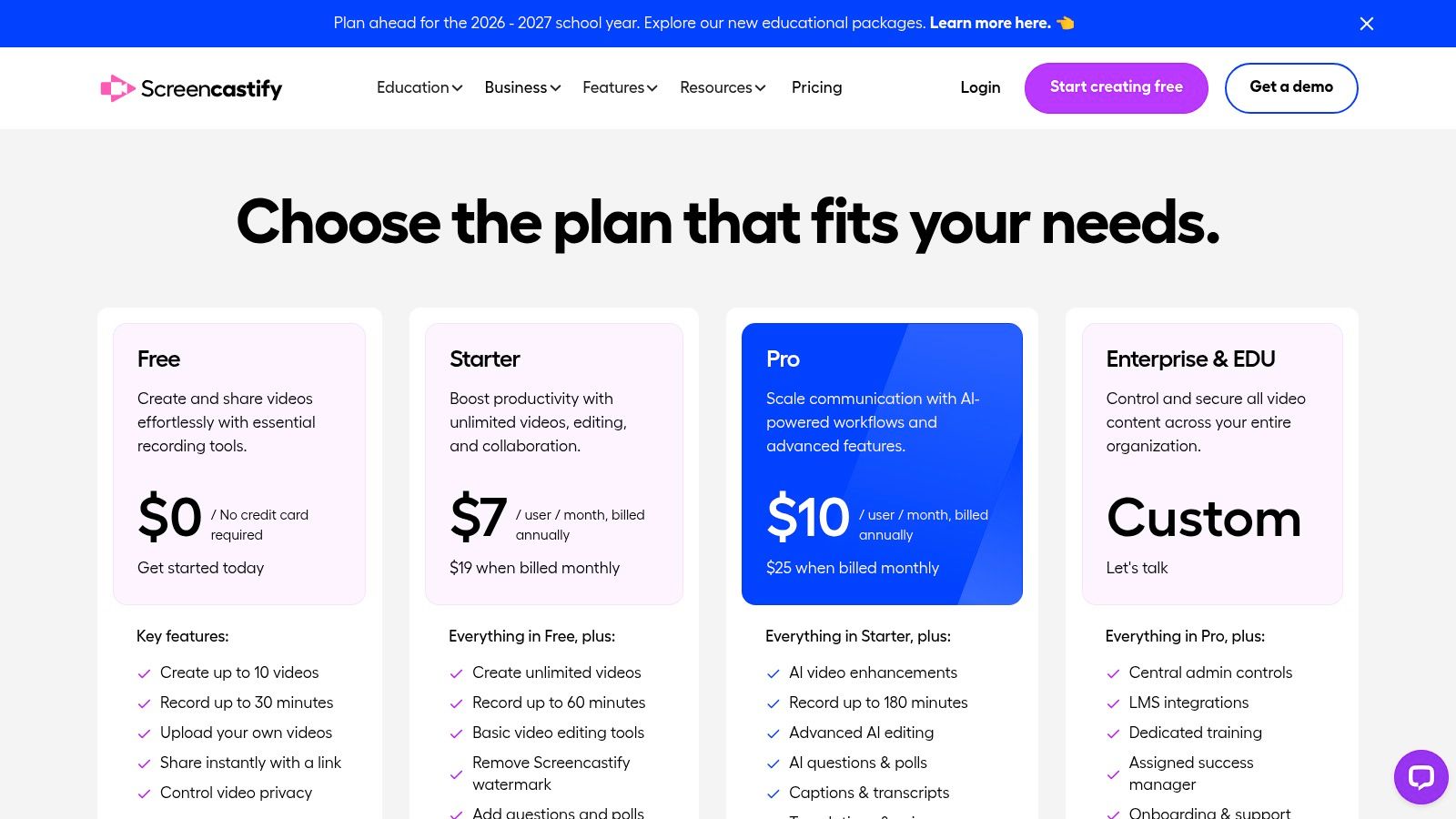
    10. Screencastify

    For creators focused on tutorials, software walkthroughs, or educational content, Screencastify is a highly efficient, browser-based screen recorder. It simplifies the process of capturing your screen and webcam, making it one of the best chrome extensions for YouTubers who need to produce how-to videos quickly without complex desktop software. Its long-standing reputation in the education sector means it’s built for simplicity and reliability.

    Screencastify

    What sets Screencastify apart is its streamlined workflow. You can record, perform basic edits like trimming, and export directly to YouTube or Google Drive from a single interface. This eliminates the need for downloading large files and re-uploading them. For creators producing scripted tutorials, knowing how to write a script for YouTube videos first can make the recording and editing process with a tool like Screencastify incredibly fast and efficient. The platform also offers a cloud library for easy storage and sharing.

    Key Features & Use Cases

    • Integrated Screen & Webcam Recording: Easily capture your entire screen, an application window, or a specific browser tab, with or without your webcam feed overlaid.
    • Simple In-Browser Editing: Trim the start and end of your videos, merge clips, and add text overlays without leaving your Chrome browser.
    • Direct Cloud Integration: Save recordings directly to your Google Drive and get a shareable link instantly, or upload straight to your YouTube channel.

    Practical Considerations

    Screencastify is built for speed and convenience, not for advanced video production. The free plan has significant limitations, including a cap on the number and length of videos you can create and a watermark on all exports. While its education-focused compliance (FERPA/COPPA) is a major plus for that niche, its analytics are minimal compared to dedicated video hosting platforms.

    Website: https://www.screencastify.com/pricing

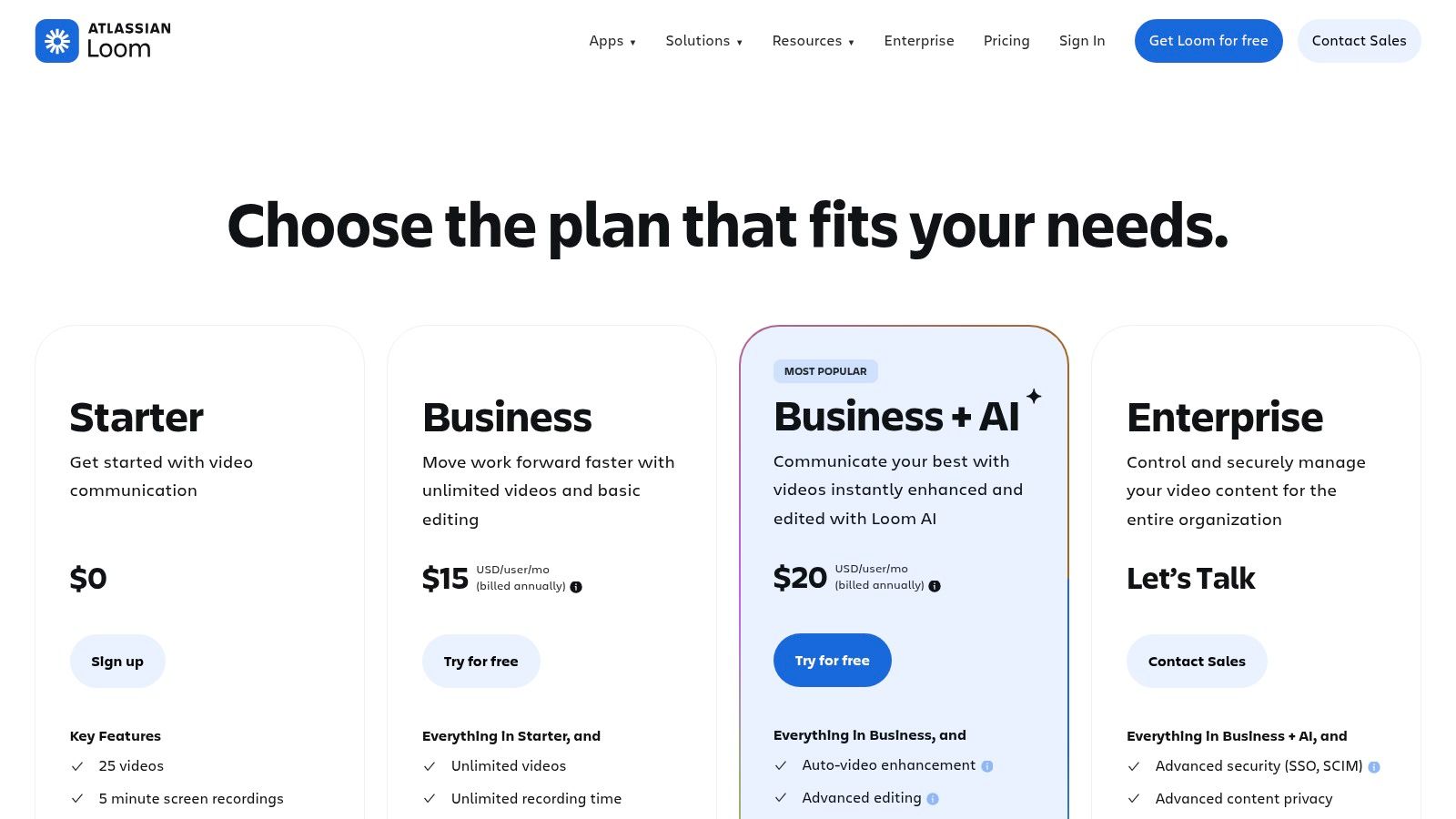
    11. Loom

    For YouTubers who collaborate with editors, brands, or team members, Loom offers an exceptionally fast way to record and share feedback, instructions, or video drafts. It functions as a powerful screen and camera recorder that lives right in your browser, enabling you to create instant video messages that eliminate the need for lengthy emails or meetings. This makes it an essential tool for streamlining the pre-production and post-production approval process.

    Loom

    Loom’s core strength is its speed. Once a recording is finished, a shareable link is instantly ready, complete with auto-generated transcripts and AI-powered summaries, titles, and chapters. This is invaluable for sending a quick clip to an editor with visual notes or getting a sponsor's approval on a specific segment before the final upload. The platform’s robust integrations with tools like Slack and Notion further embed it into a creator’s workflow.

    Key Features & Use Cases

    • Instant Screen & Camera Recording: Quickly record your screen, camera, or both to provide visual feedback on edits, demonstrate a workflow, or send a personalized update to your community.
    • AI-Enhanced Sharing: Automatic transcripts, titles, and chapter summaries make your shared videos easily searchable and digestible for collaborators, saving everyone time.
    • Collaborative Feedback: Viewers can leave time-stamped comments and emoji reactions directly on the video, creating a clear and contextual feedback loop.

    Practical Considerations

    The free plan is quite restrictive, limiting users to 25 videos per person and a maximum recording length of five minutes. To unlock 4K recording and unlimited videos, a paid plan is necessary. Additionally, be aware that there can be administrative differences depending on whether you purchase a plan directly from Loom or through its parent company, Atlassian.

    Website: https://www.loom.com/pricing

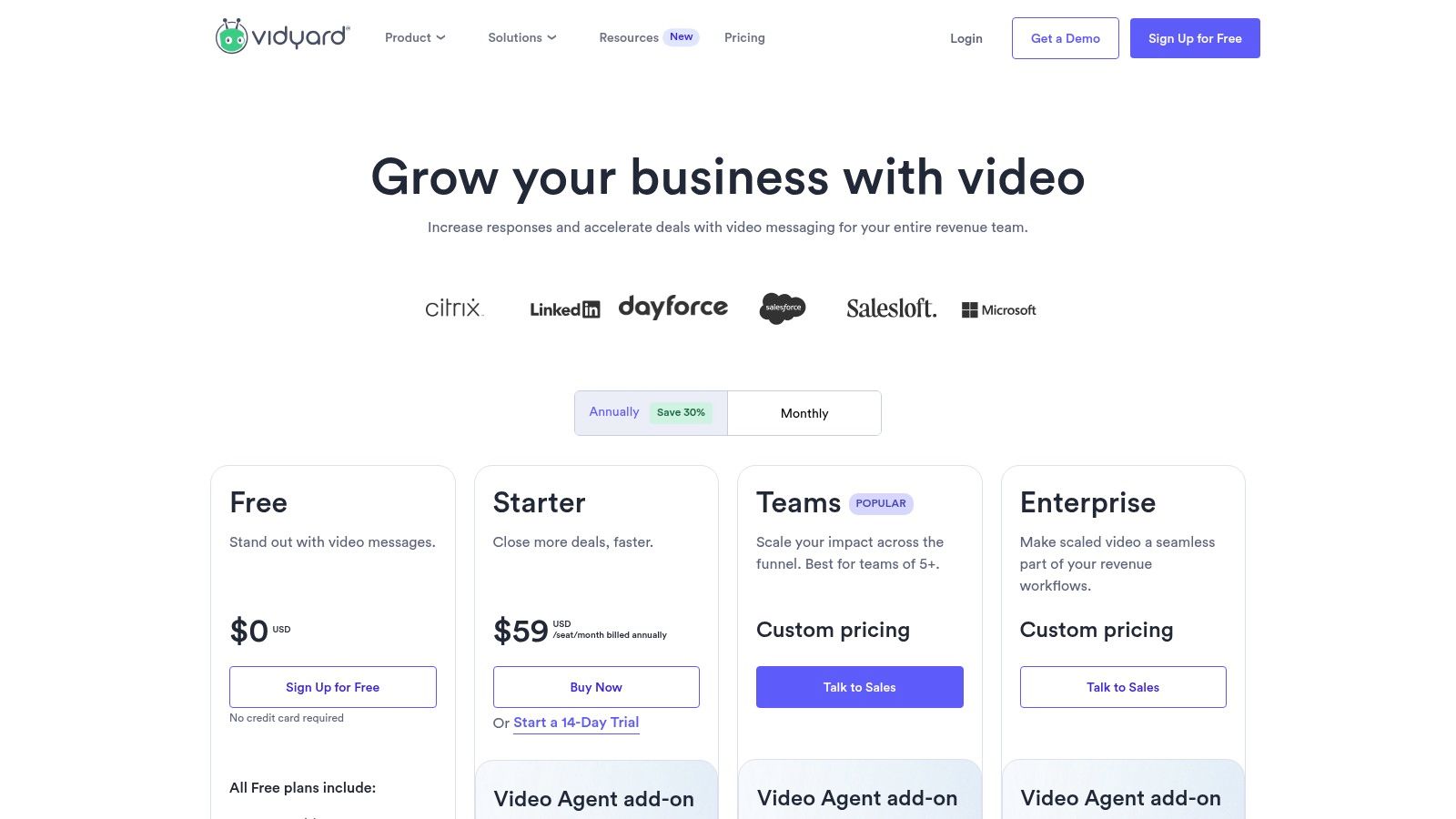
    12. Vidyard

    Vidyard is a powerful video platform whose Chrome extension bridges the gap between creating YouTube content and managing professional video communications. While not exclusively for YouTube, its screen and camera recording capabilities are excellent for creators who also handle sponsorship pitches, client updates, or sell premium content. The extension allows you to quickly record, trim, and share videos directly from your browser, making it a versatile tool for tasks beyond public publishing.

    Vidyard

    What sets Vidyard apart is its focus on analytics and engagement for privately shared videos. When you send a pitch to a potential sponsor, you can track exactly who watched it, for how long, and which parts they re-watched. This business-centric approach makes it one of the best chrome extensions for YouTubers who are serious about monetizing through brand deals and professional services, offering insights that YouTube’s native analytics don’t provide for off-platform communications.

    Key Features & Use Cases

    • Screen & Webcam Recording: Instantly record your screen, webcam, or both to create quick tutorials, personalized thank-you messages for patrons, or video pitches for sponsors.
    • Actionable Analytics: Receive notifications and detailed analytics when someone views your shared video, providing invaluable feedback for sales or outreach efforts.
    • Branded Sharing & CTAs: Host your videos on customizable sharing pages with your branding and add clickable calls-to-action (CTAs) to direct viewers to a specific link.

    Practical Considerations

    Vidyard is fundamentally a sales and marketing tool, so its feature set is geared more toward business workflows than public content creation. While the free plan is generous for basic recording, advanced features like in-depth team analytics, CRM integrations, and custom branding require a paid subscription.

    Website: https://www.vidyard.com/pricing

    Top 12 Chrome Extensions for YouTubers — Feature Comparison

    Item Core features ✨ UX / Quality ★ Value / Price 💰 Target audience 👥 Unique selling point 🏆
    Unlock the YouTube video title generator ✨ AI title brainstorming, one‑click insert, templates ★★★★ — Studio‑embedded 💰 Free extension / part of ViewsMax 👥 Creators seeking higher CTR 🏆 In‑Studio, data‑informed title optimization
    Chrome Web Store – “Transform YouTube” collection ✨ Curated YouTube extensions, reviews, one‑click install ★★★★★ — Trusted distribution 💰 Free marketplace (extensions may charge) 👥 Discoverers & cautious installers 🏆 Official curated hub for safe discovery
    TubeBuddy ✨ Keyword explorer, A/B tests, bulk edits, checklists ★★★★★ — Deep Studio integration 💰 Freemium → paid tiers (Pro/Legend/Enterprise) 👥 Growth‑focused creators & power users 🏆 Comprehensive upload & bulk workflow tools
    vidIQ ✨ SEO scores, trend alerts, AI Coach, competitor insights ★★★★★ — Data‑driven metrics 💰 Freemium → higher plans for AI features 👥 Data‑oriented creators & teams 🏆 Real‑time metrics + competitor/trend alerts
    Keywords Everywhere ✨ Volume/CPC overlays, related queries, tag extraction ★★★★ — Cross‑platform research 💰 Credit‑based pay‑as‑you‑go 👥 Solo creators needing on‑demand keywords 🏆 Scales cost with usage; platform‑agnostic overlays
    Social Blade (extension hub) ✨ Channel snapshot, ranks, est. earnings, 30‑day summaries ★★★ — Quick benchmarking at a glance 💰 Free extension (site paid features) 👥 Benchmarkers & partnership evaluators 🏆 Familiar public metrics beside videos
    Enhancer for YouTube ✨ Playback presets, shortcuts, UI tweaks, screenshots ★★★★ — Highly configurable 💰 Free (community‑driven) 👥 Power‑viewers & editors 🏆 Speedups for editorial review & review workflows
    Glasp – YouTube Summary & Highlighter ✨ Timestamped highlights, transcripts, AI summaries ★★★★ — Speeds research & outlines 💰 Free start; premium AI integrations 👥 Researchers & creators drafting outlines 🏆 Integrated note‑taking + AI summaries
    Language Reactor ✨ Dual subtitles, side translations, playback & dictionary ★★★★ — Great for multilingual checks 💰 Free / freemium features 👥 Multilingual creators & caption editors 🏆 Side‑by‑side subtitles for caption validation
    Screencastify ✨ Screen/webcam recorder, basic editor, cloud library ★★★★ — Simple, education‑compliant 💰 Free tier limits; paid removes watermark 👥 Educators & tutorial creators 🏆 Education compliance + easy sharing
    Loom ✨ Fast recorder, auto‑captions, AI titles/summaries, 4K ★★★★ — Quick sharing & integrations 💰 Free tier limits; paid for advanced use 👥 Creators needing fast drafts/reviews & teams 🏆 Rapid recording + AI summarization
    Vidyard ✨ Recording/trimming, branded pages, CTAs, analytics ★★★★ — Enterprise analytics & integrations 💰 Freemium → enterprise pricing 👥 Creators doing sponsorships & business video 🏆 Branded share pages + viewer analytics for business

    Building Your Ultimate Creator Toolkit

    Navigating the competitive landscape of YouTube requires more than just great content; it demands a strategic, data-informed approach. The Chrome extensions we've detailed in this guide are the building blocks for that strategy. They are not merely add-ons but powerful co-pilots designed to streamline your workflow, demystify the algorithm, and amplify your creative efforts. From the deep analytical power of TubeBuddy and vidIQ to the instant keyword insights from Keywords Everywhere, each tool serves a specific, vital function in the modern creator's arsenal.

    The true takeaway is not to install every extension on this list. Doing so would likely slow down your browser and create a cluttered, overwhelming workflow. Instead, the goal is to thoughtfully construct a personalized toolkit that addresses your unique challenges and goals as a YouTuber. This is the essence of finding the best chrome extensions for youtubers – it's about what is best for you.

    Your Action Plan: From Information to Implementation

    To move from reading this list to actively improving your channel, follow these deliberate steps. This structured approach will help you integrate these tools effectively without disrupting your creative process.

    1. Identify Your Biggest Bottleneck: Start by performing a self-audit. Where do you spend the most time with the least return? Is it agonizing over titles and thumbnails? Is it the tedious process of keyword research? Or perhaps it's analyzing post-performance data to understand what works. Pinpoint your single greatest pain point first.

    2. Choose Your "First-Round" Pick: Select just one or two extensions that directly solve that primary bottleneck.

      • Struggling with SEO and discovery? Your choice is between TubeBuddy and vidIQ.
      • Need to generate compelling titles fast? The ViewsMax YouTube Video Title Generator is your starting point.
      • Overwhelmed by content consumption for research? Glasp can revolutionize how you capture ideas.
    3. Integrate and Master: Commit to using your chosen extension(s) for at least two to three video uploads. Watch tutorials, explore every feature, and actively apply its tools to your pre-production, production, and post-production phases. True mastery comes from consistent application, not passive installation.

    Key Considerations for Building Your Toolkit

    As you add more extensions, keep these crucial factors in mind to maintain an efficient and secure workflow.

    • Performance Impact: Every extension consumes system resources. Periodically check your browser's task manager to see which extensions are resource-heavy. Be ruthless about disabling or removing tools you aren't actively using.
    • Permissions and Privacy: Always review the permissions an extension requests upon installation. Reputable tools like the ones listed here are generally safe, but it's a good practice to understand what data they can access.
    • Workflow Synergy: The ultimate goal is a toolkit where each extension complements the others. For example, you might use Keywords Everywhere for initial broad topic research, then dive deeper with TubeBuddy's Keyword Explorer, and finally perfect your title with a dedicated title generator. The tools should work together, not create redundant steps.

    Ultimately, these Chrome extensions are powerful force multipliers. They handle the complex data analysis, automate repetitive tasks, and provide the competitive intelligence needed to grow. This frees up your most valuable resource: the creative energy required to produce amazing content that resonates with your audience. Use this guide to build a smarter, more efficient workflow, and get back to what you do best-creating.


    Ready to supercharge your video titles and thumbnails, the two most critical elements for click-through rate? The tools mentioned here are a great start, but for an AI-powered solution built specifically for virality, check out the free tools from ViewsMax. Our suite, including the YouTube Video Title Generator, is designed to give you a data-driven creative edge in seconds. Explore ViewsMax and start crafting better titles today!