ViewsMax
Sign In Sign Up Free

Tag: video seo

  • Youtube Calculate Views: How YouTube Counts Views (youtube calculate views)

    Youtube Calculate Views: How YouTube Counts Views (youtube calculate views)

    So, you've uploaded your masterpiece to YouTube and you're refreshing the page, watching that view counter. But what's actually happening behind the scenes? How does YouTube decide what counts as a legitimate "view"?

    It all boils down to one golden rule: a view is only officially counted when someone watches your video for at least 30 seconds. This isn't just an arbitrary number; it's the bedrock of YouTube's entire system for measuring viewership. It's the line in the sand that separates a real, intentional watch from a fleeting glance or an accidental click.

    What Actually Counts as a YouTube View

    Think of a YouTube view less like a simple click and more like a stamped passport. Before a view gets added to your official count, it has to pass through a digital security check to make sure it's from a real person who genuinely chose to watch.

    The platform is incredibly savvy at spotting and filtering out anything that looks like an attempt to artificially inflate numbers. It’s not just about hitting the 30-second mark; it’s about how those seconds are spent.

    Here’s what typically gets flagged and tossed out:

    • Bot Traffic: Automated scripts running on a server somewhere, programmed to watch your video over and over? YouTube’s system is designed to spot and ignore them.
    • Your Own Views: Sure, watching your own video a couple of times to check it will likely count. But if you’re sitting there hitting the refresh button hoping to game the system, those views will quickly stop registering.
    • Accidental Plays: If your video is embedded on a website and set to autoplay, but someone just scrolls right past it without stopping, that’s not considered an intentional watch and won't be counted.

    What Qualifies as a Legitimate YouTube View

    To make this crystal clear, here’s a quick guide on what YouTube is looking for versus what it discounts. The goal is always to measure authentic audience interest.

    Viewer Action or Behavior Does It Count as a View? Why It Matters
    A user clicks on your video and watches for 32 seconds then leaves. Yes The viewer crossed the 30-second threshold, signaling clear intent to watch.
    A viewer watches the first 10 seconds, skips to the middle for 15 seconds, then leaves. No The total watch time was only 25 seconds, falling short of the required 30 seconds.
    A bot repeatedly loads and "watches" your video. No This is classic invalid traffic. YouTube's algorithm is built to detect and discard non-human activity.
    You embed your video on your blog and it autoplays as a user scrolls by. Usually No Unless the user actively stops to watch for 30+ seconds, it's seen as a passive impression, not an intentional view.
    Someone watches your 5-minute video all the way through. Yes, absolutely This is the gold standard of engagement and is always counted as a single, high-quality view.

    Ultimately, the system is designed to reward content that genuinely grabs and holds a viewer's attention right from the start.

    The Verification Delay Explained

    Have you ever noticed your view count seems stuck or even drops a little bit in the first day or two after you publish? That’s not a glitch—it’s the verification system at work.

    This is a deliberate feature. To fight manipulation, YouTube stopped counting views instantly and, back around 2012, switched to a more thorough verification window that can take 24-48 hours. You can read more about how YouTube's system has changed over time.

    This delay gives the algorithm time to audit all the incoming plays, sort the real from the fake, and ensure the number you see is a true reflection of your audience.

    The core idea is simple: YouTube prioritizes human-initiated, intentional playback. The system is built to measure genuine audience engagement, not just raw clicks. Understanding the 30-second rule and the verification process is the first step for any creator serious about real, sustainable growth.

    The Journey of a View: From Playback to Official Count

    Ever wonder what happens between a viewer hitting "play" and that number ticking up on your video's counter? It’s not as simple as you might think. Think of every view as having to pass through a digital security checkpoint before it gets its official stamp of approval.

    The moment someone starts watching your video, an internal timer kicks on. But YouTube's system is doing more than just counting to 30 seconds; it’s immediately analyzing who is watching. It's looking at things like the viewer's IP address, whether they're logged in, and their general viewing patterns to spot anything that looks fishy. This first line of defense is surprisingly good at weeding out obvious bot traffic or low-quality plays, like an embedded video on a website that autoplays but gets scrolled past instantly.

    The Initial Verification Phase

    This is where you might see something that freaks out a lot of new creators: the view counter suddenly freezes. Especially in the first few hours after you publish, the number might just stop moving. This isn't a bug—it's YouTube's system at work. The platform intentionally pauses the public counter to run a deeper check on the first wave of views.

    It’s like a bouncer at a popular club checking IDs at the door. The system is looking for and tossing out any views that seem automated, repetitive, or just plain fake.

    Key Takeaway: That temporary freeze in your view count is a totally normal part of YouTube's quality control. It’s how the platform makes sure the final number reflects real people watching, not just random clicks or bot activity.

    This simple but crucial journey is what separates a "play" from a verified "view."

    A diagram illustrates YouTube's view verification process: play video, watch for 30 seconds, then verified.

    As you can see, it’s a deliberate process. A view has to earn its place in your official count.

    From Audit to Official Count

    Once the system has audited the incoming views, the legitimate ones are finally added to your public total. This whole process can sometimes take up to 48 hours, which explains why the final 24-hour view count you see in YouTube Analytics might not match what you saw climbing in real-time right after you uploaded. A little patience is key here.

    So, when you try to youtube calculate views for your channel's performance, remember that every single one has gone through this pipeline:

    1. Playback Initiated: Someone clicks your video, and the clock starts.
    2. Initial Screening: The algorithm does a quick background check on the view's source.
    3. Verification Audit: The public counter often pauses as views are bundled and inspected for legitimacy.
    4. Official Count Update: The real, verified views are finally added to your video's total.

    Once you get your head around this validation process, you can stop stressing over those short-term freezes and focus on what really matters: making great content that earns real views that will always pass the test. It's this methodical system that keeps the playing field fair for everyone.

    Why Your View Count Is Frozen or Dropping

    It’s a feeling every creator knows and dreads. You upload a new video, the initial views start climbing, and then… nothing. The counter freezes. Or even worse, it goes down. This isn't a glitch in the matrix; it's actually YouTube’s system working exactly as intended.

    Whenever a video gets a big, sudden rush of traffic, YouTube deliberately freezes the public view count to run a thorough audit. It's a quality control check.

    Think of it like this: your video gets a shout-out from a massive creator, and suddenly thousands of people are clicking on it. This spike triggers an "audit mode." YouTube's system has to meticulously sort through every single play to make sure they're coming from real people, not bots or other shady sources. This can take anywhere from a few hours to a full day.

    While this is happening, you might notice a big difference between the frozen public number and what you see in your real-time analytics inside YouTube Studio. Don't panic! The Studio numbers are the raw, unfiltered data. The public count will catch up once the verification is complete. For the real story, always trust your Studio analytics.

    The Mystery of Disappearing Views

    Seeing your view count actually go down is even more jarring. But there's a simple explanation for that, too.

    If YouTube’s audit uncovers that some of those initial views came from invalid traffic—think automated scripts, endless replays, or viewers who bailed before the 30-second mark—it simply removes them. This correction is what causes the number to drop.

    This is most common when views come from questionable places. Buying views or using "growth services" almost always leads to a bunch of low-quality plays that YouTube’s algorithm is built to sniff out and throw away.

    Your view count isn't just a number; it's a verified measure of audience engagement. A drop in views is simply YouTube cleaning house, ensuring the final tally reflects genuine human interest in your content.

    Ad Blockers and View Count Fluctuations

    There's another, more surprising culprit that can mess with your view count: ad blockers.

    It turns out that some ad-blocking software can interfere with the analytics scripts YouTube uses to track views. This means a perfectly legitimate view from a real person might not get counted if they have an ad blocker running.

    If your audience is more on the tech-savvy side, they're probably more likely to use ad blockers, which can lead to a noticeable gap in your data. Some creators have reported seeing a 40-50% drop in counted views from desktop users, even while their revenue and engagement metrics like likes and comments hold steady. It's a clear sign that people are watching, but the system just can't always record it.

    So, how do you track your performance accurately without driving yourself crazy?

    • Focus on Trends: Don't get fixated on the real-time number, especially in the first 48 hours. Look at the bigger picture.
    • Trust YouTube Analytics: Your Studio dashboard is your source of truth. Rely on the detailed data it provides.
    • Analyze Engagement: Pay close attention to metrics like watch time, audience retention, likes, and comments. These often tell a much richer story about your video's success than the raw view count ever could.

    By understanding what's going on behind the scenes, you can stop stressing about the small, day-to-day fluctuations and keep your eyes on what really matters: creating great content and growing your channel.

    How to Calculate the Views Your Channel Needs to Grow

    Knowing how YouTube counts views is a good start, but the real magic happens when you use that knowledge to build a growth strategy. Instead of crossing your fingers and hoping for more views, you can set clear, data-driven targets for your biggest goals. Let's break down exactly how to figure out the number of views you need to hit your monetization, subscriber, and revenue targets.

    A desk with a calculator, notebook, and tablet, displaying watch hours for calculating views.

    The key to all of this lies in a metric you can find right in your YouTube Analytics: your channel’s average view duration (AVD). Think of it as the secret ingredient for turning vague ambitions into actionable view counts.

    Calculating Views for Monetization

    To get into the YouTube Partner Program, one of the biggest hurdles is hitting 4,000 public watch hours in the last 12 months. That number can feel huge, but a simple formula can bring it down to earth and tell you exactly how many views you need.

    Here’s the formula:
    (4,000 Watch Hours * 60 Minutes) / Your Average View Duration (in minutes) = Total Views Needed

    Let’s see how this plays out in a real-world scenario.

    Example A: The Gaming Channel
    Let's say your gaming channel has an average view duration of 8 minutes per video. Not bad!

    (4,000 * 60) / 8 = 30,000 Views

    That means you need to get 30,000 total views across all your videos within a year to hit the watch time requirement. Suddenly, that huge goal becomes a concrete target. If you want to dive deeper, you can learn more in our guide on what public watch hours are on YouTube.

    Calculating Views for Subscriber Milestones

    Now, there isn't a perfect formula that turns views into subscribers—it's not quite that simple. But what you can do is figure out your channel's typical view-to-subscriber rate to get a solid estimate. Just hop into your analytics for the last 90 days to find it.

    This is the formula to use:
    (New Subscribers in Period / Total Views in Period) * 100 = View-to-Subscriber Rate (%)

    Once you have that percentage, you can project the views needed to reach your next big subscriber goal.

    Example B: The DIY Channel
    Your DIY channel gained 500 new subscribers from 50,000 views over the last 90 days.

    (500 / 50,000) * 100 = 1% View-to-Subscriber Rate

    If your next goal is to hit 1,000 new subscribers, you can estimate needing around 100,000 more views to get there, assuming your content quality and conversion rate stay consistent. This helps you set much more realistic goals for your channel's growth.

    Estimating Potential Ad Revenue

    Projecting revenue is a bit more complex because it hinges on your RPM (Revenue Per Mille), which is simply how much you earn for every 1,000 views. Your RPM can swing pretty wildly depending on your niche, where your audience is from, and even the topics of your videos.

    Here’s a basic formula to get a ballpark figure:
    (Target Monthly Revenue / Your Average RPM) * 1,000 = Views Needed per Month

    This calculation gives you a much clearer picture of the scale you need to reach to turn your channel into a reliable source of income. By using these simple formulas, you can move from guessing to strategizing and create a clear roadmap for your channel's success.

    Strategies to Increase Your Legitimate Views

    Knowing how YouTube counts views is one thing, but actually earning more of them is the real challenge. Forget about secret hacks or trying to game the system. Growing your channel comes down to creating content that feeds the YouTube algorithm exactly what it wants: real, authentic viewer engagement.

    This means you need to get laser-focused on two key metrics that dictate how many legitimate views you get and how far YouTube pushes your videos. These are your Click-Through Rate (CTR) and Average View Duration (AVD). When you nail these two, you're sending a powerful signal to YouTube that your content is worth watching, which leads to more impressions and real, sustainable growth.

    A man uses a tablet, with an alarm clock and 'INCREASE REAL VIEWS' banner on a wooden desk.

    Optimize Your Thumbnails and Titles for Clicks

    Think of your thumbnail and title as your video's digital storefront. It doesn't matter if you've created a masterpiece inside; if the outside is boring, nobody is coming in. A high CTR is your proof to YouTube that your video's "packaging" is successfully grabbing people's attention.

    • Spark Curiosity: Your title should act like a hook, asking a question or making a promise that your video directly answers. You want to create intrigue without resorting to cheap clickbait.
    • Design for a Glance: Thumbnails have to pop. They need to be clean, high-contrast, and instantly understandable, even as a tiny image on a phone screen. Bold text and expressive faces work wonders.
    • Test and Learn: Keep a close eye on your CTR in YouTube Analytics. If a video isn't getting clicks, step back and ask yourself if the title and thumbnail truly sold the concept to your audience.

    For a little help crafting titles that grab attention, you can even explore how to use AI title generators to get more views.

    Master the First 30 Seconds to Boost Watch Time

    Remember how a view only counts after 30 seconds? That first half-minute is everything. If you can't convince someone to stick around past that point, you not only lose the view but also tell the algorithm your video isn't engaging. Your number one job is to hook them—and hook them fast.

    Your video's introduction isn’t just a greeting; it’s a retention tool. A strong hook confirms the viewer made the right choice by clicking and gives them a compelling reason to keep watching.

    Kick things off with a bold claim, a thought-provoking question, or even a quick sneak peek of the best part of the video. You have to immediately reassure viewers that you're going to deliver on the promise your title and thumbnail made. A higher AVD is the ultimate proof that your content delivers, which is what encourages YouTube to recommend it to a wider audience.

    Mastering these core principles creates a powerful feedback loop of more clicks and longer watch times. For more deep-dive strategies, check out our guide on https://blog.viewsmax.com/how-to-improve-click-through-rate/.

    Common Questions About How YouTube Calculates Views

    Let's cut through the noise and tackle some of the most common questions and myths about how YouTube actually counts its views. Think of this as your quick-reference guide to understanding your analytics like a pro.

    Do My Own Views Count On My Videos?

    The short answer is yes, but only a tiny bit. When you first upload a video, watching it yourself once or twice will probably add to the initial view count. But don't get any ideas about hitting the refresh button all day.

    YouTube’s system is smart enough to know the difference between a creator checking their upload and genuine audience interest. If you keep replaying your own video, the algorithm will quickly flag that activity as unnatural and stop counting those plays. It's always a better use of your time to focus on what your real audience is doing.

    How Long Does It Take For Views To Update?

    You've probably noticed that the public view count on your video page doesn't always match what you see in your analytics. That's completely normal. The real-time stats in your YouTube Studio are almost instant, but the official number everyone else sees has to go through a verification process.

    This verification is why you sometimes see the public view count "freeze" for a few hours, or even up to 48 hours, especially on new videos or ones that are taking off quickly. It's just YouTube's way of weeding out bots and bad traffic to make sure the final number is legit.

    So, if your numbers seem stuck, just give it some time. Your YouTube Studio is always the best place to get the most up-to-the-minute picture of how your video is performing.

    Do Embedded Video Views Count?

    They sure do. A view is a view, whether it happens on the YouTube platform itself or on your personal website. As long as someone intentionally clicks play and watches for at least 30 seconds, it gets added to your total.

    There is one small caveat, though. If you have a video embedded to autoplay and a visitor just scrolls right past it, that likely won't count. The system is looking for intentional plays. Driving traffic from your blog or other websites is a great growth strategy, and you can be confident those legitimate views will count.

    Why Is My Watch Time High But My View Count Is Low?

    This is actually a great problem to have. It usually means you've built a smaller, but super-engaged, audience that absolutely loves your longer videos. This is a powerful signal to the YouTube algorithm that people find your content valuable.

    Think about it this way: if 100 die-hard fans watch your entire 30-minute documentary, you've just racked up 50 hours of watch time from only 100 views. That deep engagement can be far more beneficial for your channel's health than a viral clip that gets millions of people to watch for only 10 seconds. For creators looking to scale up, a practical guide to going viral on YouTube can offer some great strategies for boosting those view numbers without sacrificing engagement.

    Getting a handle on these details helps you focus on what really matters. If you want to dig even deeper into your channel's performance, our complete guide to YouTube view stats breaks it all down even further.


    Ready to turn insights into growth? ViewsMax is an AI-powered toolkit designed to help you create smarter, optimize faster, and grow your YouTube channel with confidence. Stop guessing and start making data-driven decisions that lead to more views, subscribers, and revenue. Explore our tools and resources today at https://blog.viewsmax.com.
  • Unlocking YouTube Watch Hours A Creator’s Guide

    Unlocking YouTube Watch Hours A Creator’s Guide

    Let's cut right to it: YouTube watch hours are simply the total amount of time people have collectively spent watching your videos. Think of it as the ultimate measure of how captivating your content really is.

    To get into the YouTube Partner Program (YPP) and start making money, you need to hit 4,000 public watch hours within the last 12 months, plus have 1,000 subscribers. This isn't just an arbitrary number—it's YouTube's way of verifying that you're creating content people genuinely want to watch.

    Why Watch Hours Are The Most Important YouTube Metric

    A man works on a laptop at a studio table with a camera, alongside a "WATCH HOURS" graphic.

    It’s easy to get caught up chasing views and subscriber counts, but watch time is the real currency on YouTube. A view just means someone clicked play. Watch time tells you if they stuck around.

    Think about it. A video with a million views but an average watch time of 10 seconds is a red flag for the algorithm. It screams "clickbait" or signals that the content didn't live up to the title's promise. On the flip side, high watch hours prove your content is valuable and holds people's attention, which is exactly what YouTube's business model is built on.

    The YouTube algorithm's primary job is to keep people on the platform. When your videos rack up serious watch time, you're basically sending a direct signal to the algorithm: "Hey, people love this stuff. You should show it to more of them."

    This kicks off a powerful growth cycle. More watch time leads to more algorithmic recommendations, which brings in more views, which then leads to more subscribers and even more watch time. It all feeds itself.

    The Two Pillars Of Watch Time Success

    For every creator, mastering watch time is the key to unlocking two huge milestones:

    • Monetization Eligibility: That magic number of 4,000 hours of valid public watch time in a 12-month window is your ticket to applying for the YPP and turning your passion into a revenue stream.
    • Algorithmic Discoverability: The algorithm is designed to reward channels that keep viewers engaged. The more watch hours you accumulate, the more your videos will pop up on the homepage, in "Up Next" suggestions, and at the top of search results.

    This is why a laser focus on youtube watch hours is so much more effective than just chasing a one-hit viral video. It builds a healthy, sustainable channel that the algorithm wants to promote.

    To give you an idea of the scale, here's a quick summary of how watch hours impact your channel's growth.

    The Impact of Watch Hours on Your Channel

    Area of Impact Why Watch Hours Are Critical
    Monetization The 4,000-hour requirement is the main gatekeeper for the YouTube Partner Program.
    Algorithm High watch time is the strongest signal to the algorithm that your content is high-quality.
    Discoverability The algorithm promotes high-retention videos across the platform (homepage, suggestions, search).
    Audience Growth Keeping viewers watching longer builds a loyal community and naturally leads to more subscribers.
    Channel Authority Consistent high watch time establishes your channel as a trusted source in your niche.

    Ultimately, every aspect of your channel's success is tied back to your ability to hold a viewer's attention.

    The Scale Of YouTube Engagement

    The battle for eyeballs is intense. Every single day, people watch over 1 billion hours of video on YouTube. It's a staggering figure that shows just how central the platform is to our daily lives.

    And here's a crucial detail: a whopping 70% of all YouTube watch time now happens on mobile devices. This means your titles and thumbnails have to grab attention on a small screen, or you'll get scrolled right past. Getting even a tiny slice of this massive viewership pie requires a smart strategy built around quality and retention. You can dive deeper into these kinds of revealing YouTube statistics to understand just how big the opportunity is.

    How To Track Your Watch Time Progress In YouTube Studio

    Before you can even think about growing your YouTube watch hours, you need to know where you stand. Think of your YouTube Studio as your channel's command center; it has all the vital stats you need to hit your monetization goal. Flying blind is not a strategy.

    The first step is simply knowing where to look. Your analytics dashboard is packed with data, from viewer demographics to traffic sources, but we're zeroing in on one key number for now.

    Finding Your Core Watch Time Metric

    Let's get straight to the big picture—how close are you to that 4,000-hour finish line?

    1. Log into your YouTube Studio.
    2. Look for the Analytics tab on the left-hand menu and click it.
    3. Right there on the main overview page, you'll see a card for Watch time (hours).

    By default, this number shows you the last 28 days. That’s helpful for checking recent trends, but it's not the number that matters for the YouTube Partner Program.

    To see your true monetization progress, you have to adjust the time frame. Click the date range in the top right corner and change it to “Last 365 days.” This is the number YouTube looks at—your total public watch hours over the past year.

    This is your main progress bar. Keep an eye on it. Watching this number climb tells you if your strategy is actually working and turns that big, intimidating goal into something you can track and influence week by week.

    Analyzing Individual Video Performance

    Knowing your total is one thing, but the real magic happens when you figure out which videos are doing the heavy lifting. Diving into the stats for each video helps you spot your winners so you can make more of what your audience loves.

    By heading over to the "Content" tab inside Analytics, you can sort all your videos by "Watch time (hours)." This immediately shows you your watch time champions—the videos that are truly captivating your viewers.

    On the flip side, you can also spot videos with tons of views but disappointing watch time. That’s a classic sign of a misleading thumbnail or title. This isn't just about looking at charts; it's about turning data into a playbook for creating better, more engaging content.

    Mastering Audience Retention to Keep Viewers Hooked

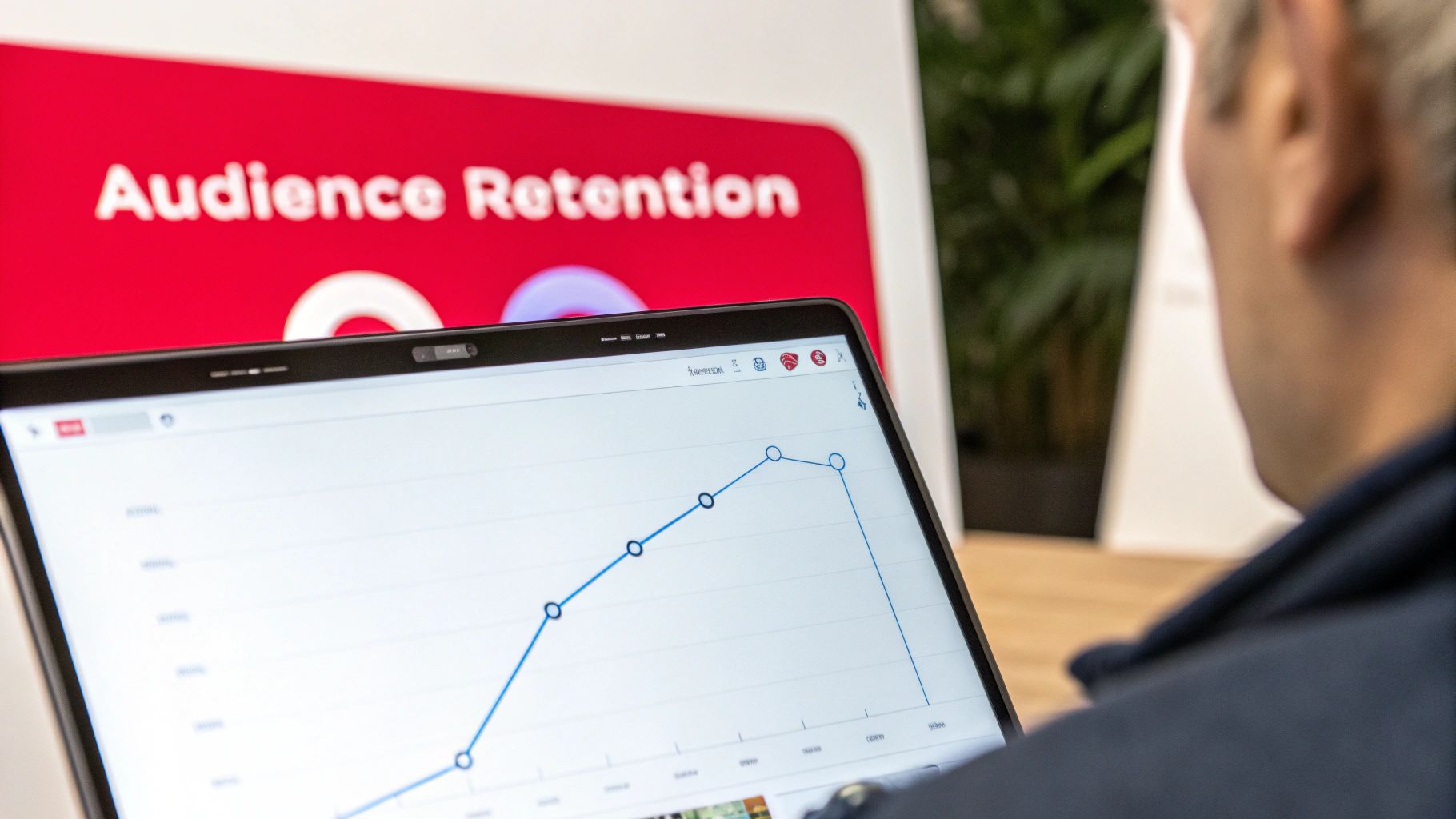
    A person views a laptop displaying a line graph, with a red 'Audience Retention' sign in the background.

    Getting someone to click on your video is just the first hurdle. The real challenge—and where the magic happens—is convincing them to stick around. The secret to racking up massive YouTube watch hours isn't about getting more clicks; it's about mastering audience retention.

    Think of audience retention as the average percentage of your video that people actually watch. A high retention rate sends a powerful signal to the YouTube algorithm that your content is valuable and engaging, which in turn leads to more recommendations.

    Your video is like a rollercoaster. The first few seconds are the initial climb, and they need to build immediate anticipation. If that climb is slow and boring, your viewers will hop off before the ride even gets good. This is precisely why your introduction, or "hook," is the single most important part of your video.

    Crafting an Unskippable Hook

    You’ve got about 15 seconds. That’s it. That's your window to prove your video is worth watching. If you fumble the intro, you'll see a massive, steep drop-off in your retention graph right at the beginning. A killer hook doesn't just grab attention; it clearly sets the stage for what's to come.

    The good news is you don't have to reinvent the wheel. There are several tried-and-true formulas for creating a powerful hook that you can adapt to your own style.

    • Ask a Compelling Question: Jump right in with a question that your ideal viewer is dying to have answered. Something like, "Are you sick of your videos getting stuck at 100 views?"
    • Preview the "Aha!" Moment: Show a quick, tantalizing clip from later in the video that reveals the final result or the most valuable nugget of information. This creates an "information gap" that makes viewers want to stick around to see how you got there.
    • Start with a Bold Statement: Kick things off with a surprising or even controversial claim related to your topic. It immediately piques curiosity and makes people want to see if you can back it up.

    The mission here is simple: stop the scroll. Give the viewer a rock-solid reason to invest their time in your video over the millions of others.

    Keeping Viewers Engaged With Storytelling

    Okay, so you've hooked them. Now what? You have to keep that momentum going. This is where strategic storytelling and dynamic editing become your best friends. A long, monotonous talking head is a one-way ticket to low watch time. You have to constantly jolt the viewer's attention.

    A fantastic technique for this is using pattern interrupts. These are small, unexpected changes that break the flow and re-engage a viewer's brain.

    A pattern interrupt can be as simple as changing the camera angle, popping up some on-screen text, adding B-roll footage, or using a quick sound effect. These little shifts prevent viewer fatigue and keep your video feeling fresh and dynamic.

    Another great storytelling tool is the open loop. This is where you introduce an idea or a story near the beginning but deliberately hold off on the conclusion until the very end. By leaving that loop open, you create a subtle tension that keeps people watching just to get the payoff.

    Delivering on Your Promise

    Every single time you pair a title with a thumbnail, you're making a promise. If your title is "How to Bake the Perfect Sourdough," your video had better deliver a clear, easy-to-follow guide on baking sourdough.

    Failing to deliver on that promise is the quickest way to demolish trust and your watch time. When viewers feel like they've been tricked, they don't just click away—they remember. They become less likely to click on any of your future videos. This is why clickbait is a terrible long-term strategy for any channel that wants to grow.

    To truly maximize your YouTube watch hours, your content has to deliver clear, undeniable value from the first second to the last. To dive deeper into how video length impacts what viewers expect, check out our guide on how long a YouTube video should be.

    At the end of the day, incredible retention boils down to a strong start, an engaging middle, and a satisfying ending that fulfills the promise you made upfront. When you master this flow, you stop just making videos and start crafting experiences that turn casual viewers into loyal fans.

    How to Optimize Your Videos for Maximum Watch Time

    Getting someone to watch one video all the way through is a great start. But the secret to racking up serious YouTube watch hours is getting them to watch the next video, and then the one after that. This is where your video’s packaging comes in—everything from the title to the end screen is a chance to turn a single view into a full-blown watching session.

    It all begins with a killer combination: a magnetic title and a thumbnail they can't resist clicking. These two work together to earn that all-important first click. Without that initial pull, even the most incredible video will just sit there, and all that potential watch time will go to waste.

    Building the Perfect Binge-Watching Trap

    So you've earned the click and kept them watching. Fantastic. Now, the last 20 seconds of your video are pure gold. This is when the End Screen pops up, giving you a prime opportunity to tell your audience exactly where to go next. Instead of letting them wander off, you can guide them deeper into your world.

    A common mistake is just linking to your most recent upload. A much smarter move is to point them toward a hand-picked playlist.

    By linking to a playlist, you’re not just suggesting one more video; you're inviting them into a seamless, lean-back viewing experience. The next video starts automatically, removing the friction of choice and significantly increasing the chances of them watching multiple videos in a row.

    This one simple change can multiply the YouTube watch hours you get from a single viewer. You're no longer just thinking about one video's retention; you're optimizing for an entire viewing session.

    Designing Playlists for Seamless Viewing

    A good playlist isn't just a random assortment of videos. It needs to feel like a mini-series, where each video flows logically into the next. Think about arranging your videos to build on each other, creating a storyline or a learning path that keeps people hooked and ready for what's next.

    Here’s how to make playlists that really work:

    • Group by Theme: Bundle together videos that tackle different angles of the same big topic. For example, a "Beginner's Guide to Photography" playlist could have separate videos on camera settings, composition, and lighting.
    • Create a Series: If you make content that comes in episodes, a dedicated series playlist is essential. It lets viewers catch up and watch everything in the right order, just like a Netflix show.
    • Order Strategically: Put your videos with the highest audience retention right at the beginning of the playlist. This gets viewers hooked early on and makes it more likely they’ll stick around for the whole thing.

    Treat each playlist like a carefully planned journey. The smoother and more engaging you make that journey, the more you encourage the kind of binge-watching that the YouTube algorithm absolutely loves.

    Using Cards to Keep the Momentum Going

    While End Screens are your closers, Cards are your secret weapon for re-engaging people in the middle of a video. They are those small, clickable notifications you can pop up at specific moments in your timeline. If you happen to mention a related topic or a past video, you can drop in a card that links right to it.

    This is a great way to prevent viewers from dropping off. If someone’s interest is sparked by a side topic, a Card gives them a direct path to explore it on your channel, rather than leaving to search for it somewhere else. Using them well helps squeeze every last second of watch time out of every view. For more tips on this, learn how you can add chapters to your YouTube video to give your audience even more ways to navigate your content.

    Beyond what’s on your video page, timing is huge. Knowing the best time to upload YouTube videos can give you that initial burst of engagement that’s so important for watch time.

    And believe me, the audience is out there. Globally, YouTube mobile app users watched for an average of over 27 hours per month. Viewers in South Korea are leading the charge, spending a staggering 43 hours and 26 minutes monthly on the app, with US users not far behind at around 24.43 hours. These numbers show just how much watch time is available if you can grab and hold people's attention. You can see more on these global viewing habits on Statista.

    Using Different Content Formats To Accelerate Growth

    When you're trying to hit that 4,000-hour milestone, you quickly learn that not all videos are created equal. You need to be strategic about the types of content you create, mixing different styles to capture and hold your audience’s attention.

    Relying only on short, snappy videos can feel like trying to fill a swimming pool with a teaspoon. To really speed things up, you have to embrace formats that are built for longer watch times.

    The Power Of Long-Form Content

    Think about the kind of videos that naturally keep people watching. I'm talking about deep-dive tutorials, comprehensive product reviews, feature-length documentaries, and even video podcasts. These are your watch time goldmines.

    Why? Because a single person watching your 45-minute guide can give you more watch hours than a dozen people watching a three-minute clip. Viewers who click on this kind of in-depth content are already planning to stick around, which means your average view duration shoots up, giving your channel's total watch time a serious boost.

    Capitalizing On The Live Stream Advantage

    If you want the single fastest way to rack up public watch hours, look no further than live streaming. Let’s do some quick math: a single two-hour live event with just 50 people watching at any given time instantly generates 100 hours of watch time. You’d need thousands of views on your regular videos to get anywhere near that.

    Live streams work so well because they’re interactive. The real-time chat, live Q&As, and sense of community keep people glued to their screens far longer than they would for a pre-recorded video. It's a powerful tool for any creator trying to hit their monetization goals faster.

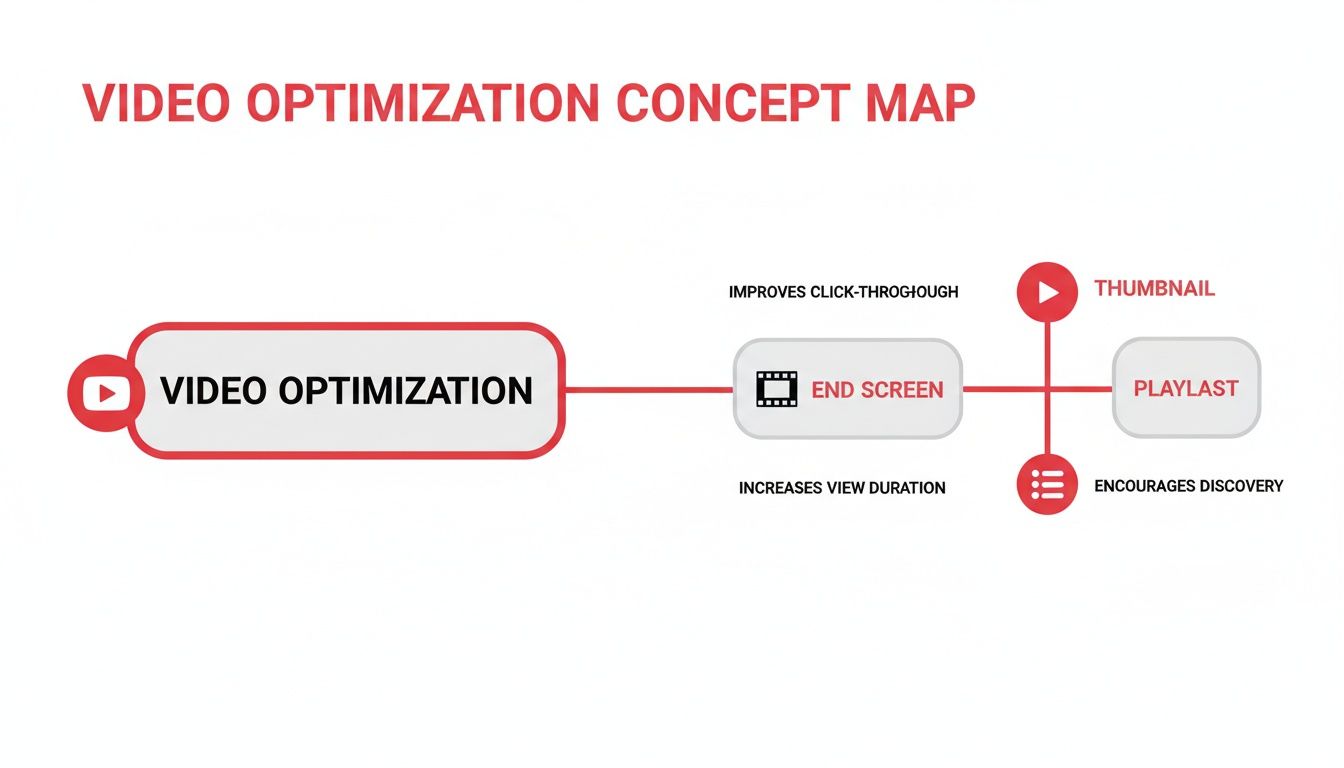
    A concept map showing video optimization strategies with end screens, thumbnails, and playlists to improve engagement.

    This image really breaks down how everything works together. A great thumbnail gets the click, but it's the playlists and end screens that keep people in your ecosystem, multiplying your watch time.

    Using YouTube Shorts As A Discovery Engine

    This is a huge point of confusion for many creators, so let’s get it straight: watch time from your videos viewed in the Shorts feed does not count toward your 4,000-hour requirement. So, why even make them? Simple. They are one of the best discovery tools YouTube has ever given us.

    Think of your Shorts as commercials for your main channel. Their bite-sized, shareable nature is perfect for getting your content in front of a massive new audience that has never even heard of you.

    The goal with Shorts isn't to rack up watch hours directly. It's to be a magnet at the top of your funnel, pulling in new viewers who then dive into your longer, monetizable videos.

    Here’s how you build that bridge from a Short to your main content:

    1. Create Teasers: Clip the most exciting, valuable, or intriguing moments from your longer videos. Give viewers a taste that makes them hungry for the full story.
    2. Use The "Related Video" Feature: Don't leave them hanging! Pin a comment or use YouTube's built-in feature to link from your Short directly to the full-length video it came from.
    3. End with a Clear Call to Action: Literally tell people where to go next. A simple, "For the full breakdown, check out the video on my channel!" can work wonders.

    This strategy turns a view that doesn't count for monetization into a potential long-term fan who contributes to your YouTube watch hours. On top of creating new content, you can also think about safely downloading your YouTube videos to repurpose them for other platforms, which can extend their reach even further. By combining long-form videos, live streams, and a smart Shorts strategy, you create a powerful system for earning watch time way faster.

    Common Questions About YouTube Watch Hours Answered

    Navigating the rules around YouTube watch hours can feel like trying to solve a puzzle. With so many different content formats and specific guidelines, it’s easy to get confused about what counts, what doesn’t, and which strategies actually move the needle.

    Let's cut through the noise. Here are direct, clear answers to the most common questions creators have about racking up watch time, so you can focus your energy on what truly matters for growing your channel.

    Do YouTube Shorts Count Towards The 4000 Watch Hours?

    This is easily one of the most frequent questions out there, and the answer is a straightforward no. Watch hours gained from viewers swiping through the Shorts feed do not count toward the 4,000 public watch hours you need for the YouTube Partner Program (YPP).

    But don't write them off just yet. Think of Shorts as the billboard or the movie trailer for your channel. They are an incredible tool for discovery and often reach audiences who have never seen your content before.

    The real magic happens when someone finds your channel through a Short and then clicks over to watch your regular, long-form videos. Every minute they spend on those longer videos absolutely counts. This makes Shorts a powerful way to pull in new subscribers who will then contribute to your monetizable watch time.

    What Exactly Are Public Watch Hours?

    The key word here is "public." To be eligible for monetization, you need 4,000 public watch hours, which are the valid hours your viewers spend watching videos you have set to "Public."

    This means that any time spent on certain types of content won't be included in your official YPP tally.

    • Private Videos: Watch time from videos set to "Private" doesn't count.
    • Unlisted Videos: Hours from "Unlisted" videos are also excluded.
    • Deleted Videos: If you delete a video, any watch hours it earned are wiped from your total.
    • Ad Campaigns: Watch time you get from promotional campaigns, like Google Ads, is not counted.

    This distinction is critical. YouTube wants to see that you can earn your hours organically from a real audience that is actively choosing to watch your public content. It's a system built to reward genuine engagement, not manufactured views. For a deeper dive, check out our guide on what public watch hours are on YouTube.

    How Long Does It Take To Get 4000 Watch Hours?

    Honestly, there's no single answer. The timeline can be wildly different from one channel to another. It really comes down to your niche, how good your videos are, how often you upload, and your ability to hook people and keep them watching.

    Let's break down the math to make the goal feel a bit more real. Say you upload a 15-minute video that gets 1,000 views with a solid average watch time of 6 minutes (that's 40% retention). That one video just earned you 100 hours of watch time.

    To hit your 4,000-hour goal, you would need 40 videos performing at that same level. For some creators, a single viral hit could get them there in a few weeks. For others, a steady grind of publishing great content might take several months or even a year.

    The focus shouldn't be on speed but on building something sustainable. The real goal is to create a library of valuable videos that consistently earns watch time day in and day out, creating a solid foundation for your channel.

    Should I Buy YouTube Watch Hours?

    The answer to this is a firm, absolute no. Buying watch hours is a serious violation of YouTube's Fake Engagement policy, and it can have catastrophic consequences for your channel's future.

    These services use bots or click farms to generate views, which provide zero real engagement. YouTube's algorithm is incredibly sophisticated and can easily spot this artificial activity, sending powerful negative signals about your channel.

    The risks are severe and just not worth it.

    • Channel Termination: YouTube can and will shut down channels that violate its policies.
    • Permanent YPP Ban: You could be banned from ever applying to the YouTube Partner Program.
    • Credibility Destruction: Any real audience you have will lose trust in you, and your reputation will be toast.

    True, lasting growth only comes from earning authentic watch time from real people who value your content. Investing your time and effort into making better videos is the only legitimate path to building a successful channel.


    Ready to stop guessing and start growing your YouTube watch hours with a data-driven strategy? ViewsMax is the AI-powered toolkit that helps you create smarter, optimize faster, and monetize with confidence. From intelligent title recommendations to in-depth analytics, we give you the insights you need to turn your passion into a thriving channel. Start making videos that viewers click and watch by visiting us at https://blog.viewsmax.com.
  • A Guide to Effective YouTube Thumbnail Preview Tactics

    A Guide to Effective YouTube Thumbnail Preview Tactics

    Your YouTube thumbnail is your video's first impression. It’s the single most important factor that determines whether someone clicks on your content or just keeps scrolling. A thumbnail preview is simply a way to see exactly how that image will look in the wild—on a phone, on a desktop, in search results—before you hit publish. Skipping this step is one of the easiest ways to kill a video's potential.

    Why Your Thumbnail Preview Is Your Most Important Click Signal

    Think of your thumbnail as a digital handshake. A preview ensures it’s a firm one. I’ve seen it a hundred times: a design that looks incredible on a big 27-inch monitor becomes a blurry, unreadable smudge on a mobile screen. And since that's where most people watch YouTube, you've just lost a massive chunk of your audience.

    Previewing isn't just about ticking a box. It's about stress-testing your video's most critical marketing asset. Using a youtube thumbnail preview reveals the kind of fatal flaws that sink a video's performance before it even has a chance.

    Catching Critical Design Flaws Early

    A quick preview helps you spot common click-killers that are surprisingly easy to miss when you're staring at a full-size design file. These aren't just minor tweaks; they're the difference between a click and a scroll.

    Here are the most common issues a preview will immediately expose:

    • Poor Readability: That stylish, thin font you love? It’s completely illegible when shrunk down. Text that's too small or blends into the background is an instant turn-off.
    • Weak Color Contrast: Colors that look vibrant on your design software can appear muddy and dull on a smaller phone display, failing to grab anyone's attention in a crowded feed.
    • Confusing Composition: A cluttered design is an immediate "no." If a viewer can't understand what your video is about in a split second, they're gone.
    • Lack of Emotional Appeal: Does the face in your thumbnail look genuinely excited or just a bit awkward? A preview helps you gauge the immediate emotional hook of your image.

    Your thumbnail isn’t just a static image; it’s an advertisement for your content. If the ad is unappealing or confusing, the product behind it—your video—never gets a chance to shine.

    Connecting Previews to Algorithm Success

    This whole process ties directly into what the YouTube algorithm cares about most. The platform wants to keep users engaged, so it promotes videos that people actually click on. That all comes down to one key metric: click-through rate (CTR). This is the percentage of people who see your thumbnail and choose to watch.

    A high CTR is a massive signal to YouTube that your content is compelling. The algorithm responds by showing your video to more people in recommendations and search results. So, spending a few extra minutes previewing your thumbnail isn't just about making things look pretty—it's a direct strategy to feed the algorithm what it wants and boost your video's reach.

    To really dig into this, you need to understand the bigger picture of how to improve click-through rates. When you nail this one element, you turn a simple design check into a powerful engine for channel growth. We also cover more on this in our deep-dive on how to improve your YouTube click-through rate.

    Using YouTube Studio for Your First-Look Preview

    Before you even touch an outside tool, your most important YouTube thumbnail preview is waiting for you right inside YouTube Studio. I can't stress this enough—this is your first line of defense against easy-to-avoid design mistakes. It’s the foundational check every single creator should make, every single time.

    When you upload a video and head to the ‘Details’ page, you’ll find the thumbnail section. Once you've uploaded your custom image, stop and really look at the small preview that pops up. Don't just glance. Scrutinize it. Is any part of your design getting awkwardly cut off? Are the colors showing up how you expected, or do they look a little muddy?

    This initial check catches more problems than you'd think. I've had designs that looked absolutely perfect in Photoshop, only to reveal a slight misalignment or a funky color balance once YouTube processed the file.

    Adhering to YouTube’s Technical Specs

    Getting that first preview right usually comes down to one thing: respecting YouTube's technical requirements from the very beginning. These aren't just suggestions; they are hard-and-fast rules to prevent compression from turning your sharp design into a blurry mess. Ignore them, and you could kill your click-through rate before the video even goes live.

    YouTube’s specs are all about making sure your thumbnail looks crisp everywhere.

    • Resolution: 1280×720 pixels
    • Aspect Ratio: 16:9
    • Minimum Width: 640 pixels
    • File Size: Under 2MB

    These numbers aren't random. They ensure your image looks pixel-perfect across the Home feed, in the Recommended sidebar, and especially on mobile devices, where over 70% of views now happen. Sticking to these guidelines is non-negotiable.

    Your YouTube Studio preview is your ground truth. If the thumbnail looks weak or blurry here, it will look even worse out in the wild on the YouTube homepage.

    This simple, built-in preview is your first chance to spot a problem and fix it. If you want to get into the nitty-gritty of sizing, check out our detailed guide on YouTube video thumbnail sizes. Nailing this first step inside the Studio builds a solid foundation before you start simulating how it will look on different devices.

    Simulating Previews Across Different Devices

    A thumbnail that looks fantastic blown up on your 27-inch monitor can easily become an unreadable, blurry mess on a smartphone screen. This is where the real work begins. To make a thumbnail that truly performs, you have to simulate how it will actually look to a viewer, ensuring it pops no matter where they're scrolling.

    Think of it as stress-testing your design. This simple sanity check is your last line of defense against fuzzy text, muddled colors, or a composition that just doesn't land before you hit publish.

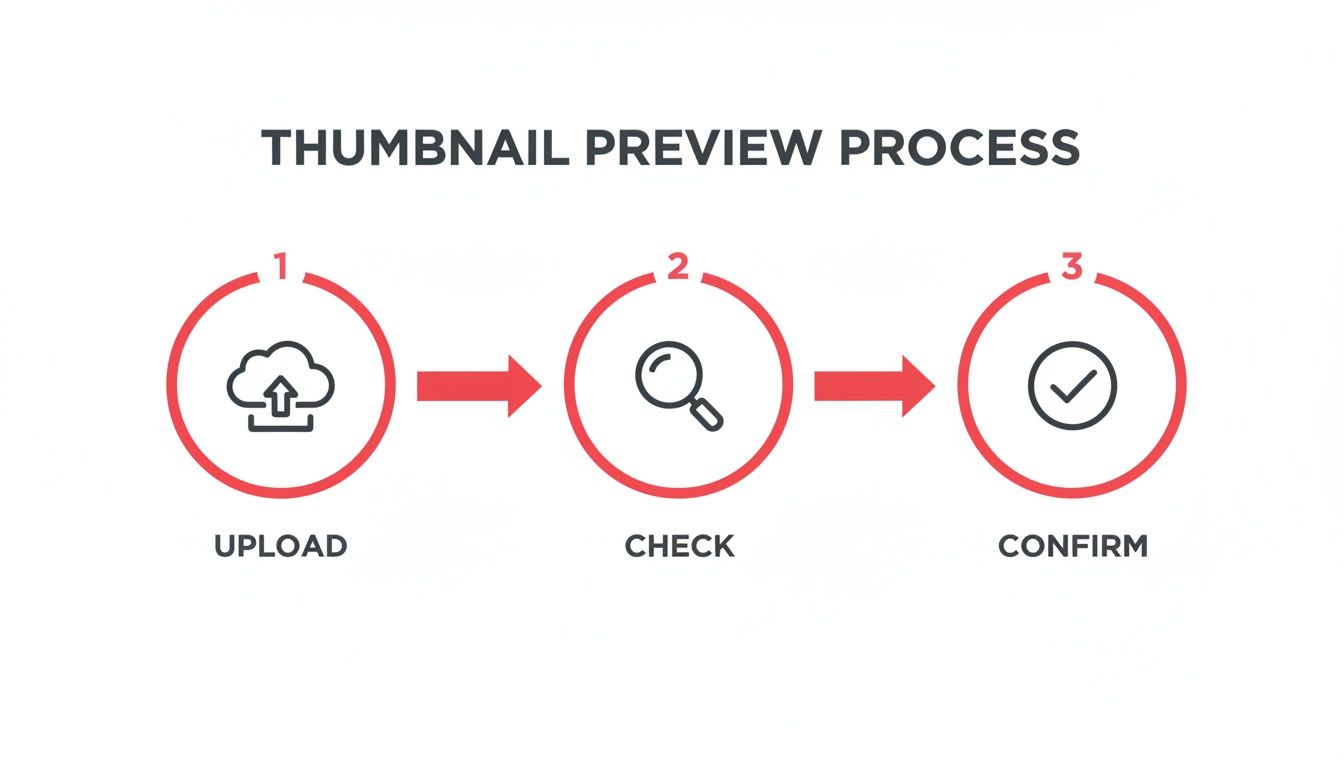
    A three-step infographic showing the thumbnail preview process: upload, check, and confirm.

    Treating this as a deliberate quality control workflow—not just a quick glance—is what separates the pros from the amateurs.

    Mastering The Desktop Browser Preview

    You don’t need any fancy software to get a solid idea of how your thumbnail will look on mobile. Your web browser already has surprisingly powerful tools built right in. My personal go-to for a quick and dirty mobile check is the "Inspect" feature in browsers like Google Chrome. It's a simple trick that tells you so much.

    Here’s how you can do it yourself:

    • First, open your thumbnail image file directly in a new browser tab.
    • Right-click anywhere on the image and choose "Inspect" from the context menu.
    • A developer panel will pop up. Look for an icon that resembles a phone and tablet (Toggle device toolbar) and click it.
    • From there, you can use the dropdown to select different device presets like "iPhone 12 Pro" or "Pixel 5" to see exactly how your design scales down.

    Look closely. Is your text still legible? Does the key subject of the image still command attention? This one check often reveals that a font needs to be bumped up a few points or an element needs to be enlarged to make an impact.

    The Shrink-And-Squint Test

    Beyond simulating specific phones, you have to remember where your thumbnail will live: in crowded YouTube feeds. It will be a tiny rectangle competing for attention in the "Up Next" sidebar, search results, and the homepage. In these spots, it's incredibly small.

    That’s why I rely on a simple, low-tech method I call the "shrink-and-squint test."

    Just zoom out on your design in Photoshop or Canva until it’s roughly the size of a postage stamp. Now, take a step back and squint your eyes. Can you still immediately tell what the video is about? Can you still feel the emotion? If it just turns into a colorful blob, it’s not going to cut through the noise. This test forces you to prioritize a strong, simple composition that works at any scale.

    A great thumbnail should pass the squint test with flying colors. If the core message is lost when it’s small and blurry, it won’t stand a chance in a busy subscription feed.

    One final check is to account for YouTube’s own interface elements. The little timestamp in the corner can easily cover up a crucial word or part of your image. To avoid this, a YouTube Safe Zone Checker is invaluable. These tools show you exactly where overlays will appear, helping you keep your most important visual information safe and clear.

    Comparing Thumbnail Preview Methods

    Choosing the right preview method often depends on how much time you have and what you need to check. Below is a quick breakdown to help you decide which approach fits best into your workflow.

    Preview Method Best For Key Advantages Potential Limitations
    Browser Dev Tools Quick mobile screen simulation Free and built into your browser; shows accurate scaling on different devices. Doesn't simulate YouTube's UI (e.g., timestamps) or color profile changes.
    The "Squint Test" Checking overall composition & impact Fast, simple, and excellent for testing visual clarity and emotional punch at a distance. Highly subjective; doesn't provide precise technical feedback on legibility.
    Safe Zone Checkers Final design and layout checks Pinpoints exactly where YouTube's UI overlays will appear, preventing crucial elements from being covered. An extra step in the process; focuses on layout, not color or compression.

    Ultimately, a combination of these methods will give you the most complete picture. I'll often start with the squint test to nail the composition, then use browser tools for a mobile check, and finish with a safe zone checker before finalizing the design.

    Advanced Previews With Third-Party Tools

    While the browser "squint test" is a great gut check, dedicated third-party tools give you a serious competitive advantage. They go way beyond just resizing your image. These tools simulate exactly how your thumbnail will look in the wild—on the YouTube homepage, in search results, and on different devices—right next to the videos you're competing against.

    This youtube thumbnail preview in a real-world context is what separates a good thumbnail from a great one. It’s one thing to love your design on a big monitor in your editing software, but it's another to see it get completely lost next to a dozen other flashy thumbnails in a search results mock-up.

    Seeing your thumbnail in its natural habitat immediately answers the critical question: Does it pop, or does it blend in?

    Testing for Visual Clarity and Accessibility

    The best preview tools don't just show you what your thumbnail looks like; they help you diagnose potential problems. Two of the most powerful features I’ve come to rely on are the blur test and color simulators.

    • The Blur Test: This is a simple but brilliant feature. It adds a slight blur to your thumbnail to simulate what a viewer sees in a quick, subconscious glance. If you can still make out the main subject and feel the intended emotion, you've nailed the composition. If it just looks like a muddy mess, your design is probably too busy.
    • Color Simulators: It's easy to forget that a significant number of people have some form of color vision deficiency. These simulators show you what your thumbnail looks like to someone with conditions like deuteranopia (red-green color blindness). This helps you ensure your color choices and contrast work for everyone, not just a portion of your potential audience.

    This isn't just about nitpicking your design. It's about making smart, data-informed decisions before you publish. You're moving from hoping your thumbnail performs well to knowing it's been tested for real-world conditions.

    Finding the Right Tool for Your Workflow

    So, where do you find these features? Many platforms you might already be using have them built right in. Tools like Canva and TubeBuddy integrate device and feed simulations directly into their design process, which is incredibly convenient. You can also find standalone web apps designed specifically for this, where you just upload your image and get instant feedback.

    As you explore, think about how a tool fits into your overall optimization strategy. If you're really committed to growing your channel, you might want to check out some of the best YouTube SEO tools available, as many of them bundle these preview features with other powerful analytics.

    Ultimately, the goal is to find something that feels like a natural part of your process. Make this final preview a mandatory step on your pre-publish checklist. It’s a small habit that pays off with consistently stronger video performance and long-term channel growth.

    Actionable Principles for High-Impact Thumbnail Design

    A creative workspace featuring a laptop displaying a person's face, an open notebook, and a design checklist.

    A perfect youtube thumbnail preview is only half the battle; no amount of testing can salvage a thumbnail that’s weak, confusing, or just plain boring. The good news? You don't need to be a graphic design wizard to create something that works. It's really about understanding the psychology behind a click.

    Think of your thumbnail as a tiny billboard on a packed digital highway. You have a split second to grab someone's attention, communicate your video's value, and spark enough curiosity to earn that click. Every single element—from the colors to the text—has to work in harmony to stop the scroll.

    Master Color and Contrast for Emotional Impact

    Color is your fastest way to set a mood without saying a word. Bright, saturated colors like yellows and reds can scream excitement or urgency. On the other hand, cooler tones like blues and greens often feel more professional, calm, or trustworthy. This isn't just about picking colors you like; it’s about choosing a palette that matches your video’s content and your channel’s vibe.

    But even more critical than the color itself is strong contrast. A light gray font on a white background might look slick on your big design monitor, but it turns into an unreadable smudge on a phone screen.

    • The High-Contrast Rule: Always place bright elements on a dark background or dark elements on a bright one. No exceptions.
    • Brand Consistency: Sticking to a consistent color palette helps viewers instantly recognize your content in a crowded feed. Over time, they'll spot your videos without even reading the title.

    This singular focus on contrast is what makes your thumbnail pop, even when it’s just a tiny rectangle in the "Up Next" sidebar.

    A great thumbnail should be just as clear in black and white. If you strip away the color and the composition still works, you know you’ve built a solid foundation.

    The Power of Expressive Human Faces

    There’s a simple reason why so many of the most-clicked thumbnails feature a human face: our brains are literally wired to connect with them. A face showing genuine surprise, joy, or confusion is an emotional shortcut, telling the viewer exactly how they should feel about the content before they even read the title.

    The data strongly supports this. Time and again, research shows that thumbnails with expressive faces can boost click-through rates by a staggering 20-30%. A human face creates an immediate connection and piques curiosity in a way that objects or graphics rarely can. You can get a deeper look into these YouTube thumbnail best practices to see just how powerful this is.

    Keep Text Bold, Minimal, and Clear

    When it comes to text on your thumbnail, less is always more. Your video's title is there for the details; the thumbnail text is your hook. Stick to just a few powerful words that add critical context or create a curiosity gap that the title can’t.

    Your text absolutely must be:

    • Large and Bold: Use a thick, clean font that’s easy to read even when shrunk down to the size of a postage stamp.
    • Concise: Seriously, aim for 3-5 words at the most. Think "MIND BLOWN" or "HUGE MISTAKE," not a full sentence.
    • Outlined or Shadowed: Adding a simple stroke or drop shadow makes your text pop right off the background, ensuring it’s readable no matter what image is behind it.

    This is no place for delicate, artsy fonts. Readability beats style every single time. Combine these three pillars—strong contrast, an emotional face, and minimal text—and you’ll have a thumbnail that’s not just designed to look good, but engineered to perform.

    Questions Creators Often Ask About YouTube Thumbnails

    Even with the best tools, you're bound to run into a few nagging questions when you're in the middle of designing a thumbnail. A solid preview workflow isn't just about following a checklist; it's about knowing how to solve those little problems that can bring your progress to a halt.

    Let’s get into some of the most common questions I hear from other creators.

    How Can I Preview My YouTube Thumbnail on a TV Screen?

    This is a great question, especially now that so many people watch YouTube on their living room TVs. The simplest way to do this is to just cast your computer screen to a smart TV.

    All you have to do is open your final thumbnail file in an image viewer, put it in full-screen mode, and cast it. This gives you an immediate, real-world sense of how your design holds up on a massive display. You'll instantly see if any text is pixelated or if the whole image looks blurry—things you’d never catch on your smaller computer monitor.

    What Is the YouTube Test and Compare Feature?

    This is YouTube's own A/B testing tool, built right into YouTube Studio for eligible creators. It’s a game-changer. The feature lets you upload up to three different thumbnails for the same video.

    YouTube then automatically shows these different versions to segments of your audience and tracks their performance. Crucially, it doesn't just look at clicks; it prioritizes "watch time per impression." This metric is gold because it tells you which thumbnail attracts viewers who actually stick around and watch the video, which is a powerful signal to the YouTube algorithm.

    Think of it as YouTube helping you find the best possible "advertisement" for your video—the one that brings in the most valuable, engaged viewers.

    Why Does My Thumbnail Look Blurry After Uploading?

    Ah, the dreaded blurry thumbnail. This is almost always caused by one of two things: low resolution or bad compression.

    First off, make sure you're starting with the right canvas size: 1280×720 pixels. If you design on a smaller canvas, YouTube has to stretch your image to fit, which is a surefire way to make it look soft and out of focus.

    The other culprit is file compression. YouTube requires your thumbnail to be under the 2MB limit. While many people default to JPG, I've found that saving your final image as a high-quality PNG often does a much better job of preserving the sharpness of text and graphics. It can be the difference between a crisp, professional look and that slightly fuzzy mess that kills your click-through rate.

    When Should I Update Thumbnails on Old Videos?

    Updating old thumbnails is a fantastic strategy for reviving your back catalog. The best videos to target are the ones with a low click-through rate (CTR) but high audience retention. You can spot these easily in your YouTube Analytics.

    Finding a video like this is like striking gold. It means the content itself is great—once people click, they love it—but the thumbnail just isn't doing its job. By giving that video a fresh, modern thumbnail, you can often trigger a new wave of impressions from the algorithm and give your proven content a second shot at success.


    Ready to stop guessing and start growing? ViewsMax provides the AI-powered tools and actionable insights you need to optimize your thumbnails, titles, and overall YouTube strategy. Discover how ViewsMax can help you create content that gets noticed.

  • How to Add Chapters to YouTube Video and Boost Watch Time

    How to Add Chapters to YouTube Video and Boost Watch Time

    Adding chapters to your YouTube video is one of the smartest, simplest things you can do to boost its performance. It’s not just about making your video easier to navigate; it’s a powerful strategy for increasing viewer engagement and, crucially, your total watch time. All it takes is a straightforward list of timestamps and titles in your video’s description to create a skippable table of contents that completely transforms the viewing experience.

    Why YouTube Chapters Are a Game-Changer

    Think of chapters as a roadmap for your audience. In an age of endless content and shrinking attention spans, giving viewers this kind of control isn't just a bonus—it's essential for keeping them from clicking away. When someone can instantly find the exact nugget of information they came for, they're far more likely to stick around.

    Picture a long tutorial on building a PC. A viewer who just needs to see the part about installing the RAM can jump right there instead of scrubbing aimlessly. Or imagine a two-hour podcast episode; a listener can easily skip to a specific guest's segment. You've just turned a potential bounce into a successful, engaged viewing session.

    The Real Impact on Your Channel's Growth

    This improved user experience sends all the right signals to the YouTube algorithm. The platform loves content that keeps people happy and watching longer. By adding chapters, you're telling YouTube your video is well-structured, user-friendly, and valuable, which can earn you better placement in search results and recommendations.

    The numbers don't lie. Properly implemented chapters can have a massive impact, sometimes boosting click-through rates by as much as 45% and increasing watch time by 25%. We've even seen channels get 12% more external traffic from Google search results after adding them. In a world where YouTube has over 2.5 billion monthly users, ignoring a feature this powerful is like leaving views on the table.

    Think of Chapters as a Strategic Tool

    At the end of the day, adding chapters is a key tactic in your overall marketing and branding for video success. It’s a low-effort move with a surprisingly high return.

    Here's what you gain:

    • Better Viewer Retention: You hold people's attention longer by empowering them to find the content most relevant to them.
    • A Nice SEO Bump: Google often indexes chapter titles, which can show up as rich snippets in search results and create multiple entry points to your video.
    • More Watch Time: This one seems backward, but it's true. Letting people skip ahead often increases total watch time because they engage deeply with the parts they care about instead of leaving altogether. If you want to dive deeper, check out our guide on what public watch hours on YouTube are and why they matter.

    When you break your content into logical segments, you're showing respect for your viewer's time. That simple act builds trust and makes them far more likely to subscribe and come back for more.

    How to Add Chapters to a YouTube Video Manually

    When you want total control over how your video is broken down, adding chapters yourself is the way to go. It might take a few extra minutes, but this hands-on approach is the most reliable way to make sure your chapters are perfectly accurate and the titles are optimized for both viewers and search engines.

    The whole process is surprisingly simple and happens right in your video's description box. You just create a list of timestamps with descriptive titles, and YouTube's system reads it and builds that interactive, segmented progress bar viewers love. It's a small bit of effort for a huge payoff in making your content more user-friendly.

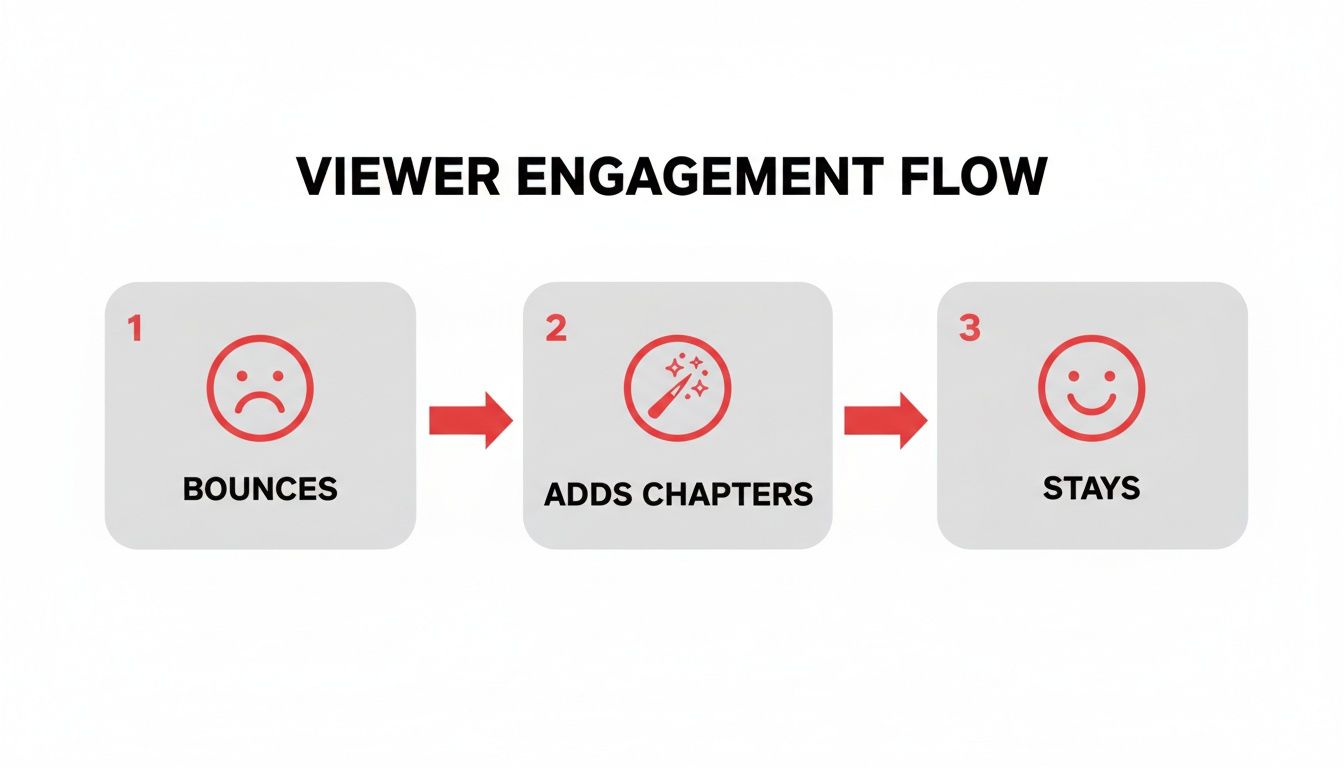
    Think of it this way: chapters can be the difference between a viewer sticking around or bouncing.

    Flowchart showing viewer engagement: bounces (sad face) -> adds chapters (magic wand) -> stays (happy face).

    As you can see, giving people a clear roadmap of your content is a powerful tool for keeping them engaged, especially if they’re looking for a specific piece of information.

    Getting Your Timestamps Formatted Correctly

    For YouTube to actually recognize and create the chapters, you have to play by a few simple, non-negotiable rules. Nailing the format from the get-go will save you the headache of wondering why your chapters aren't showing up.

    Here are the absolute must-haves:

    • Always Start at Zero: The very first timestamp in your list must be 00:00. This is the single most common mistake people make.
    • Keep Them in Order: Your timestamps have to be listed chronologically, moving from the start of the video toward the end.
    • Minimum Chapter Length: Each chapter needs to be at least 10 seconds long. You can't have super-short, rapid-fire chapters.
    • The Rule of Three: You need to have at least three timestamps in your list (including the 00:00 start) for YouTube to activate the feature at all.

    As for the timestamp format itself, YouTube is pretty flexible. You can use Minutes:Seconds (MM:SS) for most videos or switch to Hours:Minutes:Seconds (HH:MM:SS) for your longer, deep-dive content. The platform understands both perfectly.

    To make this crystal clear, here’s a quick-reference table summarizing the rules.

    YouTube Chapter Formatting Rules at a Glance

    Rule Requirement Example
    Starting Point The first timestamp must be 00:00. 00:00 - Intro
    Minimum Count At least 3 chapters are required. 00:00 - Intro, 01:30 - Tip 1, 05:00 - Outro
    Chapter Duration Each chapter must be at least 10 seconds long. 02:15 to 02:25 is valid; 02:15 to 02:20 is not.
    Sequence Timestamps must be in chronological order. 01:00 must come before 03:00.

    Bookmark this table or keep these points in mind, and you'll avoid the most common pitfalls.

    A Practical, Step-by-Step Example

    Let's walk through a real-world scenario. Say you just uploaded a 15-minute video called "Beginner's Guide to Photography" and you know the key sections you want to highlight for your audience.

    First, you'd head over to YouTube Studio, find your video, and click into the Details page. In the Description box, you’ll just type out your chapter list. It would look something like this:

    00:00 - Intro
    01:15 - Understanding the Exposure Triangle
    04:30 - How to Choose the Right Lens
    08:20 - Composition Rules for Beginners
    12:45 - Basic Photo Editing Tips
    14:50 - Final Thoughts & Outro

    See how clean that is? Each line has the timestamp, a space, a hyphen, another space, and then the title. The "timestamp – title" format is a classic for a reason. And if you need more guidance on what else to include, our guide on crafting the perfect YouTube video description template can really help flesh out the rest of this section.

    Pro Tip: Avoid generic labels like "Part 1" or "Next Topic." Instead, use descriptive, keyword-rich titles for your chapters. This is a game-changer because it helps viewers and gives Google more specific context about your video, which can lead to your individual chapters showing up as unique results in Google Search.

    Once you’ve typed your list into the description, just hit Save. YouTube will do its thing, and within a few moments, you’ll see those slick, interactive segments pop up on your video’s progress bar. It's a simple update that makes a world of difference for your audience.

    Using Automatic Chapters for a Faster Workflow

    Manually adding chapters gives you absolute control, but let's be realistic—sometimes you just don't have the time. If you're juggling a packed upload schedule, YouTube's automatic chapters feature can be a huge help. It uses AI to scan your video and create chapter segments for you, often in just a few minutes.

    The system is pretty smart. It analyzes your video’s audio and visual cues to find natural breaks. Think about a podcast where the conversation shifts to a new topic, or a tutorial where you clearly introduce the next step. These are the moments where the AI really gets it right, giving you a solid first draft of your chapters almost instantly.

    Of course, automation isn't perfect. It's a fantastic starting point, but you should always treat AI-generated chapters as just that—a draft. The system might misinterpret a pause or stick a chapter break in an awkward spot, so a quick human review is crucial to make sure everything looks good.

    How to Enable and Refine Automatic Chapters

    Getting this feature running is incredibly simple. You can turn it on for individual videos or even set it as a default for all your new uploads, which saves you a click every time you publish.

    Here’s the quick rundown for enabling it on a specific video:

    1. Head into your YouTube Studio and find the video you want to edit.
    2. Click on the Details tab.
    3. Scroll down to the bottom and click SHOW MORE.
    4. Look for the Automatic chapters section and tick the box for "Allow automatic chapters and key moments."
    5. Don't forget to hit SAVE!

    Once you've done that, YouTube's system will start processing. Give it a little time, then come back to the editor. You'll see the AI's suggestions and have the chance to review, tweak, or delete any of them. It's a great mix of AI speed and your own editorial control.

    This blend of automation and manual oversight is becoming a standard part of the creator workflow. To really speed things up, you might want to look into AI-powered video editing tools that can handle other tedious tasks, too.

    When Automatic Chapters Work Best

    While super convenient, this feature definitely performs better with certain kinds of videos. The AI needs clear signals to do its job well.

    Automatic chapters are a great fit for:

    • Structured Presentations: Videos with clear slides or talking points.
    • Interviews and Podcasts: Content with obvious topic shifts or speaker changes.
    • Listicle Videos: Think "Top 10" style videos where each point is a distinct segment.

    On the other hand, it can struggle with videos that flow more seamlessly, like vlogs or cinematic pieces without obvious breaks. For those, you're probably better off sticking with the manual method. It's all about knowing which tool to use for the job—balancing efficiency with creating the best possible experience for your audience.

    Turn Your Chapters into Traffic Magnets

    You've added chapters, which is a great start. But just having them isn't enough—optimizing them is where you'll see a real difference in your channel's growth. Think of it as the step that turns a basic feature into a powerful tool for boosting engagement and search traffic.

    Laptop on a wooden desk showing "Optimize Titles" on screen, with a notebook and sticky note.

    Your chapter list is essentially a table of contents that sells your video’s value right away. When someone lands on your video and sees a clear, compelling list of topics, they're far more likely to stick around because they know exactly what to expect. This instantly builds trust and can have a massive impact on your watch time.

    Write Titles for People, Optimize for Search

    Every chapter title has two jobs. First, it needs to grab the attention of a real person looking for specific information. Second, it has to tell YouTube's and Google's algorithms what that section is about. The trick is to do both at the same time by being descriptive and smart with your keywords.

    Steer clear of lazy, generic titles like "Part 1" or "Next Step." They offer zero context and do nothing for you. Instead, frame your titles as answers to questions or clear, concise descriptions of what happens in that segment.

    Generic vs. Optimized Chapter Titles

    Generic Title (Avoid) SEO-Optimized Title (Use)
    Part 1 How to Unbox Your New Camera
    Next Step Calibrating Monitor Color Accurately
    Conclusion Final Review & Top 3 Takeaways

    This simple tweak makes a world of difference. A title like "Calibrating Monitor Color Accurately" isn't just helpful for viewers; it's a phrase Google can index and show directly in search results. Suddenly, that little segment becomes a brand-new entry point to your video. If you want to dive deeper into this, check out our guide on how to find the best YouTube video keywords for your channel.

    The Psychology Behind a Great Chapter List

    A well-structured chapter list does more than just organize—it persuades. When viewers see that you’ve broken down a complex subject into digestible chunks, the content immediately feels less overwhelming and more approachable.

    This is a game-changer for long-form content. Someone might hesitate to watch a two-hour podcast, but they’ll gladly click on a 15-minute segment titled "Interview with a Marketing Expert." You're essentially giving them an easy "yes" by lowering the commitment.

    Key Takeaway: Your chapter list is a critical first impression. It needs to clearly communicate the video's value, showing that you’ve thoughtfully organized the content to respect your viewer's time and solve their problem.

    The rapid adoption of this feature proves its worth. When YouTube first rolled out chapters in early 2021, only about 15% of creators gave them a try in the first month. Just six months later, that figure skyrocketed to 45%, with many creators making it a standard part of their publishing routine. You can discover more YouTube statistics and insights at DataGlobeHub that highlight this trend.

    Ultimately, by treating each chapter title like a mini-headline, you can significantly improve your video’s performance. It’s a strategic move that makes your content more discoverable, more engaging, and incredibly valuable to your audience.

    Troubleshooting Common YouTube Chapter Issues

    It’s a familiar frustration: you’ve meticulously planned and typed out your video chapters, hit save, and… nothing. When chapters don't show up on your YouTube video, it’s almost always down to a small, easily missed detail. Let's walk through the usual suspects so you can get them working.

    A computer screen showing 'FIX CHAPTERS' on a desk with a keyboard, mouse, and office supplies.

    The number one culprit? Forgetting the 00:00 timestamp. For YouTube to even see your list as chapters, it must start right at the beginning of the video. Without that 00:00 entry, the whole system just ignores your list, no matter how perfectly formatted the rest is.

    Another common slip-up is getting the order wrong. Your timestamps have to be chronological. If you accidentally list 05:10 before 03:45, it breaks the logic, and YouTube won't display any chapters at all. It’s an all-or-nothing feature.

    Checking the Essential Chapter Rules

    If you’ve got the 00:00 start time locked in, there are a few other non-negotiable rules from YouTube. Running through this quick checklist usually uncovers the problem.

    Your chapter list needs:

    • At least three timestamps: This includes that all-important 00:00 start. A video with just an intro and one other section won't be enough to trigger the feature.
    • A minimum chapter length: Every single chapter segment has to be at least 10 seconds long. You can't have rapid-fire chapters just a few seconds apart.
    • Correct formatting: Keep it clean. Stick to the standard MM:SS or HH:MM:SS formats. A simple typo, an extra period, or a misplaced colon can throw the whole thing off.

    Think of it as giving YouTube a clear set of directions. If one of the steps is confusing or out of place, the system just gives up trying to follow them.

    Key Insight: A single out-of-order timestamp or a missing 00:00 start is enough to disable the entire feature. The system doesn't just ignore the broken part; it deactivates chapters altogether for that video until the error is fixed.

    Digging into Less Obvious Problems

    Okay, so your formatting is flawless, but the chapters are still MIA. Now we have to look at some less obvious issues that can override your hard work.

    Sometimes, the problem isn't with the video but with your channel itself. If your account has active Community Guideline strikes, YouTube might temporarily disable certain features, and chapters can be one of them. The same goes for any content flagged as potentially inappropriate for some viewers.

    Finally, take a look at your video description's layout. If you have other links or a block of text jammed right up against your timestamp list, it can sometimes confuse YouTube's system. The best practice is to give your chapter list some breathing room by adding a blank line both before and after it. Fixing these sneakier issues should get your video navigation back on track for your viewers.

    Frequently Asked Questions About YouTube Chapters

    Even after you get the hang of adding chapters, a few questions always seem to pop up. I see them in comments and forums all the time. Getting these sorted will help you dial in your strategy and use chapters like a pro.

    Let's dig into some of the most common ones I hear from other creators.

    How Many Chapters Should I Add to My Video?

    This is probably the number one question people ask. Is there a magic number? Not really.

    While you technically need at least three chapters for the feature to even work, the real answer depends entirely on your video. The goal is to break the video into logical, helpful parts, not to hit some arbitrary number.

    As a general rule of thumb, a typical 10 to 15-minute video usually feels right with somewhere between 5 and 10 chapters. If you're creating a long-form tutorial or a two-hour podcast, you could easily have 20 or more. Just make sure each chapter marks a genuine shift in topic or a new step in your process. Don't add chapters just for the sake of it.

    Can I Add Chapters to Old YouTube Videos?

    Yes, and you absolutely should! This is one of my favorite tips for breathing new life into older content. Going back and adding chapters to your evergreen videos is a killer strategy for re-optimizing your back catalog.

    Just pop into YouTube Studio, find an older video, and edit the description to add your timestamp list. It’s that easy. This simple tweak can give that content a fresh SEO boost, help it rank for new search terms, and make it way more useful for viewers who discover it months or years later.

    Key Insight: A lot of creators worry that chapters will kill their watch time because people will just skip ahead. It's a valid fear, but my experience—and the data—shows the opposite is true. I'd much rather have someone watch a 3-minute segment they care about than click away after 30 seconds because they couldn't find what they were looking for.

    Do YouTube Chapters Affect Monetization?

    They sure can, and almost always in a good way. By making your videos easier to navigate, you improve the viewer experience. A happier viewer watches longer, which sends all the right signals to the YouTube algorithm.

    This can lead to your video being recommended more often, getting more impressions, and ultimately, earning you more ad revenue. It's worth noting that chapter markers don't directly control where mid-roll ads appear—YouTube's system still handles that. But a better, more professional viewing experience is always good for your channel's health and your wallet.


    Ready to take the guesswork out of your YouTube strategy? The ViewsMax AI toolkit helps you brainstorm, optimize, and analyze your content for faster growth. Get started with ViewsMax and create smarter content today.

  • How to Start a Successful youtube channel: Quick Growth Tips

    How to Start a Successful youtube channel: Quick Growth Tips

    Starting a YouTube channel is about more than just hitting the record button—it's about building a brand from the ground up. The journey breaks down into three core phases: defining your niche, getting to know your specific audience, and then building a content plan that speaks directly to them. Nail this foundation, and you're already ahead of the game.

    Laying the Foundation for YouTube Success

    Before you even think about cameras or fancy editing software, the real work begins. This initial planning phase is your channel's blueprint; it provides the purpose and clear direction you'll need to stand out. It’s easy to get lost in the sea of generic advice, but a strategic start is what separates channels that thrive from those that just… exist.

    The secret sauce is balancing your genuine passion with what people are actually searching for. You have to find that sweet spot where what you love to create meets an audience that's hungry for it. Sure, you might be passionate about competitive dog grooming, but if only a handful of people are looking for it, building a sustainable channel will feel like an endless grind.

    Define Your Unique Niche

    Your niche is your specific corner of the internet. It's the topic that makes your channel the go-to resource for a particular group of people. Getting this right is what makes a viewer click on your video instead of the ten others in their feed. When you focus on a specific subject, you attract a dedicated, highly engaged audience that actually cares about what you have to say.

    Think about it this way—don't just be broad, get specific:

    • Instead of "Cooking," try "30-Minute Vegan Meals for Busy Professionals."
    • Instead of "Gaming," how about "Indie Horror Game Walkthroughs with No Commentary"?
    • Instead of "Fitness," you could do "Low-Impact Workouts for Seniors with Joint Pain."

    A focused niche helps the YouTube algorithm figure out exactly who to show your videos to, which can really kickstart your early growth. From day one, it's crucial to understand how to grow a YouTube channel fast with proven strategies. For more inspiration, we have a detailed guide on finding the https://blog.viewsmax.com/best-niche-for-youtube/.

    This whole foundational process—from niche to audience to plan—is a flow.

    A visual guide to the YouTube channel launch process, detailing steps for Niche, Audience, and Plan.

    As you can see, a solid content plan is built on a clear niche and a deep understanding of your audience.

    To help you think through this, here's a simple framework comparing how different types of niches stack up against key criteria.

    Niche Selection Framework Passion vs Profitability

    Evaluation Criteria High Potential Niche (Example: Gaming) Medium Potential Niche (Example: DIY Home Repair) Low Potential Niche (Example: Personal Vlogs)
    Audience Size Massive and diverse Large but more defined Small, limited to personal network
    Competition Level Extremely high Moderate to high Low to moderate
    Monetization Viability High (ads, sponsors, merch) High (affiliates, sponsors) Low (difficult to monetize)
    Personal Passion Varies by creator Depends on interest High, but niche is yourself

    This table isn't meant to discourage you from personal vlogs, but to highlight the trade-offs. A high-potential niche like gaming has a huge audience but intense competition, while a niche like DIY home repair strikes a good balance for many creators.

    Create Your Ideal Viewer Persona

    Once your niche is locked in, you can get crystal clear on who you're making videos for. Don't just settle for broad demographics like "men aged 18-34." Go deeper. Create a detailed "viewer persona"—give them a name, a job, and a backstory. What are their biggest frustrations? What other channels do they binge-watch? What makes them hit that subscribe button?

    Let's go back to our "30-Minute Vegan Meals" channel. Your persona might be "Stressed-Out Sarah," a 29-year-old marketing manager who works long hours. She wants to be healthy but is totally overwhelmed by complicated recipes. She needs quick, nutritious solutions that don't require a trip to a specialty grocery store.

    From now on, every video idea gets filtered through one simple question: "Would Sarah find this genuinely helpful?"

    Building a successful YouTube channel isn't about appealing to everyone. It's about becoming indispensable to a specific group of people who share a common interest or problem.

    If you’re worried you missed the boat, don't be. The numbers show there's still a massive opportunity. As of January 2025, YouTube's global ad reach hit a staggering 2.53 billion users, and there are around 2.7 billion people logging in every month. With over 113 million active channels out there, the key isn't just to exist, but to carve out your own dedicated space. By laying this strategic foundation, you position yourself to capture a loyal slice of that audience from your very first upload.

    Crafting Content That Captivates Your Audience

    Now that you've laid the groundwork, it's time for the fun part: making the videos. Great content is the heart and soul of any YouTube channel. It's the magnet that pulls in casual viewers and, over time, turns them into a community of loyal subscribers.

    The secret isn't some flash of creative genius for every single upload. Honestly, that’s a recipe for burnout. Instead, the pros build a repeatable workflow—a system for brainstorming, filming, and editing that feels natural and consistently produces high-quality videos.

    Never Run Out of Video Ideas

    Staring at a blank content calendar can be intimidating. The key is to stop thinking about what you want to make and start thinking about what your audience is desperately searching for. What problems are they trying to solve? What questions keep them up at night?

    Here are a few proven frameworks to get your brainstorming sessions rolling:

    • Problem/Solution: Find a common frustration in your niche and offer a clear, step-by-step solution. For a home repair channel, think "How to Finally Fix That Annoying Leaky Faucet." It's direct and solves a real-world problem.
    • Aspirational Content: Give your viewers a glimpse of what's possible. A channel about remote work could create a video like, "A Realistic Day in the Life of a Digital Nomad in Bali."
    • Tutorials & How-To Guides: These are absolute goldmines for evergreen traffic. Break down a complicated process into simple, bite-sized steps that anyone can follow.
    • Reviews & Comparisons: Your audience wants to make smart decisions. Help them by reviewing products, software, or services they're already considering.

    Once you've got a list, run each idea through a simple filter: Would "Stressed-Out Sarah" (our viewer persona from earlier) click on this? If it's a resounding "yes," you've got a winner.

    How to Structure a Video People Actually Watch

    A well-structured video is your best weapon for keeping people watching, which sends a massive positive signal to the YouTube algorithm. Don't just wing it. A little bit of planning makes a world of difference in your audience retention.

    I always recommend the classic Hook, Content, Call-to-Action (CTA) model. It's simple, and it just works.

    1. The Hook (First 15-30 seconds): You have to grab their attention immediately. Start with a bold claim, ask a provocative question, or show them the incredible end result they're about to learn how to achieve.
    2. The Content (The Meat of the Video): This is where you deliver on the promise of your title and thumbnail. Keep your energy high, use visuals to explain your points, and make sure the information is easy to digest.
    3. The CTA (The Big Finish): Don't just let the video end. Tell your viewers exactly what you want them to do next. Ask them to subscribe, leave a comment with their own experience, or check out another one of your videos.

    The first 30 seconds of your video are everything. Analytics consistently show that this is where the biggest drop-off happens. If you can hook them in that initial window, you'll see your average view duration climb dramatically.

    The easiest way to nail this structure is with a script. It doesn't have to be a word-for-word manuscript—even a bulleted list of your main talking points will keep you on track and prevent you from rambling. For a much deeper look, we've put together a full guide on how to write a script for YouTube videos that keeps viewers glued to the screen.

    The Essentials of Production and Editing

    You don't need a Hollywood-level studio to make great videos. In fact, some of the biggest creators started with nothing more than a smartphone. The trick is to focus on the two things that have the biggest impact on how professional your video feels: audio and lighting.

    Here’s a simple breakdown of gear you can get without breaking the bank:

    Equipment Category Budget-Friendly Option (Under $100) Why It Matters
    Audio Lavalier Microphone for Smartphones People will forgive so-so video, but they will not tolerate bad audio. It's an instant click-off.
    Lighting Ring Light or Small LED Panels Good lighting is like magic. It makes even a basic phone camera look sharp and professional.
    Stability Small Tripod or GorillaPod Shaky, handheld footage just looks amateur. A cheap tripod is an easy fix for this.

    When you get to the editing stage, remember that your job is to clarify your story, not to add a million flashy effects. Simple, clean cuts to remove pauses and mistakes are your best friend. Add some light background music to set the tone, and use text on screen to highlight important takeaways.

    Free software like DaVinci Resolve or CapCut is more than powerful enough to get you started. Your main goal is a clean, well-paced video that's easy to follow.

    Mastering the YouTube Algorithm for Maximum Discoverability

    You’ve poured hours into creating an incredible video. That’s a huge win, but it’s just the beginning. To really grow, you need to get your content in front of the right people, and that means understanding the single most powerful force on the platform: the YouTube algorithm.

    Think of the algorithm less as a gatekeeper and more as a very busy matchmaker. Its entire job is to connect viewers with videos they’ll love, keeping them watching for as long as possible. Your goal isn't to "beat" it; it's to give it crystal-clear signals about what your video is and who it's for. When you optimize your content, you’re essentially handing the algorithm a roadmap that leads directly to your ideal audience.

    A vlogger's desk setup featuring a DSLR camera on a tripod, a laptop editing video, and office supplies.

    A great production setup is essential, but discoverability is won after you hit export. It's all about how you package and present your video to both viewers and the algorithm.

    Cracking the Code of Titles and Thumbnails

    Your title and thumbnail are your video's first impression, its digital billboard. They work as a team to make a promise to a potential viewer, and their only job is to earn the click. This is measured by your click-through rate (CTR), arguably one of the most vital metrics for your channel's growth.

    A high CTR tells YouTube, "Hey, when people see this, they want to watch it!" In response, the algorithm shows it to more people. A low CTR sends the opposite signal, suggesting your packaging isn't hitting the mark, and the algorithm will likely stop recommending your video.

    So how do you craft a killer title? It's a blend of art and science. You need to include your main keyword for searchability but also inject some curiosity or an emotional hook to grab attention. Don't be afraid to experiment with different angles that spark interest.

    Your thumbnail has to back up the title's promise. We’re talking high-contrast colors, expressive faces (if you're on camera), and minimal, easy-to-read text. Remember, most people will see it on a tiny phone screen, so it has to be legible and compelling at a glance.

    The Power of Descriptions and Tags

    While they aren't as flashy as your thumbnail, your description and tags are a goldmine for the algorithm. Your video description is where you can really give YouTube the full context of what your video is about.

    Pay close attention to the first two or three lines—that's what shows up in search results. Make them count by summarizing the video's value and naturally including your primary keyword.

    From there, flesh out the rest of the description. It's a great place to add:

    • Timestamps: Help viewers find exactly what they're looking for in longer videos.
    • Helpful Links: Point to resources you mentioned, affiliate products, or your other content.
    • A Call-to-Action: Gently nudge people to subscribe or connect with you elsewhere.

    Tags have become less critical over the years, but they still help provide some extra context. Think of them as supplemental keywords. Add your main keyword, a few variations, and some broader related topics. Just be sure to keep them relevant; keyword stuffing won't do you any favors. For a deeper dive, check out our guide on how to find the right YouTube video keywords.

    A Quick On-Page SEO Checklist

    To make sure you’re hitting all the right notes every single time you upload, it helps to have a system. Following a quick checklist can turn optimization from a chore into a habit, ensuring you give every video its best shot at success.

    On-Page SEO Checklist For Every Video

    Optimization Element Best Practice Impact on Algorithm
    Title Combine a primary keyword with a compelling, curiosity-driven hook. Strong signal for search ranking and a key driver of CTR.
    Thumbnail Use a high-contrast, clear, and emotionally resonant image with minimal text. The #1 factor influencing a viewer's decision to click. High CTR is rewarded.
    Description Write a detailed, keyword-rich summary. Put the most important info in the first 2-3 lines. Provides deep context, improves search visibility, and can house valuable links.
    Tags Use a mix of specific and broad keywords relevant to the video topic. Offers supplemental context to help categorize and recommend your content.
    Timestamps Break down your video into chapters for easy navigation. Improves user experience and can lead to higher audience retention.

    This checklist isn't about gaming the system; it's about communicating clearly. When you consistently provide these signals, you're building a foundation for long-term discovery.

    The takeaway is simple: YouTube rewards videos that keep people on the platform longer. Every element—from your title and thumbnail to your description and tags—should be optimized to attract the right viewer and deliver an experience that makes them stick around.

    Mastering these on-page elements is a repeatable skill. It transforms uploading from a simple task into a strategic move, drastically increasing your chances of reaching the audience you’ve worked so hard to build.

    Getting Your Videos Seen: Launch and Promotion Strategy

    Modern desk with two computer monitors, keyboard, notebook, and pen, one screen displaying 'Boost Discoverability' for video content.

    Hitting "publish" isn’t the end of your work—it’s actually where the real hustle begins. That first 24 to 48 hours after a video goes live is a make-or-break window. During this time, the YouTube algorithm is watching closely, testing your content with a small slice of your audience. The initial numbers—views, watch time, and click-through rate—tell the algorithm whether your video is a hit or a miss.

    A big wave of early engagement sends a clear signal that people are loving your content, which convinces YouTube to show it to more and more viewers. Just sitting back and hoping for views is a recipe for failure. If you want to build a successful channel, you need a plan to give your video a serious push the second it drops.

    Create a Strategic Publishing Schedule

    Consistency is one of the most repeated pieces of advice on YouTube, but it's not just about uploading frequently. It's about being strategically consistent. Stop uploading the minute you finish an edit. Instead, figure out when your audience is actually online and ready to watch.

    Once you’ve published a handful of videos, your YouTube Studio Analytics will become your secret weapon. Head over to the "Audience" tab. You'll find a chart showing the exact days and hours your viewers are most active. If that chart lights up on Thursdays around 6 PM, guess what? You just found your new upload time.

    A smart publishing schedule isn't just for the algorithm. It trains your audience. They learn when to expect new content, turning them from casual viewers into loyal fans who show up on time for every new video.

    This one simple change—aligning your schedule with your audience’s habits—can make a huge difference in your initial view count and give the algorithm all the right signals.

    Use Other Platforms for an Initial Boost

    Don't box your promotion efforts into YouTube itself. The social media accounts, email list, or online communities you already have are goldmines for driving that critical early traffic. The trick is to share your content in a way that feels helpful, not spammy.

    Tailor your approach for each platform:

    • Social Media: Never just drop a link and run. Create a short, punchy teaser—think a 15-30 second highlight reel—and post it natively to platforms like Instagram Reels, TikTok, or X (formerly Twitter). Hook them with the best part, then end with a clear call-to-action to watch the full video on your channel.
    • Email Newsletter: The people on your email list are your core supporters. When a new video is live, send them an email explaining why it's worth their time and what they'll learn from it.
    • Online Communities: Find the Reddit, Facebook, or Discord communities where your people hang out. But first, become a real member. Participate, add value, and then, when it makes sense, share your video. Frame it as a solution or a helpful resource, not just a plug for your channel.

    This approach creates a web of entry points, funneling people from all over the internet to your video right when it matters most.

    The Power of Creator Collaborations

    Want a shortcut to a brand-new, perfectly matched audience? Collaborate with another creator. When someone your audience already knows and trusts gives you a co-sign, it builds instant credibility for your channel.

    Start by looking for creators who are roughly the same size as you and serve a similar audience, but aren't direct competitors. For example, if your channel is all about "budget travel hacks," you could team up with a creator who reviews "minimalist travel gear." The audiences are a perfect match, but the content is different enough to be complementary.

    When you reach out, don't just say "let's collab." Pitch a specific idea that provides real value to both audiences. It could be as simple as a shoutout, a guest appearance in each other's videos, or even a co-hosted livestream. This kind of cross-promotion is a classic win-win, giving both of you exposure to a new group of engaged viewers who are likely to stick around.

    Analyzing Your Performance to Fuel Growth

    Hitting "publish" on a video isn't the finish line—it's the starting gun. A truly successful YouTube channel is built on data, not just gut feelings. Diving into your YouTube Analytics is like getting a report card directly from your audience. It tells you exactly what they loved, what bored them, and what you should do next.

    Instead of getting overwhelmed by a sea of numbers, you need to zero in on the metrics that actually move the needle. These are the numbers that tell the real story behind your views and hand you a clear roadmap for what to create next.

    The Metrics That Truly Matter

    Look, not all analytics are created equal. A rising subscriber count feels fantastic, but it's often just a vanity metric. Real, sustainable growth comes from understanding the behavior that drives the numbers.

    Here are the core metrics you should become obsessed with:

    • Click-Through Rate (CTR): This is simple: what percentage of people who saw your thumbnail actually clicked on it? A strong CTR, typically above 5%, is proof that your title and thumbnail are doing their job and grabbing attention.
    • Audience Retention: This graph is your best friend. It shows you, second by second, when people are clicking away. High retention is a massive signal to the YouTube algorithm that your content is engaging and delivers on the promise you made.
    • Average View Duration (AVD): This is the average amount of time people spend watching your video. A longer AVD tells YouTube your content is high-quality and worth recommending to more viewers.

    When you look at these metrics together, that's where the powerful insights live. For example, a video with a killer CTR but terrible audience retention is a classic sign of "clickbait." People were intrigued enough to click, but they left in a hurry because the content wasn't what they expected.

    Your YouTube Analytics dashboard isn't just a pile of data; it's a direct conversation with your audience. Learn to listen to what the numbers are telling you, and you'll never run out of ideas that connect.

    Turning Data Into Actionable Content Decisions

    The real magic happens when you let this data guide your creative choices. Your analytics can inform everything from your next video topic to how you structure the first 15 seconds of your intro. It takes the guesswork out of building a successful channel and replaces it with a repeatable, data-backed strategy.

    Let’s walk through a real-world scenario. Imagine you run a channel about urban gardening. You post a video, "5 Common Balcony Gardening Mistakes," and notice it has an unusually high audience retention rate, especially during the part where you discuss pest control.

    That's a massive signal from your viewers. They're telling you they want more on that specific topic. Your next move is obvious: create a deep-dive video like "The Ultimate Guide to Natural Pest Control for Balcony Gardens."

    The YouTube Studio dashboard gives you a clean overview of these performance indicators.

    This dashboard lets you spot trends and identify your top-performing videos at a glance, making it easy to see what’s working and what’s not.

    How to Conduct a Regular Channel Audit

    To make this a sustainable habit, block off a little time each month for a simple channel audit. This isn't about getting lost in spreadsheets; it's about spotting trends and finding opportunities for your next batch of content.

    Here’s a simple framework for your monthly review:

    1. Find Your Top 3 Videos: Which videos brought in the most views and subscribers in the last 30 days? What do they have in common? Is it the topic? The format? The thumbnail style?
    2. Check Your Traffic Sources: Where are people finding you? Is it from YouTube search, browse features (like the homepage), or suggested videos? If you're getting a lot of traffic from browse and suggested, it means the algorithm is on your side.
    3. Review Retention on Your Last 5 Videos: Look for patterns. Are viewers consistently dropping off in the first 30 seconds? Your hooks probably need some work. Do you see spikes where people re-watch a certain part? That's a golden nugget of high engagement you need to replicate.

    This regular check-in keeps your strategy sharp and ensures you’re always adapting to what your audience craves. As you grow, you might also look for ways to expand your reach. Learning how to crosspost YouTube to TikTok can be a game-changer, helping you repurpose your best-performing content for an entirely new audience.

    Frequently Asked Questions About Starting on YouTube

    Overhead shot of a workspace with a tablet showing key metrics graphs, coffee, notebooks, and glasses.

    Jumping into YouTube for the first time brings up a ton of questions. I get it. Getting straight answers is the best way to build momentum and sidestep the common mistakes that trip up so many new creators.

    This section is all about tackling those big, pressing questions. We'll cover everything from gear to monetization, giving you the practical insights you need to get started with confidence.

    What Equipment Do I Really Need to Start?

    Let's clear this up right away: you do not need a professional studio to get started. Some of the biggest names on YouTube began with just a smartphone, and so can you. The most critical investments aren't in a high-end camera but in two areas that make a much bigger difference to your audience.

    Before you spend a dime on a camera, focus on these two things:

    • Clear Audio: Viewers will put up with so-so video quality, but they will absolutely not tolerate bad audio. It's an instant click-off. A simple lavalier microphone that plugs right into your phone can be a game-changer.
    • Good Lighting: You don't need to buy expensive studio lights. The best light source is free—just film in front of a window with natural daylight. If you need something more consistent for filming at night, a basic ring light is a fantastic and affordable next step.

    Once you’ve got a good workflow and start seeing some growth, then you can think about upgrading your camera. But for now, what you already have is more than enough to make great content.

    The quality of your ideas and the clarity of your audio will always, always matter more than the camera you use. Start simple, prove your concept, and upgrade your gear as your channel grows.

    How Often Should I Post New Videos?

    This is a big one. It's so tempting to think more is better, but consistency will always beat frequency. Trying to post daily is a surefire recipe for burnout, and it's a mistake I see countless creators make. It's far better to choose a realistic schedule you can actually stick to, whether that's once a week or even twice a month.

    When you post on a predictable schedule, your audience learns when to expect new content, which builds that all-important loyalty. It also gives the YouTube algorithm a clear signal. Start with a manageable goal, like one solid video per week, and just nail that rhythm.

    When Can I Start Making Money?

    Making money on YouTube is a marathon, not a sprint. The main way creators earn is through the YouTube Partner Program (YPP), which lets you run ads on your videos. But you have to qualify first.

    To get into the YPP, you need to hit two key milestones:

    1. 1,000 subscribers
    2. 4,000 hours of public watch time within the last 12 months

    Hitting these numbers can take a few months for some or over a year for others—it really depends on your niche and how consistently you create valuable content. Don't forget, there are other ways to earn, like affiliate marketing or selling your own products, which you can start exploring long before you qualify for the YPP.

    How Do I Get My First 100 Subscribers?

    Getting those first 100 subscribers can feel like the toughest climb. The secret isn't to appeal to everyone; it's the exact opposite. You need to create content that provides undeniable value for a very specific type of person in a well-defined niche.

    Make it a point to engage with every single comment you get. This is how you start building a real community from day one. You can also share your videos in relevant places like Reddit communities or Facebook groups where your ideal viewer hangs out—just make sure you're being helpful and not spammy. Your first wave of growth will come from being an active, valued member of a community, not just someone dropping links.


    Ready to stop guessing and start growing? ViewsMax gives you the AI-powered tools and data-driven insights you need to optimize your titles, find the right keywords, and make smarter content decisions. Build your successful YouTube channel with confidence by visiting https://blog.viewsmax.com.
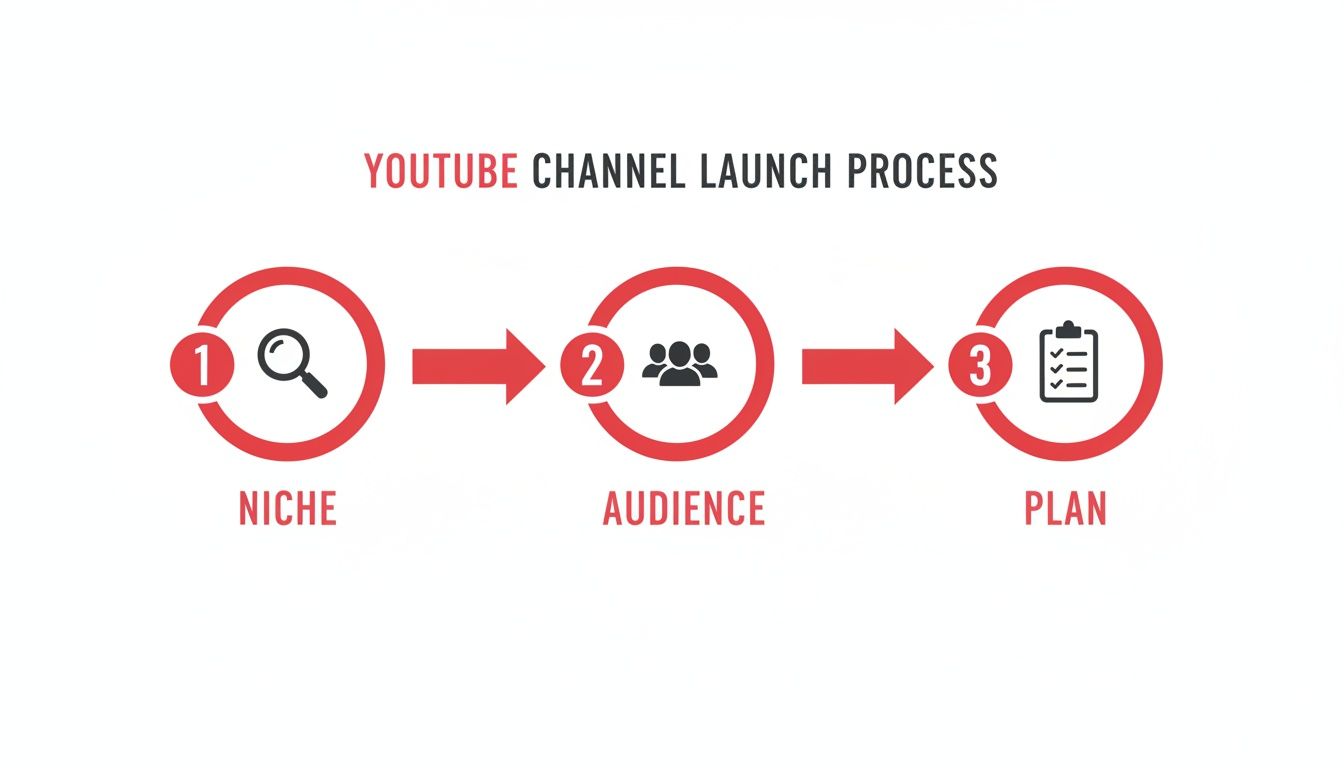
  • 12 Best YouTube SEO Tools to Dominate Search Rankings in 2026

    12 Best YouTube SEO Tools to Dominate Search Rankings in 2026

    Creating a viral video often feels like capturing lightning in a bottle. You can have a brilliant concept, high-quality production, and a charismatic personality, but without discoverability, your masterpiece might never find its audience. YouTube's algorithm is a complex system that prioritizes content viewers are actively searching for. This is where a strategic approach to search engine optimization becomes non-negotiable for channel growth. Simply uploading and hoping for the best is a recipe for stagnation.

    To truly compete and scale, you need to move beyond guesswork and embrace data. That’s the core problem the best YouTube SEO tools are designed to solve. They provide the analytics and insights necessary to understand search trends, analyze competitors, and optimize your video's metadata for maximum visibility. By aligning your content strategy with what people want to see, you significantly increase the chances of your videos ranking high in search results and being recommended to new viewers.

    This guide provides a comprehensive breakdown of the top 12 platforms that can give you that critical edge. We'll explore everything from all-in-one browser extensions like TubeBuddy and vidIQ to specialized keyword research tools like Ahrefs and powerful AI-driven platforms like ViewsMax. Each review includes a detailed analysis of features, pricing, and specific use cases to help you identify the perfect tool for your budget and workflow. To truly make your videos stand out, consider leveraging innovative UGC video creation tools that help you produce engaging content efficiently. Our goal is to equip you with the information needed to make a confident choice and start seeing tangible results.

    1. ViewsMax

    ViewsMax distinguishes itself as a premier choice among the best YouTube SEO tools by offering an end-to-end, AI-powered toolkit designed for the entire content lifecycle. It moves beyond simple keyword research, providing a comprehensive solution that guides creators from initial brainstorming and planning all the way through to on-page optimization and post-publication analysis. This holistic approach empowers users to create smarter, not just harder, by grounding their content strategy in actionable, data-informed insights.

    The platform's core strength lies in its ability to streamline complex SEO workflows. By delivering AI-driven recommendations for titles, descriptions, and tags, ViewsMax helps eliminate the guesswork that often stalls creative momentum. This focus on efficiency is amplified by its dedicated Chrome extension, which integrates these powerful optimization features directly into the YouTube upload interface, allowing for rapid, in-context adjustments that align with YouTube’s algorithm.

    ViewsMax blog posts offering tactical guidance on YouTube SEO

    Key Features & Use Cases

    ViewsMax is engineered to support creators at every stage of their journey, from independent vloggers to established brands.

    • AI-Powered Content Lifecycle Management: Its toolset covers brainstorming, planning, SEO, and performance analysis, making it an all-in-one command center for channel growth.
    • Data-Informed On-Page SEO: Receive optimized suggestions for titles, descriptions, and tags specifically designed to improve discoverability, click-through rates (CTR), and watch time.
    • Integrated Chrome Extension: Apply SEO best practices directly within your browser during the upload process, significantly speeding up your workflow and ensuring no optimization step is missed.
    • Creator-Focused Resources: An active blog and a library of best-practice templates provide ongoing education, offering tactical guidance on algorithm changes, monetization strategies, and audience engagement.

    Practical Tip: Use the AI brainstorming feature to generate a list of video ideas based on a core topic. Then, use the on-page SEO tools to craft a perfectly optimized title and description before you even start filming, ensuring your content is built for discoverability from the ground up.

    Pricing

    ViewsMax does not list its pricing tiers publicly in the provided materials. To get the most current information on plans and features, you will need to visit the website's dedicated Pricing page.

    Pros & Cons

    Pros Cons
    Comprehensive, end-to-end AI toolkit for the full content lifecycle. Pricing is not publicly available without visiting the site.
    Data-driven recommendations reduce guesswork and improve CTR. Explicit customer testimonials are not detailed in the provided content.
    Chrome extension provides seamless, in-workflow optimization.
    Extensive educational resources support creators at all skill levels.
    Scales effectively for solo creators, agencies, and brands.

    Website: ViewsMax

    2. TubeBuddy

    TubeBuddy is a long-standing and widely trusted browser extension that integrates directly into your YouTube Studio dashboard. It acts as an optimization co-pilot, providing a robust suite of tools designed to streamline your entire content workflow from research to publication and beyond. Its deep integration is what makes it one of the best YouTube SEO tools for creators who want immediate, context-aware insights without leaving the YouTube interface.

    TubeBuddy

    The platform shines with its "SEO Studio," a guided tool that helps you craft perfectly optimized titles, descriptions, and tags. You also get powerful keyword research tools, competitor analysis scorecards, and rank tracking. For creators serious about maximizing click-through rates, the A/B testing feature for thumbnails and titles (available on higher-tier plans) is an invaluable asset for data-driven decision-making.

    Key Features & Pricing

    Feature Free Plan Pro ($4.50/mo) Legend ($24.50/mo)
    SEO Studio Limited Yes Yes
    Keyword Explorer Limited Yes Yes
    Competitor Scorecard Limited Yes Yes
    A/B Testing No No Yes
    Bulk Processing No No Yes

    Pros & Cons

    • Pros: Deeply integrates into the YouTube interface, comprehensive toolset for the entire video lifecycle, excellent for bulk updates and workflow automation.
    • Cons: The interface can feel cluttered for new users, and the most powerful features like A/B testing are locked behind the most expensive plan.

    Using TubeBuddy's features effectively is a core part of a strong growth strategy; get a deeper understanding of these techniques with our guide on YouTube SEO optimization tips.

    Best For: Solo creators and channel managers who want an all-in-one optimization toolkit that lives directly inside YouTube.

    Visit Website: https://www.tubebuddy.com

    3. vidIQ

    vidIQ is a powerful creator growth platform, available as both a web app and a browser extension, that excels in providing data-driven insights for your channel. It functions as a strategic advisor, offering a suite of tools focused on keyword research, competitor analysis, and AI-powered content ideation. Its user-friendly interface and strong emphasis on education make it one of the best YouTube SEO tools for creators looking to understand the 'why' behind their growth.

    vidIQ

    The platform’s strength lies in its real-time video insights and "Daily Ideas" feature, which uses AI to suggest video topics with high growth potential tailored to your channel. vidIQ's keyword research tools provide clear volume and competition scores, helping you identify underserved niches. The channel audit and competitor tracking features allow you to benchmark your performance against similar channels, providing a clear roadmap for what’s working in your space.

    Key Features & Pricing

    Feature Basic (Free) Pro ($7.50/mo) Boost ($39/mo)
    Keyword Research Tool Limited Yes Yes
    Competitor Tracking 1 Channel 6 Channels 20 Channels
    Daily Ideas (AI) 3 Ideas 10 Ideas 50 Ideas
    Top Trending Videos Limited Yes Yes
    Channel Audit Tool Limited Yes Yes

    Pros & Cons

    • Pros: Excellent for content ideation with strong AI features, provides great educational support for newer creators, clean and intuitive user interface.
    • Cons: Pricing can be promo-driven and change frequently, and some advanced features rely on a credit-based system which can be limiting.

    Best For: New and intermediate creators who need guidance on content strategy and want AI-powered topic suggestions to drive their SEO efforts.

    Visit Website: https://vidiq.com

    4. Ahrefs – YouTube Keyword Tool

    While Ahrefs is a powerhouse in the general SEO world, its free YouTube Keyword Tool is a lesser-known gem that provides a simple, fast, and reliable way to gauge topic demand. Unlike browser extensions, this is a web-based tool that requires no login. It uses Ahrefs' sophisticated clickstream data to estimate monthly search volumes for any keyword on YouTube, making it one of the best YouTube SEO tools for quick, early-stage research and idea validation.

    Ahrefs – YouTube Keyword Tool

    The tool’s primary strength lies in its simplicity and global reach. You can instantly check keyword search volumes across more than 170 countries, which is invaluable for creators targeting international audiences. By simply entering a seed term, you get a list of related keyword ideas and their corresponding search volumes, allowing you to quickly size the potential audience for a video topic before you commit to production. It's a frictionless way to get data-backed insights.

    Key Features & Pricing

    Feature Free Tool Ahrefs Standard ($199/mo)
    YouTube Keyword Volume Yes Yes
    Country-Specific Volume Yes Yes
    Keyword Ideas Yes Yes
    SERP Analysis & History No Yes
    Rank Tracking No Yes

    Pros & Cons

    • Pros: Reputable data from a trusted SEO authority, extremely fast and requires no sign-up, excellent for international keyword research.
    • Cons: Volume data is an estimate, not official YouTube data; advanced features like SERP history are locked behind a full Ahrefs subscription.

    Understanding how to leverage these volume estimates is key; you can discover more about incorporating YouTube video keywords into your strategy with our dedicated guide.

    Best For: Creators and marketers who need a quick, free, and reliable tool to validate video ideas and estimate search demand, especially for global audiences.

    Visit Website: https://ahrefs.com/youtube-keyword-tool

    5. Keyword Tool (KeywordTool.io) – YouTube module

    Keyword Tool is a powerful, straightforward keyword research platform that excels at one thing: tapping into YouTube's autocomplete data to generate hundreds of long-tail keyword ideas. While it supports many platforms, its dedicated YouTube module is a goldmine for creators looking to understand what viewers are actively searching for. It stands out as one of the best YouTube SEO tools for pure, high-volume keyword discovery to fuel video ideas and optimize titles.

    Keyword Tool (KeywordTool.io) – YouTube module

    Unlike all-in-one extensions, Keyword Tool focuses solely on the research phase. It provides lists of related questions and keywords based on your seed term, which is invaluable for structuring your video content to answer specific audience needs. While the free version gives you the keywords, upgrading to a Pro plan unlocks crucial metrics like modeled search volume, competition level, and cost-per-click (CPC) data, turning raw ideas into a data-backed content strategy.

    Key Features & Pricing

    Feature Free Plan Pro Basic ($69/mo) Pro Plus ($79/mo)
    Keyword Suggestions Yes Yes Yes
    Search Volume Data No Yes Yes
    Competitor Analysis No No Yes
    Bulk Search Volume No No Yes
    API Access No No Yes

    Pros & Cons

    • Pros: Excellent for generating a large volume of long-tail keyword ideas, multi-platform support is great for cross-promotion, clean and fast user interface.
    • Cons: Core metrics like search volume are locked behind a pricey subscription, lacks the on-page optimization features of browser extensions.

    Best For: Content strategists and creators who prioritize in-depth, data-driven keyword research at the very beginning of their production process.

    Visit Website: https://keywordtool.io/pro

    6. Semrush App Center – Rank Tracker for YouTube (by Tubics)

    For marketers and creators already embedded in the Semrush ecosystem, the Rank Tracker for YouTube app by Tubics is a powerful, integrated solution. Rather than a standalone platform, it operates within the Semrush App Center, allowing you to monitor YouTube keyword performance alongside your broader digital marketing efforts. This makes it one of the best YouTube SEO tools for those who value a consolidated analytics dashboard and want to track video rankings seamlessly with their website SEO.

    The app’s core function is to track weekly ranking changes for your channel and your competitors across a specified set of keywords. It provides clear visualizations of keyword distribution, average rank, and overall visibility trends over time. This focused approach is ideal for monitoring the impact of your optimization efforts and keeping a close eye on your competitive landscape without needing a separate subscription or login.

    Key Features & Pricing

    The app is a paid add-on to a standard Semrush subscription.

    Feature Rank Tracker for YouTube (by Tubics)
    YouTube Keyword Tracking Yes (Up to 200 keywords)
    Competitor Rank Tracking Yes
    Weekly Ranking Updates Yes
    Keyword Distribution Metrics Yes
    Expandable Keyword Limits Yes (With add-ons)

    Pros & Cons

    • Pros: Seamlessly integrates with the Semrush platform, uses your existing login and billing, provides focused and clear rank tracking data.
    • Cons: Requires an active Semrush subscription to use, app pricing is separate from core Semrush plans, lacks broader channel optimization features.

    Best For: Marketing teams and SEO professionals who already use Semrush and want to add dedicated YouTube rank tracking to their toolkit.

    Visit Website: https://www.semrush.com/app-center/rank-tracker-for-youtube/

    7. Morningfame

    Morningfame is a YouTube-first analytics and keyword research tool that operates on an invite-only basis. It's designed to provide a guided, step-by-step process for creators, making it one of the best YouTube SEO tools for those who feel overwhelmed by complex data. Instead of just presenting metrics, Morningfame offers an opinionated workflow that helps you choose topics and optimize your metadata effectively, tailored specifically to your channel's current size and authority.

    Morningfame

    The platform's standout feature is its "Keyword Research for YouTube" tool, which breaks the optimization process into four clear steps: Choose a Topic, Craft Metadata, Checklist, and Analyze. It provides a unique "rankability" score that assesses your chances of ranking for a term based on your channel's specific performance, helping you avoid keywords that are too competitive. This focus on actionable guidance over raw data is what makes it so valuable for new and growing channels looking for a clear path to follow.

    Key Features & Pricing

    Feature Basic ($4.90/mo) Plus ($12.90/mo)
    Guided Keyword Research Limited Unlimited
    Rankability Scoring Yes Yes
    Channel Analytics Limited Yes
    Growth Recommendations Yes Yes
    Competitor Tracking No Yes

    Pros & Cons

    • Pros: Extremely approachable and simplified workflow for SEO, rankability scoring is calibrated to your specific channel size, combines analytics and optimization in one place.
    • Cons: Access is invite-based which can be a barrier for new users, and its analytics are less comprehensive than more advanced enterprise suites.

    Best For: Small or new creators who want a guided, step-by-step system for keyword research and video optimization without getting lost in data.

    Visit Website: https://morningfa.me

    8. TubeRanker

    TubeRanker is a web-based suite of YouTube SEO utilities focused on providing core optimization functions in a clean, accessible interface. It serves as a practical toolkit for creators who need to perform essential research and on-page analysis without the complexity of a browser extension or a heavy software installation. Its straightforward, task-oriented design makes it one of the best YouTube SEO tools for quick, targeted optimization sessions.

    The platform is built around several key utilities, including a dedicated keyword tool, a tag generator, and a rank tracker to monitor your video's performance over time. A standout feature is its Channel Audit, which provides a high-level SEO score and actionable recommendations for improvement. While it doesn't offer the deep data analytics of enterprise-level platforms, its focused approach is perfect for covering the fundamental aspects of video SEO efficiently.

    Key Features & Pricing

    Feature Free Premium ($29/mo) Agency ($59/mo)
    Keyword Tool Limited Yes Yes
    Tag Generator Limited Yes Yes
    Rank Tracker 10 Keywords 300 Keywords 1000 Keywords
    Channel Audit Limited Yes Yes
    Competitor Analysis No Yes Yes

    Pros & Cons

    • Pros: Very straightforward and easy-to-use interface, combines essential research and audit tools in one place, web-based so it's accessible from any device.
    • Cons: Data depth is not as extensive as more advanced tools, and free usage can be rate-limited, requiring pauses between searches.

    Best For: Creators and marketers who want a simple, no-frills web tool for foundational keyword research, tag generation, and performance tracking.

    Visit Website: https://tuberanker.com

    9. Keyword Tool Dominator – YouTube Autocomplete Tool

    Keyword Tool Dominator stands out with a simple yet powerful premise: it mines YouTube's autocomplete feature to uncover valuable long-tail keywords. Instead of a complex suite, it focuses on one thing and does it well, making it one of the best YouTube SEO tools for creators who prioritize topic ideation and long-tail discovery over deep analytics. Its major differentiator is its pricing model: a one-time purchase for lifetime access, which is a rare and welcome offering in a market dominated by monthly subscriptions.

    Keyword Tool Dominator – YouTube Autocomplete Tool

    The tool allows you to input a seed keyword and quickly generate hundreds of related search terms that real users are actively looking for. You can then filter these results to find questions, popular phrases, or specific long-tail variations. This straightforward approach is perfect for brainstorming video ideas that target less competitive, high-intent search queries. While it lacks search volume data, its strength lies in providing a direct look into the YouTube search bar at scale.

    Key Features & Pricing

    Feature YouTube Keyword Tool ($39.99) Keyword Tool Suite ($59.99)
    YouTube Keyword Tool Access Yes (Lifetime) Yes (Lifetime)
    Other Platform Tools No Yes (Google, Amazon, etc.)
    Unlimited Searches Daily No (Limit 50) No (Limit 50)
    Unlimited Keyword Downloads Yes Yes
    Future Updates Yes Yes

    Pros & Cons

    • Pros: Budget-friendly one-time payment for lifetime access, excellent for discovering long-tail keyword ideas, simple and focused interface that is easy to use.
    • Cons: Does not provide search volume or competition metrics, daily search limits apply, and the feature set is much narrower than subscription-based competitors.

    Best For: Creators and marketers on a tight budget who need a simple, effective tool for brainstorming and finding long-tail video topics.

    Visit Website: https://www.keywordtooldominator.com/pricing

    10. RapidTags (rapidtags.io generator)

    RapidTags is a straightforward, no-frills tool dedicated to one specific task: generating a list of relevant YouTube tags from a single seed keyword or video title. Its primary strength lies in its speed and simplicity, making it a go-to resource for creators who need to quickly brainstorm a set of tags without the complexity of a full-fledged SEO suite. While tags have a diminished role in YouTube's algorithm today, they still provide context, and this tool is one of the fastest ways to build a foundational list.

    RapidTags (rapidtags.io generator)

    The platform operates on a single-page interface where you enter your topic, and it instantly populates a list of related tags that can be copied with one click. There's no login, no setup, and no cost. While it lacks the data-rich insights of other best YouTube SEO tools (like search volume or competition scores), it serves a valuable purpose as a supplementary tool for quick ideation or for filling in the tag section when you've already optimized your title and description.

    Key Features & Pricing

    Feature Free Plan
    Fast Tag Generation Yes
    One-Click Tag Copy Yes
    TikTok Tag Generator Yes
    Account Required No
    Search Volume Data No

    Pros & Cons

    • Pros: Completely free to use with no account needed, incredibly fast and easy for brainstorming, simple one-click copy-paste workflow.
    • Cons: Provides no data on search volume or competition, tags are a less impactful SEO element now, should not be used as a primary research tool.

    Using a tool like RapidTags can kickstart your brainstorming, but understanding how to choose the most effective keywords is key. Dive deeper into this topic with our guide on finding the best tags for YouTube.

    Best For: Creators looking for a quick, free tool to generate a baseline set of tags to supplement their main SEO research.

    Visit Website: https://rapidtags.io/generator

    11. Keywords Everywhere

    Keywords Everywhere is a unique browser extension that overlays keyword data directly onto Google, YouTube, and other popular sites. While not exclusively a YouTube tool, its direct integration into the YouTube search results page and video pages makes it a lightweight yet powerful ally for on-the-fly keyword research and competitor analysis. It operates on a flexible credit system, making it an affordable option for creators who need data without a monthly subscription commitment.

    Keywords Everywhere

    The extension provides several YouTube-specific widgets, including a "Search Insights" box that shows search volume and trend data right below the search bar. It also features a "Video Insights" panel on video pages, which displays performance metrics and a complete list of the video's tags for easy analysis and inspiration. This immediate access to data within your natural browsing workflow is what positions it among the best YouTube SEO tools for quick, contextual research.

    Key Features & Pricing

    Keywords Everywhere uses a pay-as-you-go credit system. 1 credit = 1 keyword's volume, CPC & competition data.

    Feature Free Credits Required (Pay-As-You-Go)
    YouTube Search Insights Widget Yes Yes (for volume data)
    YouTube Video Insights Widget Yes Yes (for volume data)
    Extract Video Tags Yes No
    Related Keywords & Long-Tail Yes Yes (for volume data)
    Bulk Keyword Data Tool No Yes

    Pros & Cons

    • Pros: Works directly inside YouTube’s interface for in-context research, flexible and affordable pay-as-you-go credit model is great for light or occasional users.
    • Cons: Volume data is based on Google Search, not native YouTube data, and heavy users may find they burn through credits quickly.

    Best For: Creators and marketers who want a simple, budget-friendly tool for quick keyword research directly within the YouTube interface without a monthly fee.

    Visit Website: https://keywordseverywhere.com

    12. Google Trends

    While not a dedicated YouTube tool, Google Trends is an essential, free resource for high-level topic validation and strategic timing. It allows you to analyze the popularity of search queries on Google over time, giving you a powerful macro view of what audiences are interested in. This insight is invaluable for identifying seasonal trends, comparing the relative popularity of different video ideas, and discovering breakout topics before they become saturated. Its simplicity makes it one of the best YouTube SEO tools for initial brainstorming and market research.

    Google Trends

    The platform excels at providing directional data. You can see if a topic's interest is growing or declining, helping you decide whether to jump on a trend or focus on more evergreen content. The "Related Queries" feature is a goldmine for finding long-tail keywords and understanding the specific questions people are asking. By filtering the search type to "YouTube Search," you can get data that, while not as granular as other tools, directly reflects interest on the platform itself.

    Key Features & Pricing

    Feature Free Plan
    Interest Over Time Charts Yes
    Compare Search Terms Yes
    Related Topics & Queries Yes
    Regional Interest Data Yes
    Real-time Search Trends Yes

    Pros & Cons

    • Pros: Completely free to use, excellent for validating topic ideas and understanding seasonality, provides valuable regional interest data for targeted content.
    • Cons: Data is not as granular or YouTube-specific as paid tools, requires more interpretation to be actionable for video-level SEO.

    Best For: All creators during the initial brainstorming phase to validate video ideas and identify high-level audience interest and seasonality.

    Visit Website: https://trends.google.com/home

    Top 12 YouTube SEO Tools: Features Comparison

    Tool Core features ✨ Quality ★ Value & pricing 💰 Target audience 👥 Unique selling points ✨
    ViewsMax 🏆 AI end‑to‑end: idea → plan → titles/descriptions/tags → optimize → analyze + Chrome extension ★★★★ 💰 Plans vary — ROI‑focused (check Pricing) 👥 All creators, agencies, brands, educators, gaming channels ✨ AI guidance across workflow, templates, in‑browser optimization, active resources
    TubeBuddy Keyword research, SEO Studio, A/B tests, bulk edits, audits ★★★★ 💰 Freemium → advanced features on higher tiers 👥 Solo creators → brands, managers ✨ Deep YouTube Studio integration, mature ecosystem
    vidIQ Keyword research, AI topic/title generation, competitor insights, daily ideas ★★★★ 💰 Freemium; some features use credits 👥 Creators & small teams ✨ Strong AI ideation, competitor benchmarking, education
    Ahrefs – YouTube Keyword Tool YouTube keyword ideas with country volumes, no login required ★★★★ 💰 Free tool for quick volume checks 👥 Researchers, creators validating demand ✨ Clickstream‑based volume estimates, 170+ countries
    Keyword Tool (KeywordTool.io) Autocomplete keyword finder, Pro unlocks volumes/CPC, bulk analysis ★★★★ 💰 Pro paid (premium pricing) 👥 Cross‑platform creators, agencies ✨ Multi‑platform support, bulk reporting
    Semrush App Center (Tubics) Weekly rank tracking, competitor tracking, keyword distribution ★★★ 💰 Add‑on pricing via Semrush (separate) 👥 Semrush users, agencies ✨ Integrated Semrush workflows, scalable tracking
    Morningfame Rankability scoring, step‑by‑step SEO workflow, simplified analytics ★★★★ 💰 Invite/signup; affordable for small channels 👥 Small & growing channels ✨ Channel‑calibrated rankability, guided workflows
    TubeRanker Keyword & tag discovery, SEO audits, rank tracking ★★★ 💰 Affordable web suite 👥 Small creators seeking all‑in‑one ✨ Purpose‑built YouTube UI, straightforward tools
    Keyword Tool Dominator YouTube Autocomplete mining, filters, CSV export ★★★ 💰 One‑time purchase (lifetime access) 👥 Budget‑conscious creators ✨ Lifetime pricing, focused long‑tail discovery
    RapidTags Fast tag generation from topic/title, one‑click copy ★★★ 💰 Free, instant access 👥 Creators needing quick tag lists ✨ No‑login tag generator, TikTok tag option
    Keywords Everywhere Browser overlay: Search & Video Insights, tags, trends, bulk data ★★★★ 💰 Credits‑based pay‑as‑you‑go 👥 Light/medium users, researchers ✨ In‑context metrics across sites, flexible credits
    Google Trends Interest‑over‑time, regional comparisons, rising queries ★★★ 💰 Free 👥 Creators planning timing & seasonality ✨ Regional & seasonal trend validation

    Turning Tools Into a Winning YouTube Strategy

    Navigating the landscape of the best YouTube SEO tools can feel like the first major hurdle in your channel's growth journey. We've explored a wide array of options, from comprehensive, all-in-one platforms like ViewsMax and TubeBuddy to highly specialized keyword research assistants like Ahrefs and Keyword Tool Dominator. But the most powerful tool isn't found on any list; it's the strategic system you build around your chosen software.

    The real challenge isn't just acquiring a tool, it's committing to a data-informed workflow. The creators who see exponential growth are the ones who move beyond guesswork and let analytics guide their content decisions. They don't just use a tool to find a keyword; they use it to understand viewer intent, analyze competitor weaknesses, and identify emerging trends before they become saturated.

    From Analysis Paralysis to Actionable Insights

    With so many metrics and features at your fingertips, it’s easy to get lost in the data. The key is to start small and focus on the one or two areas that will have the most significant impact on your channel right now.

    • If you struggle with topic ideation: Start with a tool like vidIQ or Morningfame. Focus solely on their daily ideas or topic research features. Spend a week generating a list of 20 video ideas backed by search volume and low competition scores before you even think about optimizing a title.
    • If your titles and descriptions are weak: Make a dedicated tag generator like RapidTags or a comprehensive optimizer like TubeBuddy your primary focus. Your mission for the next month is to re-optimize your top 10 underperforming videos with better metadata and track the change in viewership.
    • If you feel like you're creating in a vacuum: Your priority should be competitive analysis. Use the channel audit features in tools like ViewsMax or Semrush’s Rank Tracker to deconstruct what’s working for the top players in your niche. Understanding their strategy is the first step to creating your own.

    This focused approach prevents overwhelm and ensures you're building skills sequentially. Once you master one aspect of YouTube SEO, you can integrate another tool or feature into your routine.

    Selecting Your YouTube SEO Toolkit

    So, how do you choose the right starting point from this extensive list of the best YouTube SEO tools? It boils down to your specific needs, budget, and current stage of growth.

    Ask yourself these critical questions:

    1. What is my biggest current bottleneck? Is it finding video ideas, writing compelling titles, understanding analytics, or tracking my rank against competitors? Your answer will point you toward either a specialized tool or a broad platform.
    2. What is my budget? Free tools like Google Trends and the basic tiers of many browser extensions are powerful starting points. If you're ready to invest, consider the ROI. Will a $20/month subscription save you hours of research and potentially generate hundreds of dollars in ad revenue?
    3. How much time can I commit? A comprehensive platform like Ahrefs offers incredible depth but has a steeper learning curve. If you have limited time, a more intuitive, workflow-oriented tool like ViewsMax or Morningfame might provide a quicker path to results.

    Remember, your YouTube strategy doesn't exist in isolation. Understanding the broader digital landscape is crucial for sustainable growth. To complement your YouTube SEO efforts, exploring the best competitive analysis tools for marketers can provide invaluable insights into your market, revealing competitor strategies that extend far beyond the YouTube platform.

    Ultimately, these tools are catalysts, not magic wands. They provide the data and efficiency needed to make smarter decisions, but success still hinges on your ability to create high-quality, engaging content that resonates with your audience. The goal is to build a system where the tool handles the heavy lifting of data analysis, freeing you up to focus on what truly matters: creating amazing videos that your viewers will love and share.


    Ready to transform your YouTube workflow from reactive to proactive? ViewsMax is designed to be the central hub for your entire content strategy, integrating keyword research, competitive analysis, and performance tracking into one seamless platform. Stop juggling multiple tabs and start building a smarter, data-driven YouTube channel today with ViewsMax.